
Create a headshot style, add profile banners, then generate for your whole team in one run.
Team Headshots is a two-part workflow: first define a visual style and optional profile banners, then select members and generate. Every output is saved per member and accessible from the team page.
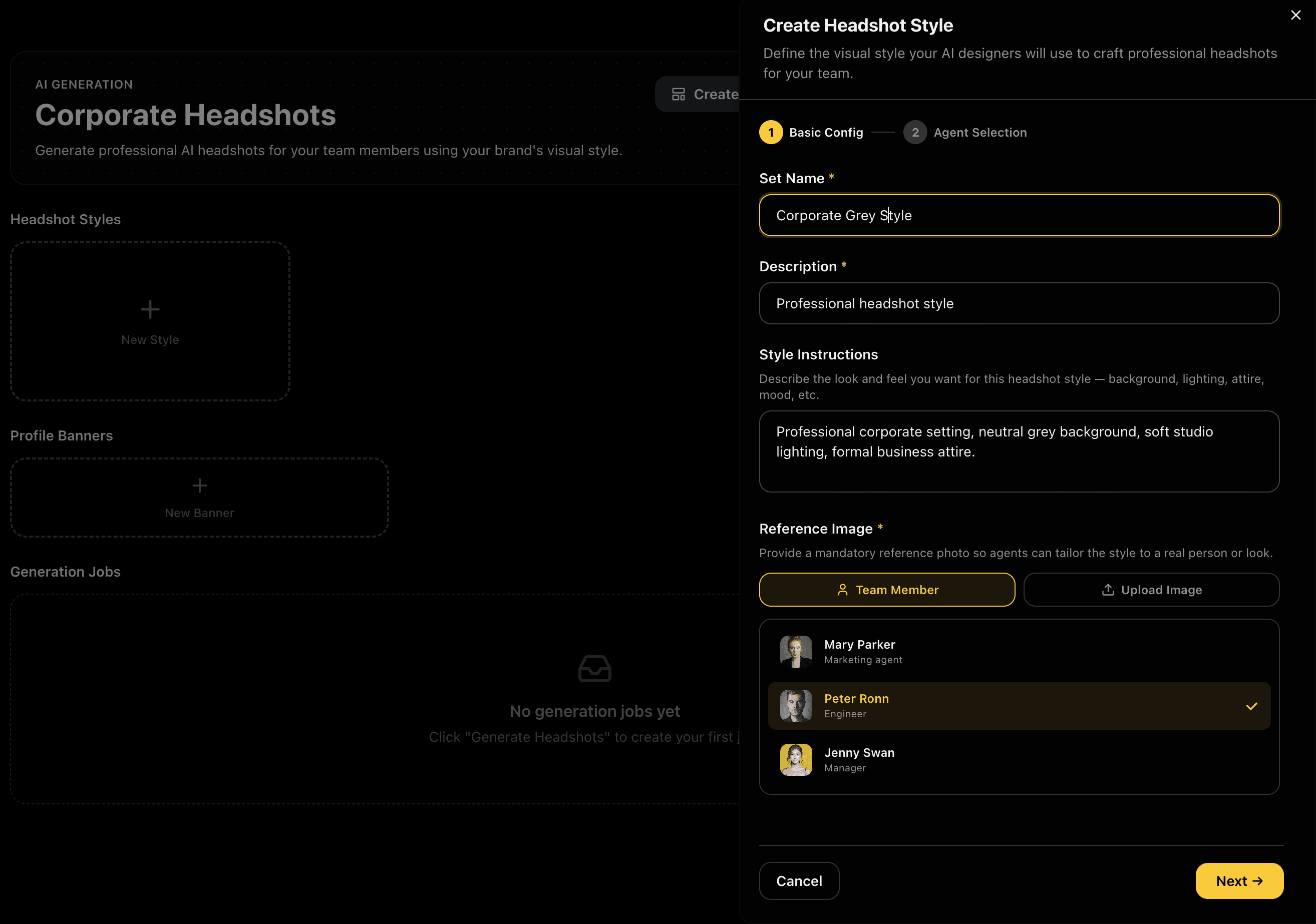
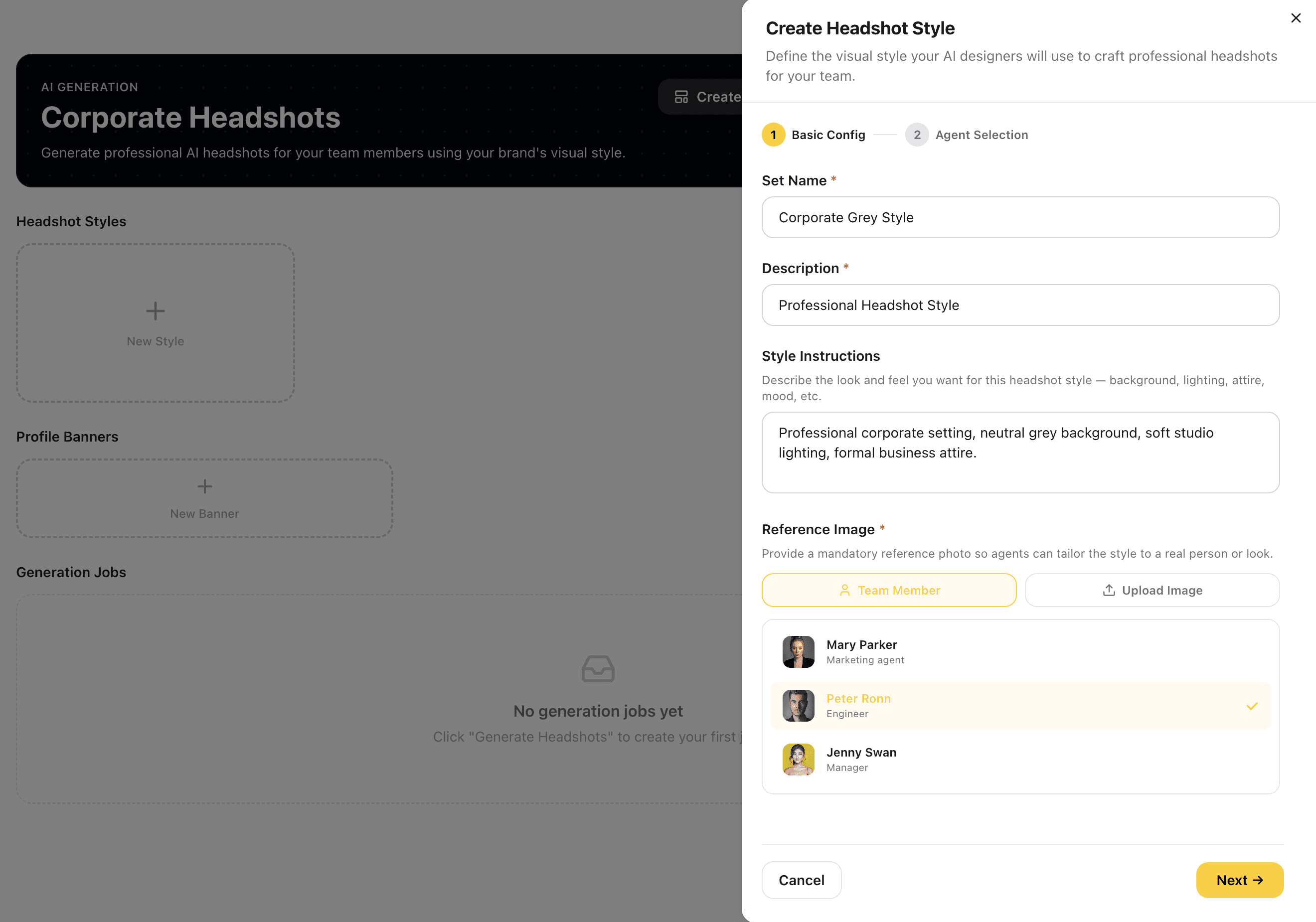
Create Your Headshot Style
Start by creating a named headshot style set. Write style instructions to define the look, background type, lighting mood, attire, and focus. Add a mandatory reference photo so agents can tailor concepts to a real person. The style you create here becomes the approved baseline for every headshot in this run.
A well-written style brief with a strong reference photo anchors every agent's output to your brand's visual language.
Captures
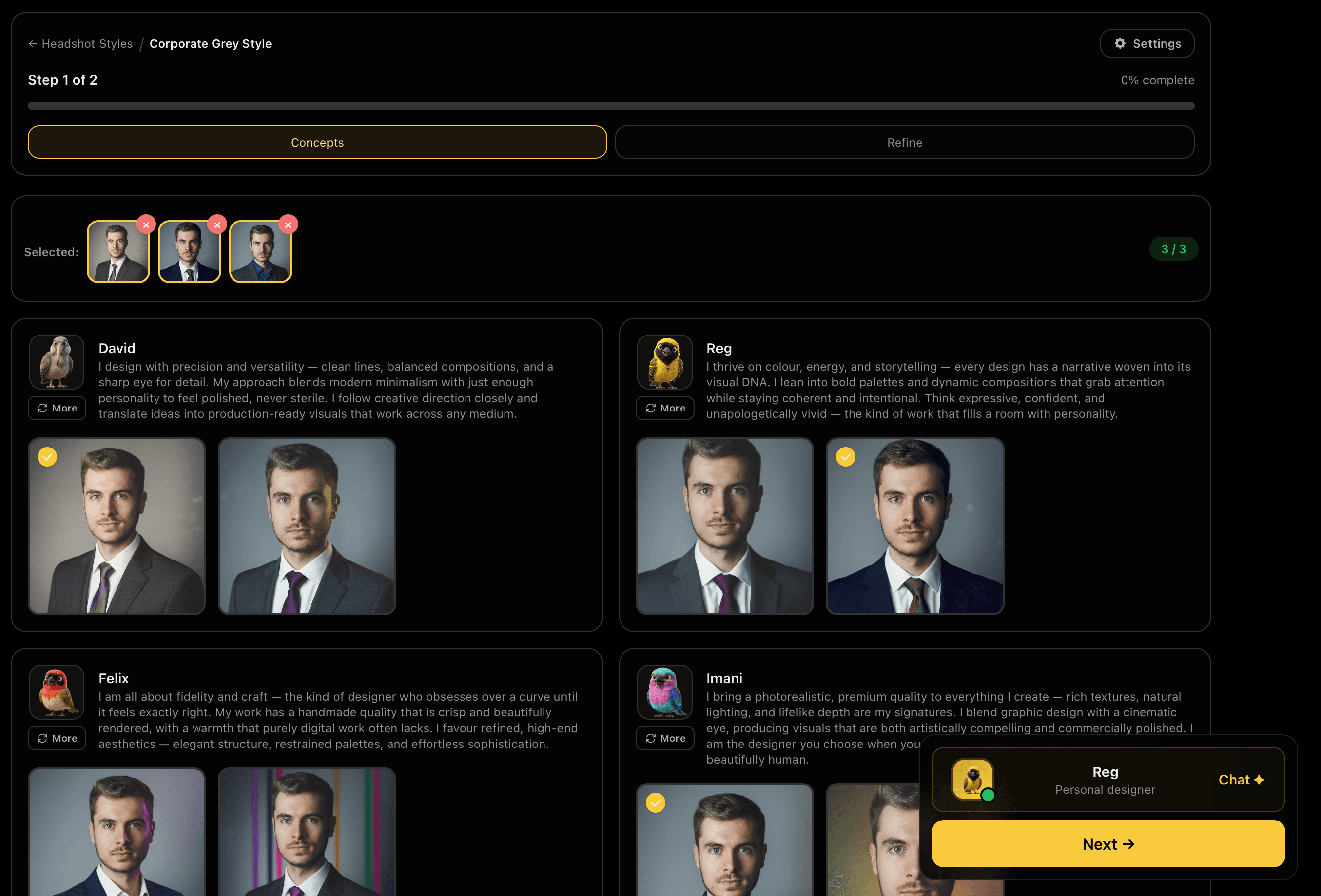
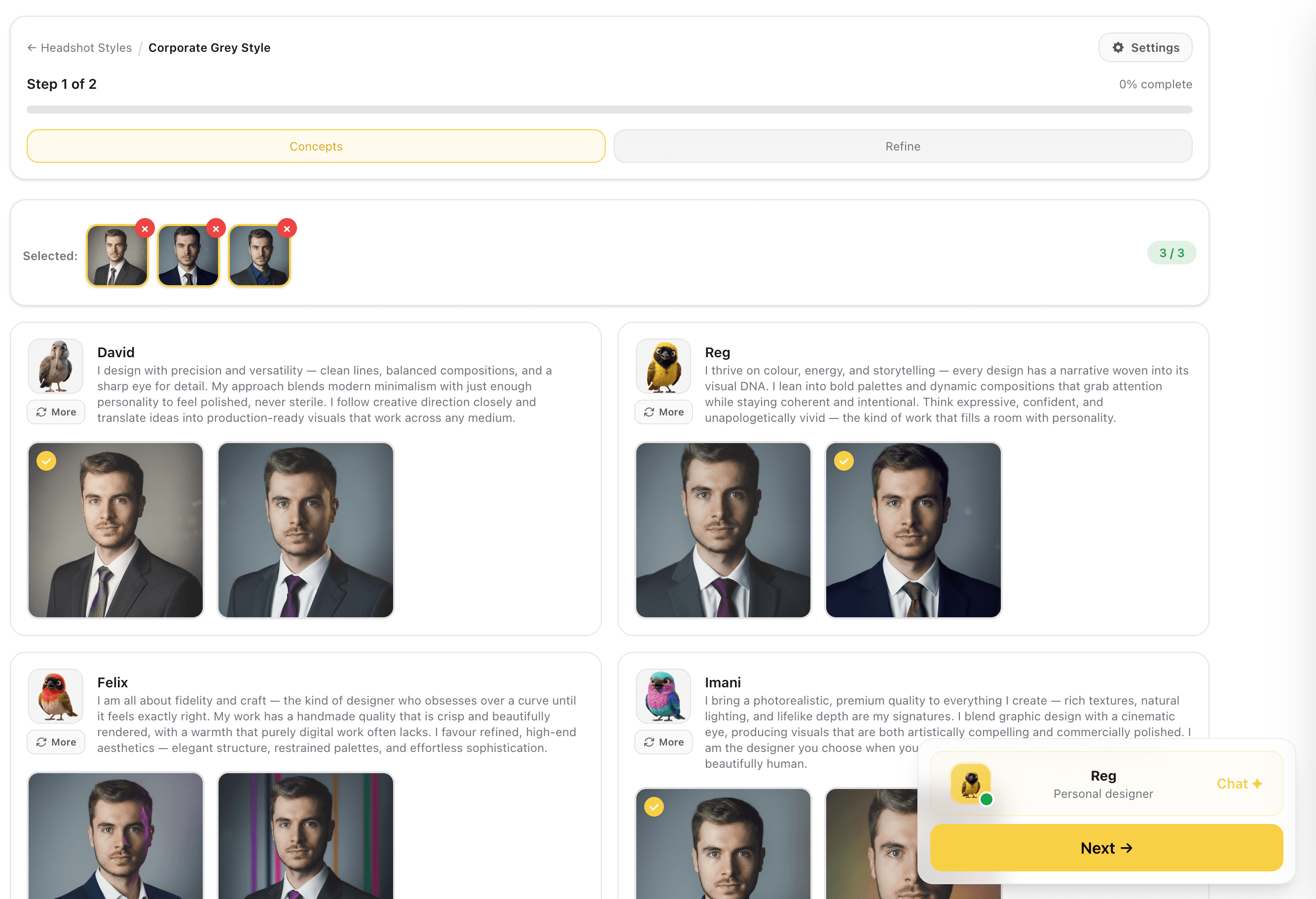
Assistant Agents Generate Style Concepts
Design agents, each interpret your style brief and generate their own headshot concepts in real time. Each agent brings a different approach to composition, lighting, and presence. Review all results side by side and select up to 5 concepts to carry into refinement.
Multiple agent interpretations give you genuine creative range instead of slight variations of the same result.
Captures
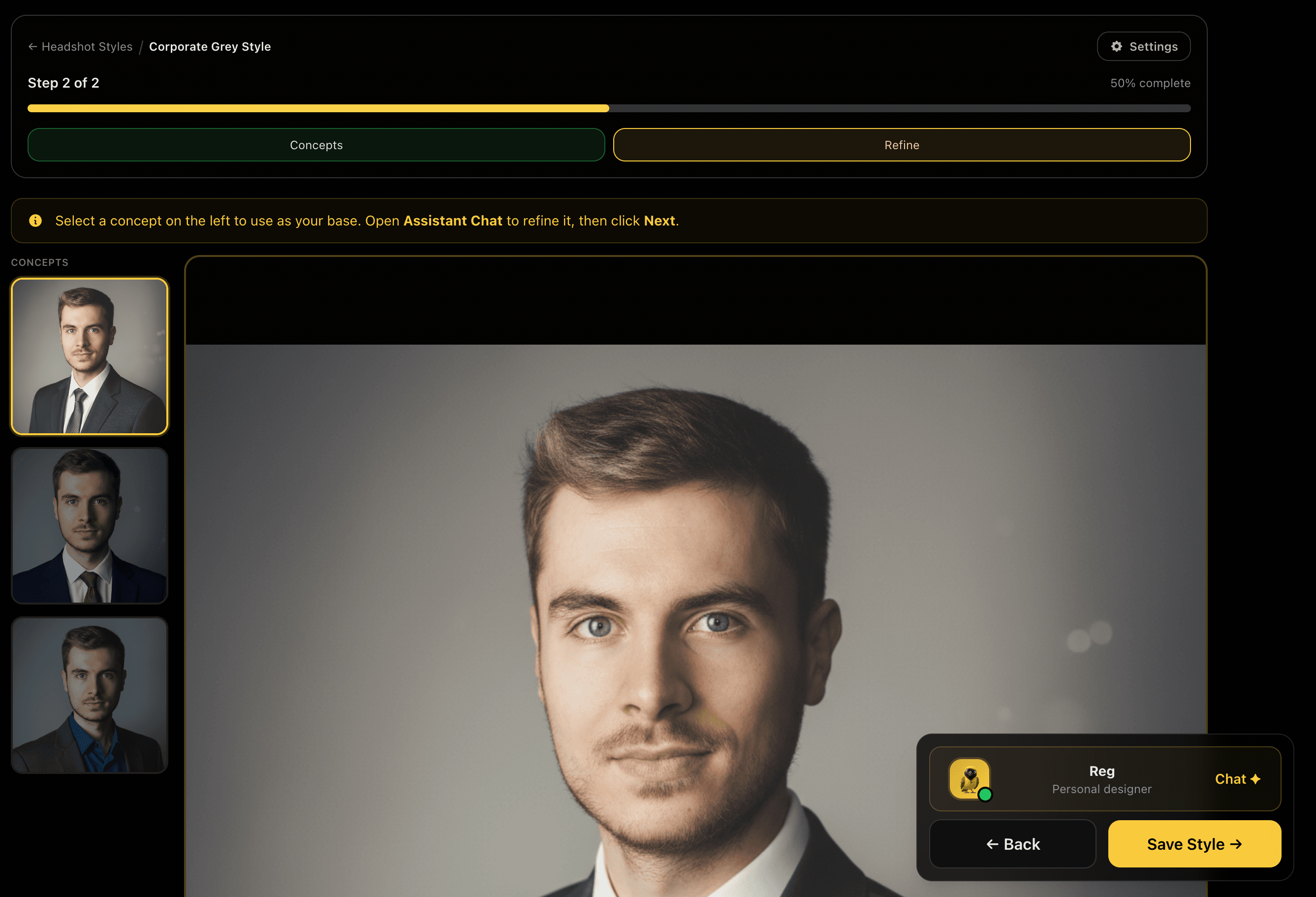
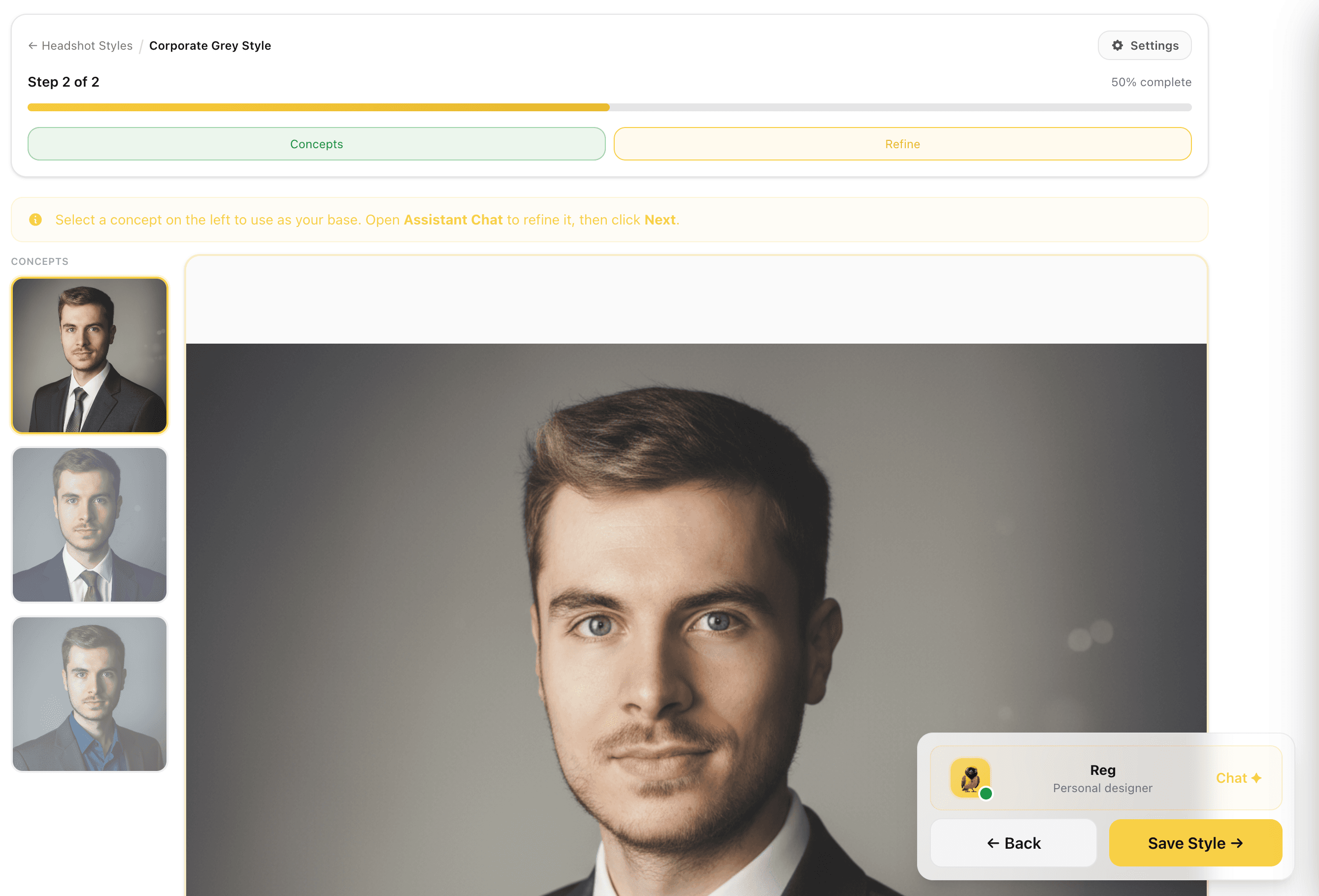
Pick Your Base and Refine
Choose one concept as your base, the image you'll refine and save as the approved style. It's shown at full size so you can properly assess the lighting, background, and how the look sits. Open the Assistant chat to adjust before saving: shift the lighting, change the attire, tighten the background. When it's right, save the style.
Refining before saving means every team member's headshot generates from a tested, approved look, not a first draft.
Captures
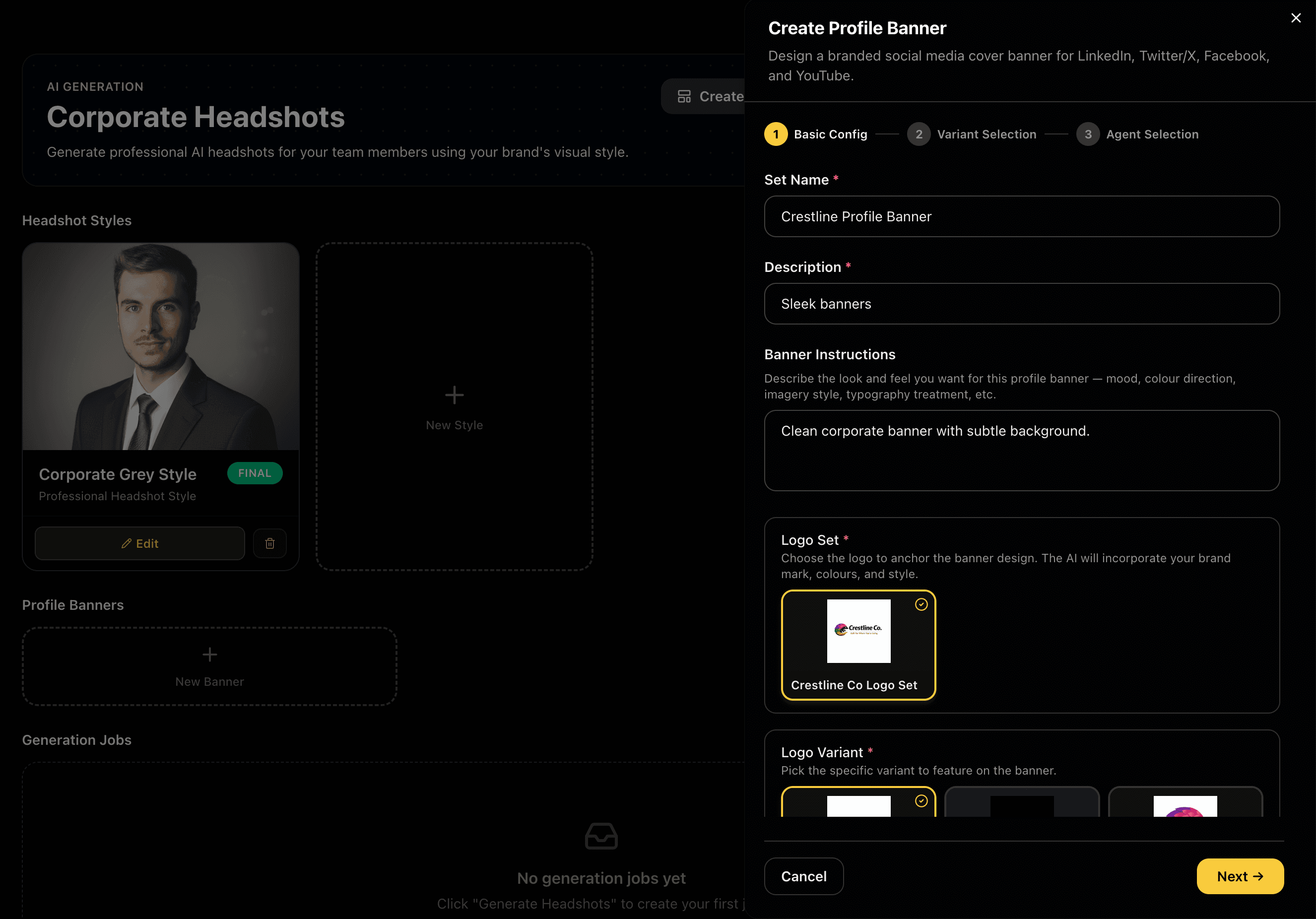
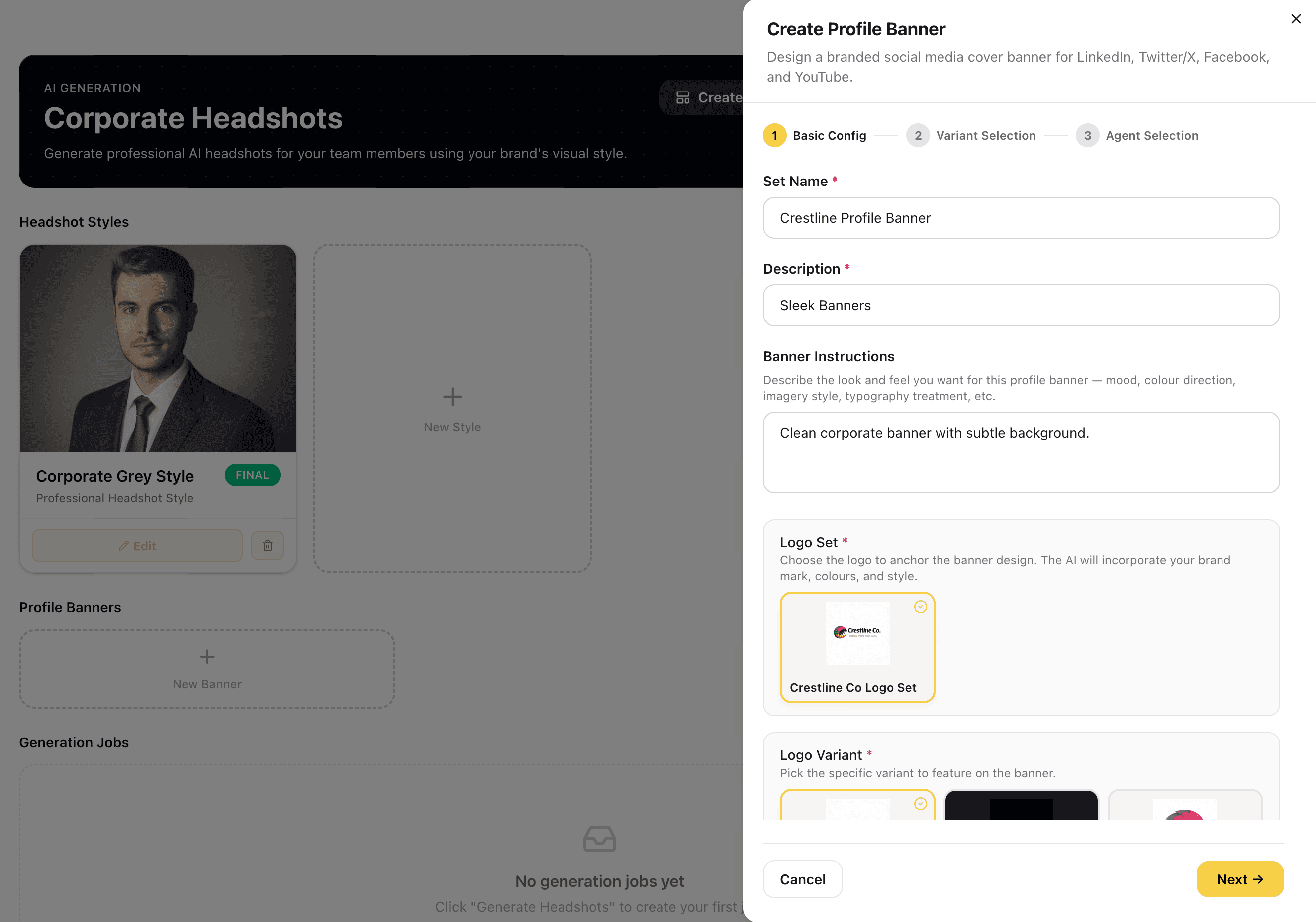
Create a Profile Banner
Alongside headshots, create a branded profile banner for use across social platforms. Name it, write banner instructions to define mood, colour direction, and imagery style. Then link the banner to a specific logo set and choose exactly which logo variant appears: Primary Light, Primary Dark, Icon Only, and more.
Linking the banner to an approved logo variant ensures the team's social profiles carry the same visual identity as every other branded output.
Captures
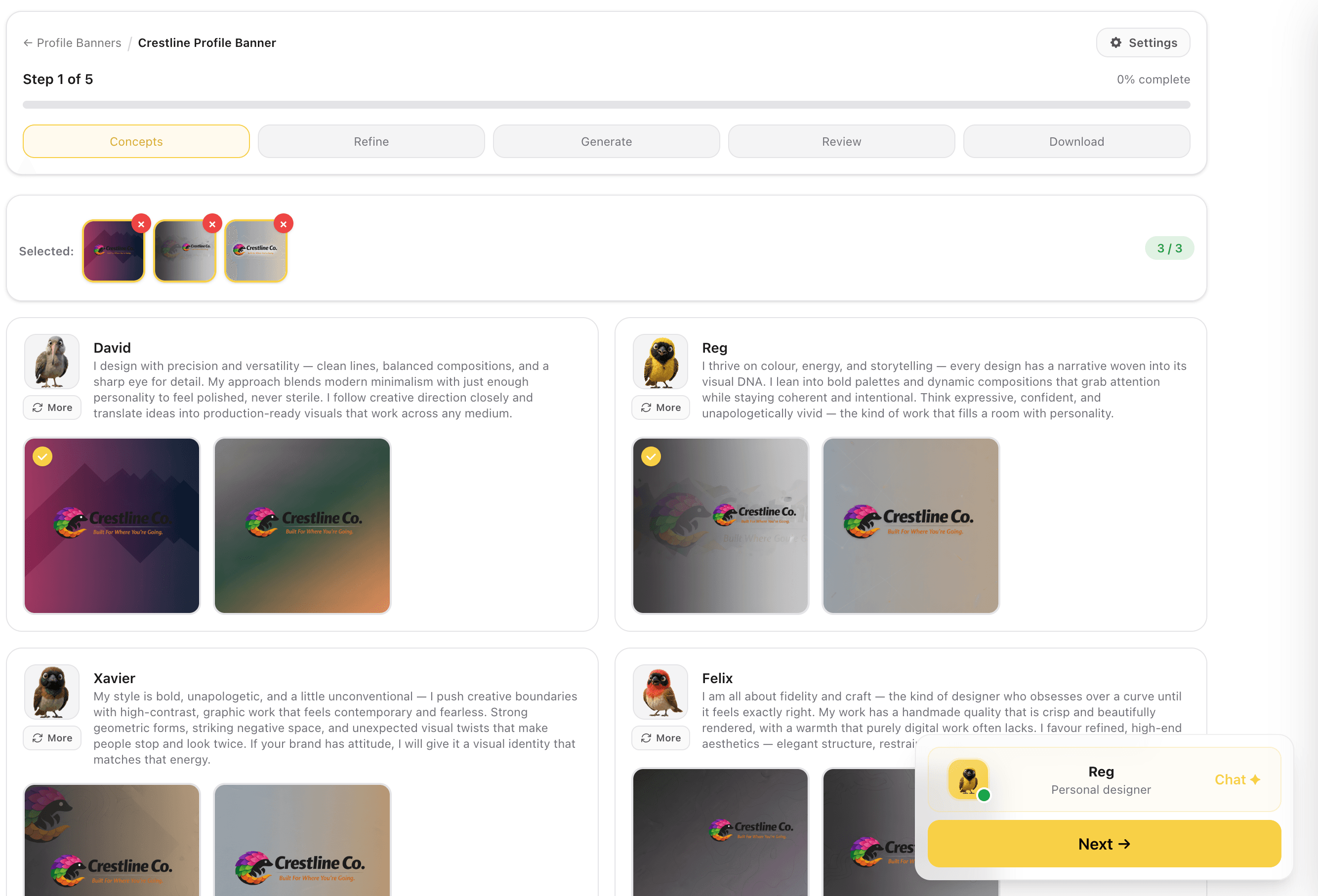
Banner Concepts from Assistant Agents
Assistant agents each generate their own banner concept. Select up to 3 to carry into refinement. Each agent brings a different compositional approach, layout, colour balance, and how the logo sits within the scene. Pick concepts with the strongest structure, not just the closest colour match.
Different agents interpret the same brief differently, so you get real creative range to choose from before committing to a direction.
Captures
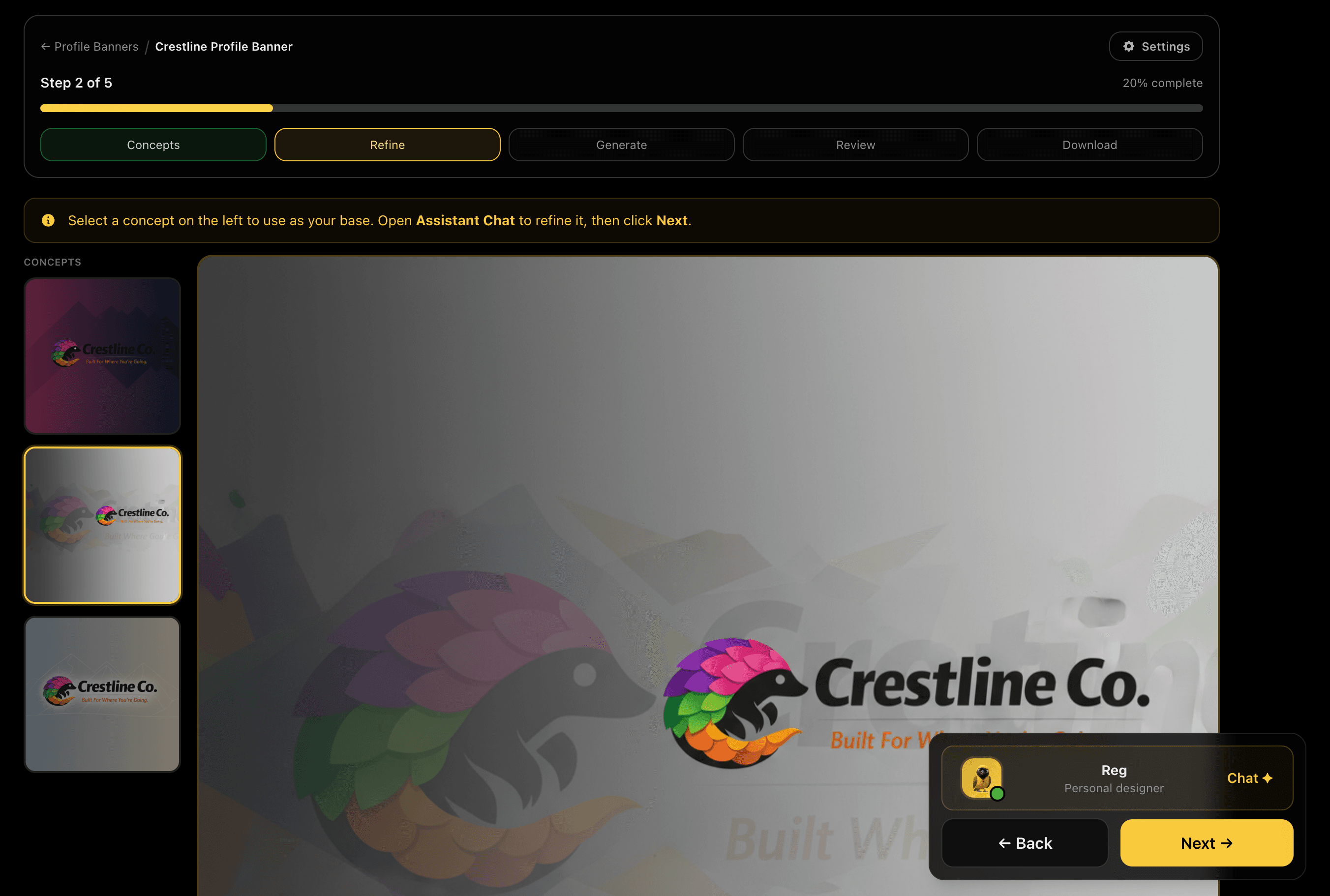
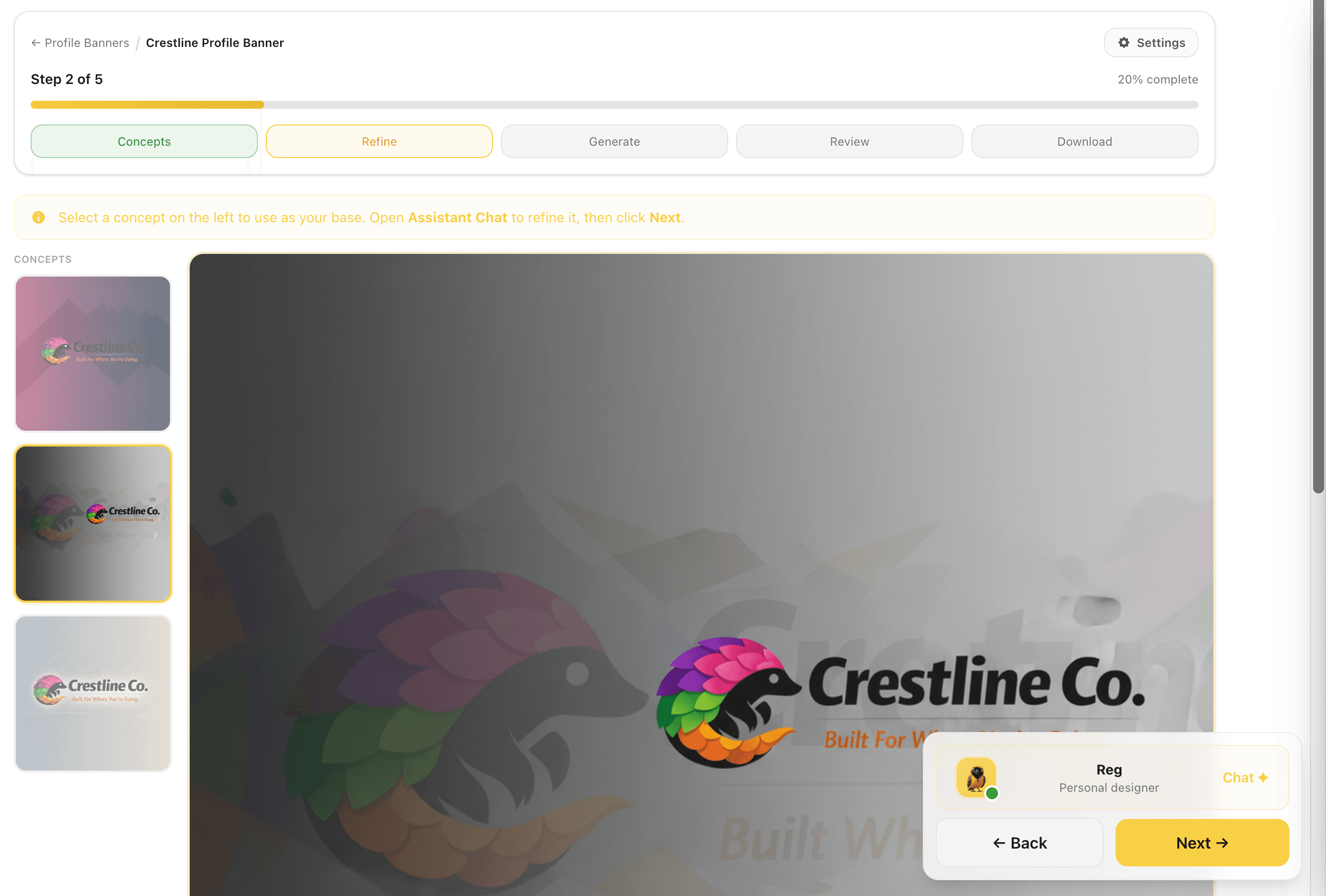
Refine the Banner with Assistant Chat
Pick one banner concept as your base and open the Assistant chat to adjust it inline. Change colours, shift layout elements, update the slogan treatment, rebalance the logo position. David applies each request and shows you the updated banner immediately. Iterate until the composition is exactly right before generating all platform sizes.
Refining once before generation means every platform size starts from an approved base, fewer credit-burning regenerations.
Captures
Review Generation Settings
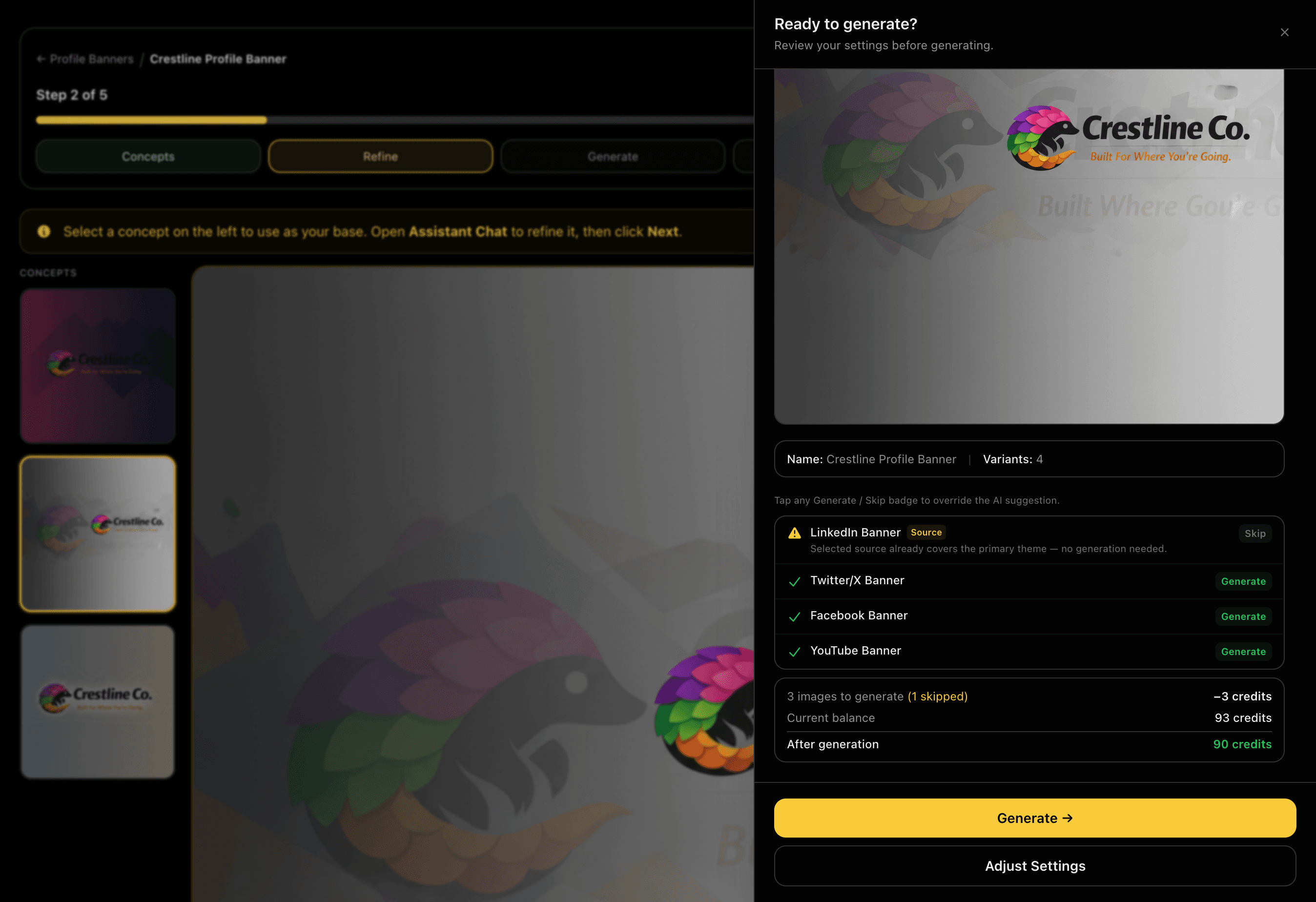
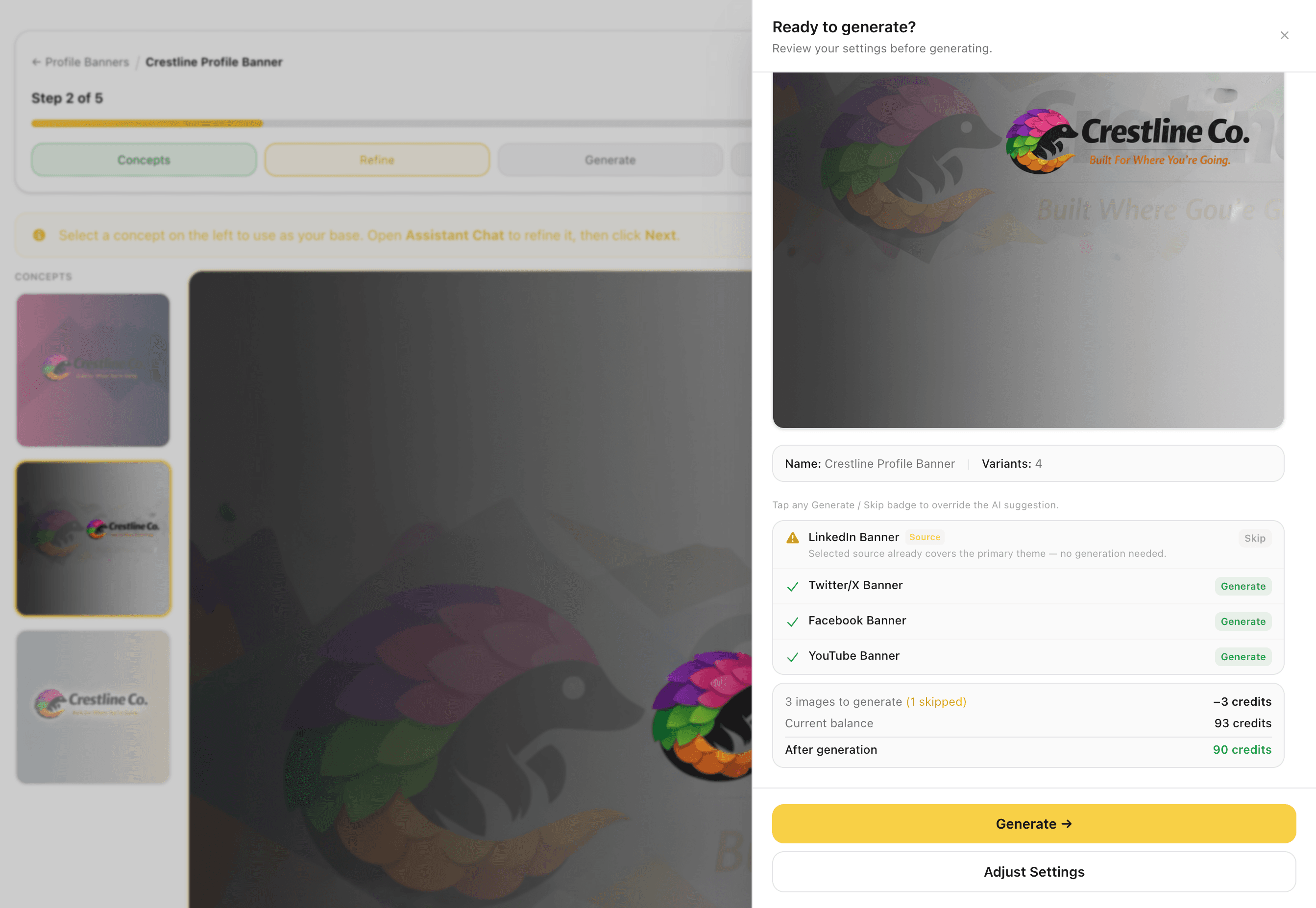
Before anything generates, review the exact platform variants that will be produced: LinkedIn, Twitter/X, YouTube, and Facebook banners. The source concept already counts as your first variant, so you see precisely what's new, what can be skipped, and the exact credit cost before committing.
Full transparency before generation, no surprises on the credit bill once the run completes.
Captures
Generate All Platform Banners
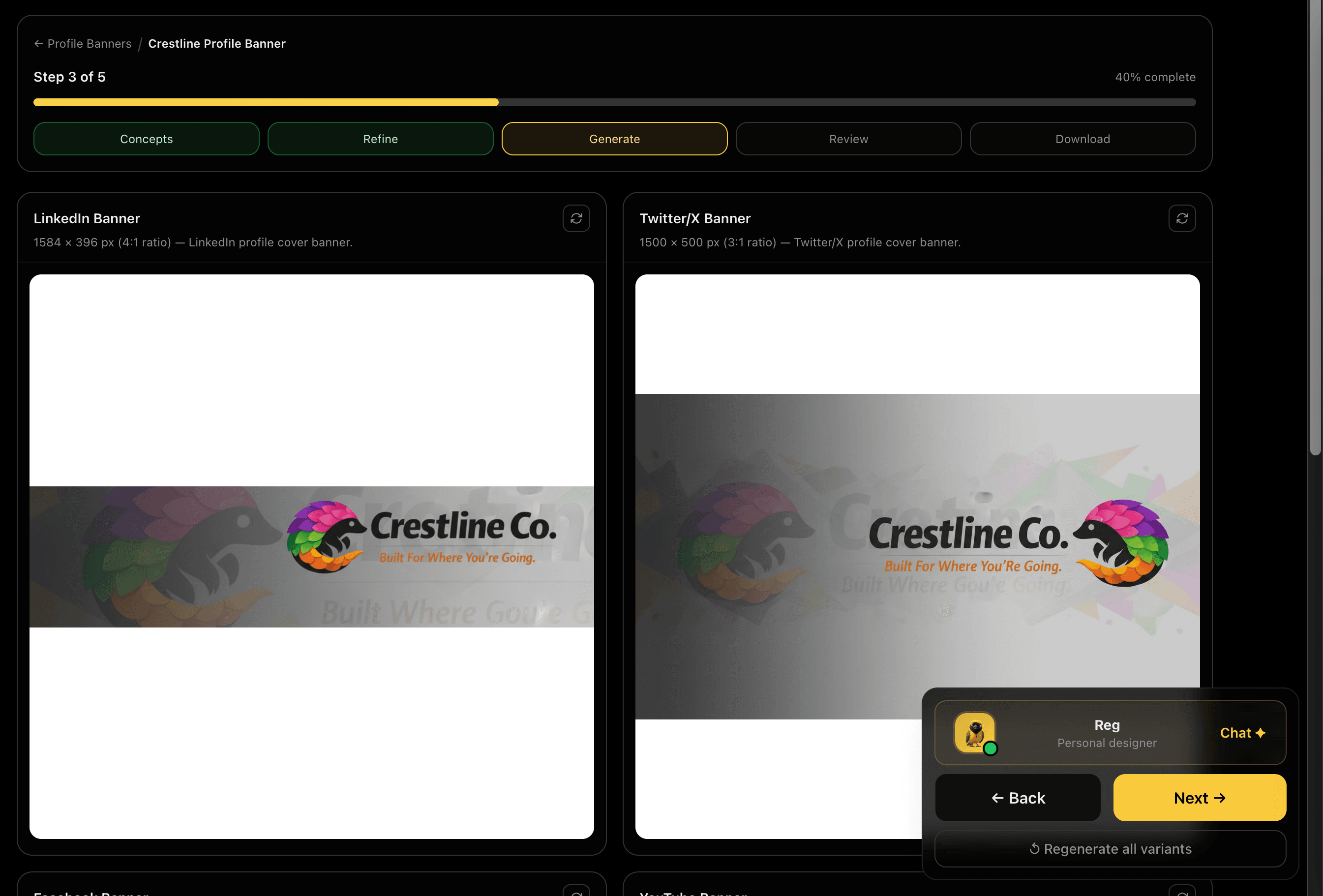
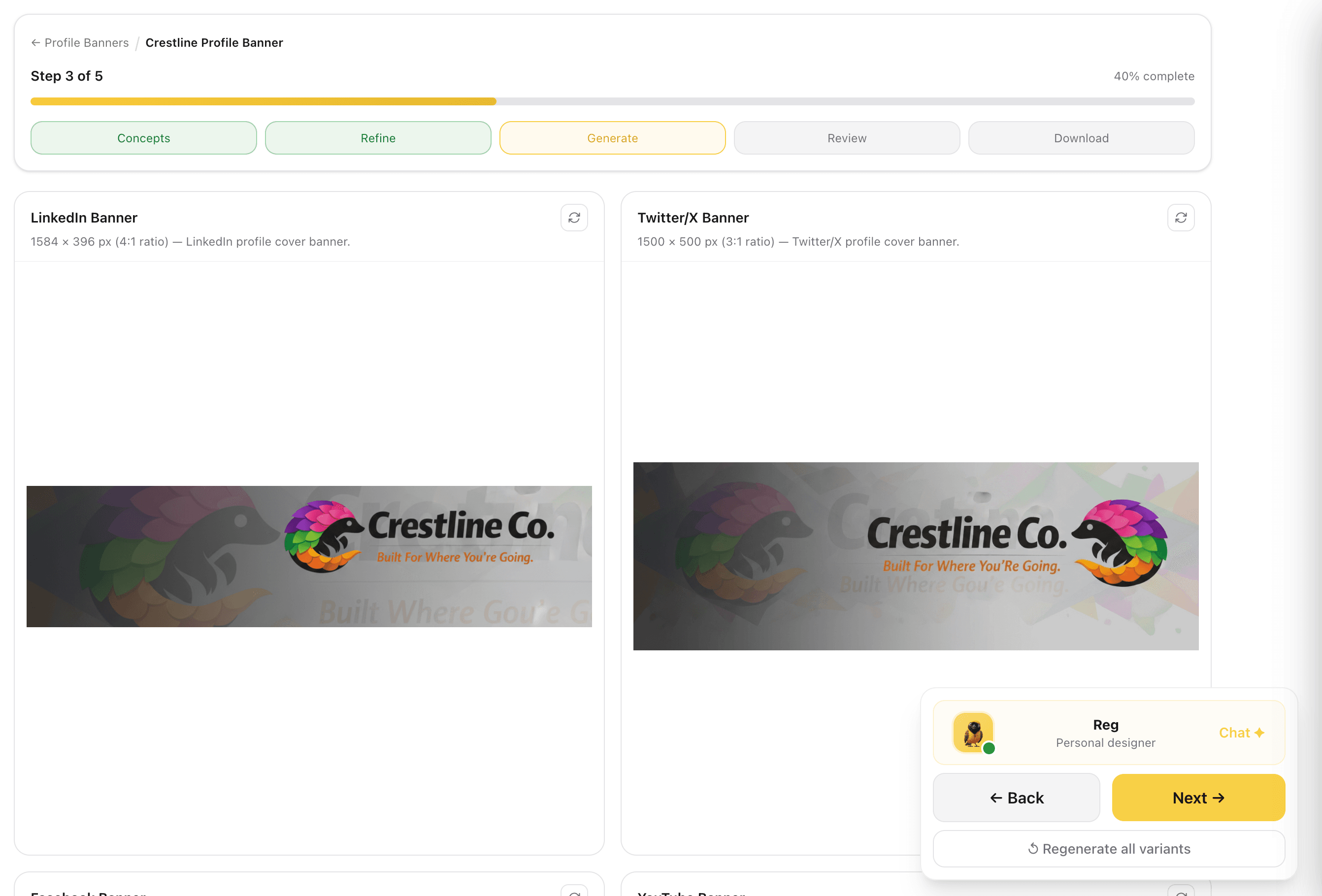
All platform sizes generate in one run: LinkedIn (1584×396), Twitter/X (1500×500), Facebook (1640×624), and YouTube (2560×1440). Watch each banner appear as the run progresses. Each is sized and composed for its specific platform from your approved base concept.
One run covers every platform your team needs, no resizing, reformatting, or recreating per channel.
Captures
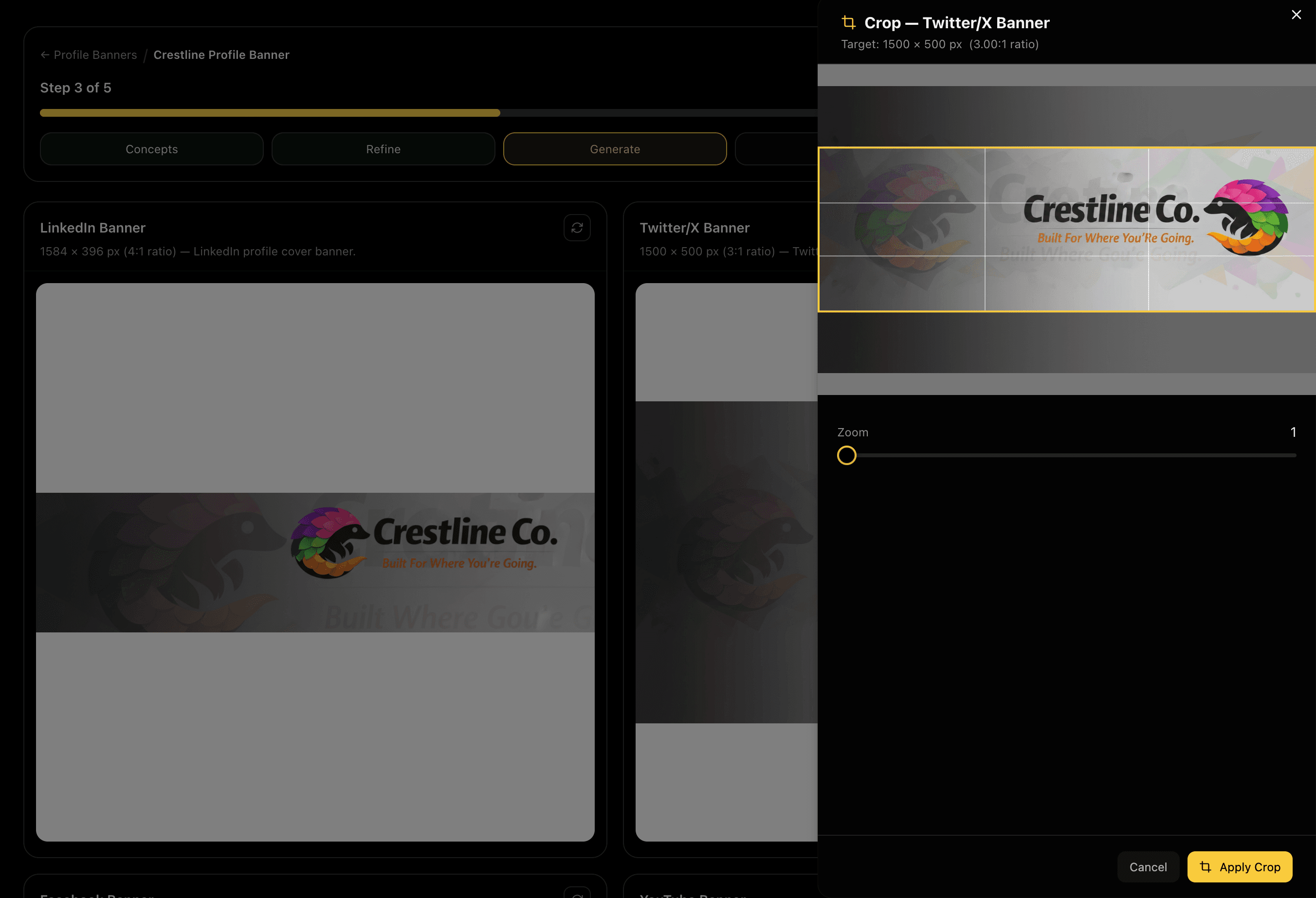
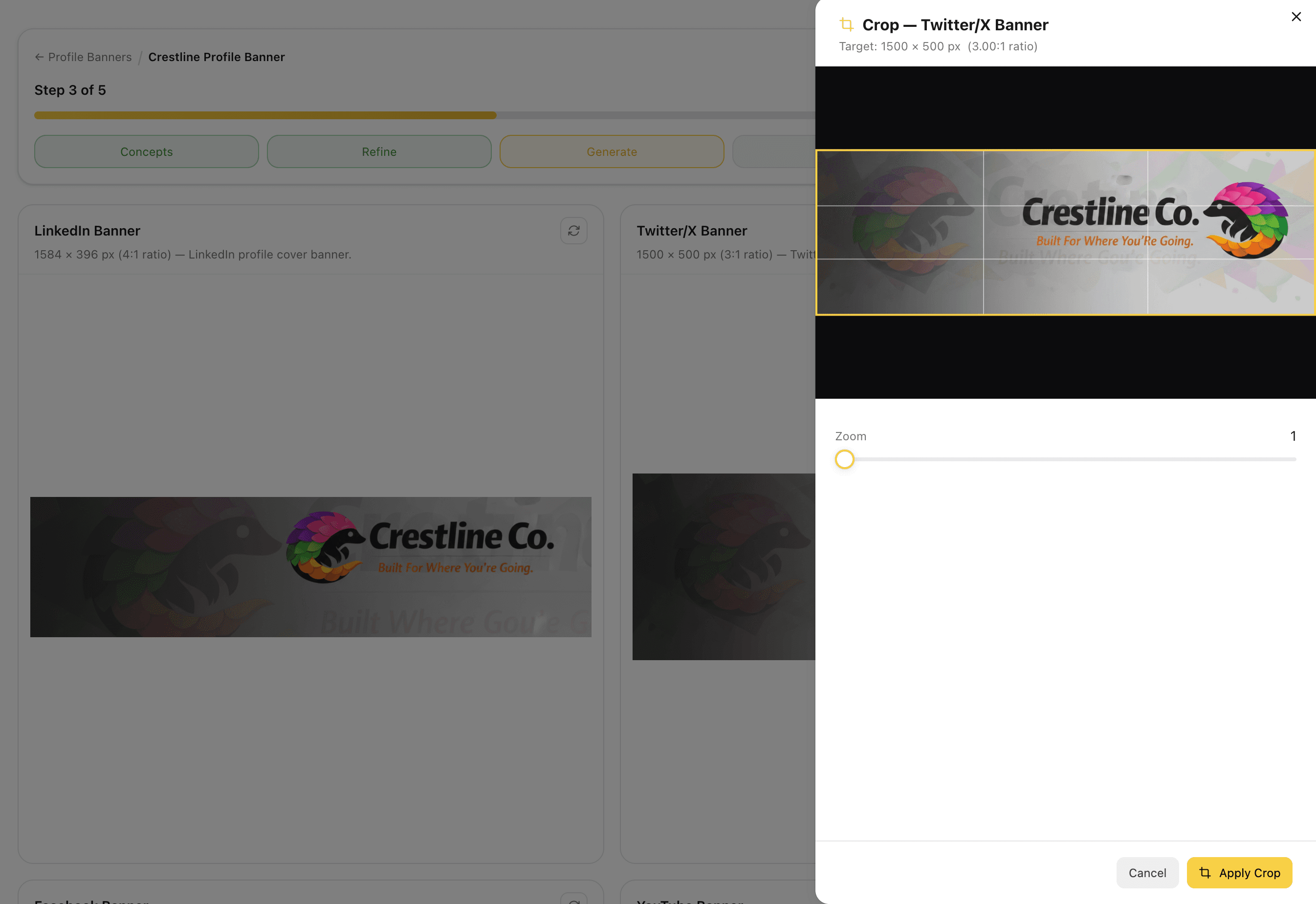
Crop to Platform Dimensions
After generation, a cropping tool is aavailable for each platform banner so you can frame the composition precisely to its exact ratio. Zoom and position the design to sit correctly before finalising. Each crop is applied independently so every platform gets the right framing.
Cropping per platform means the logo and key design elements sit correctly for each surface, not just scaled and hoped for the best.
Captures
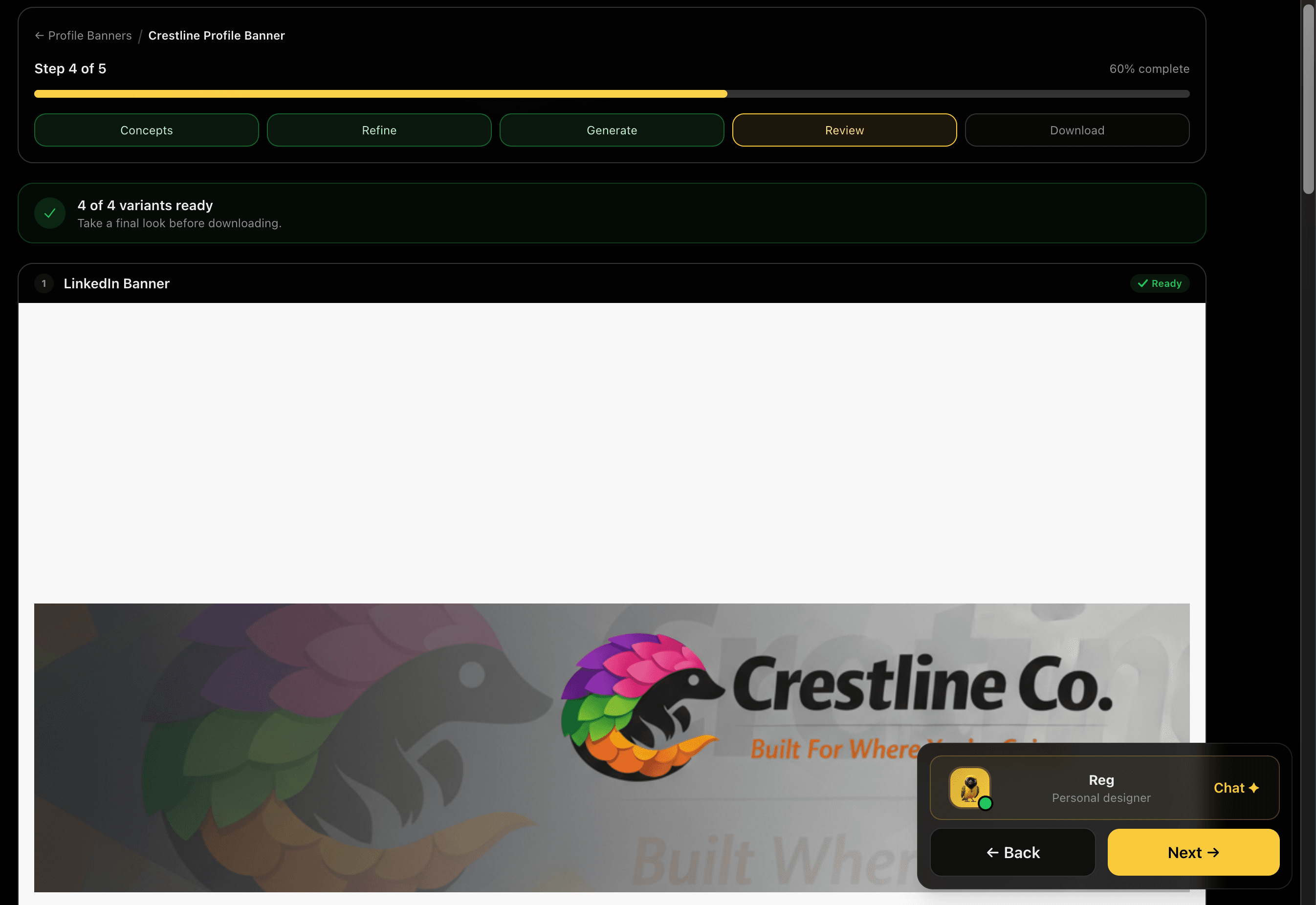
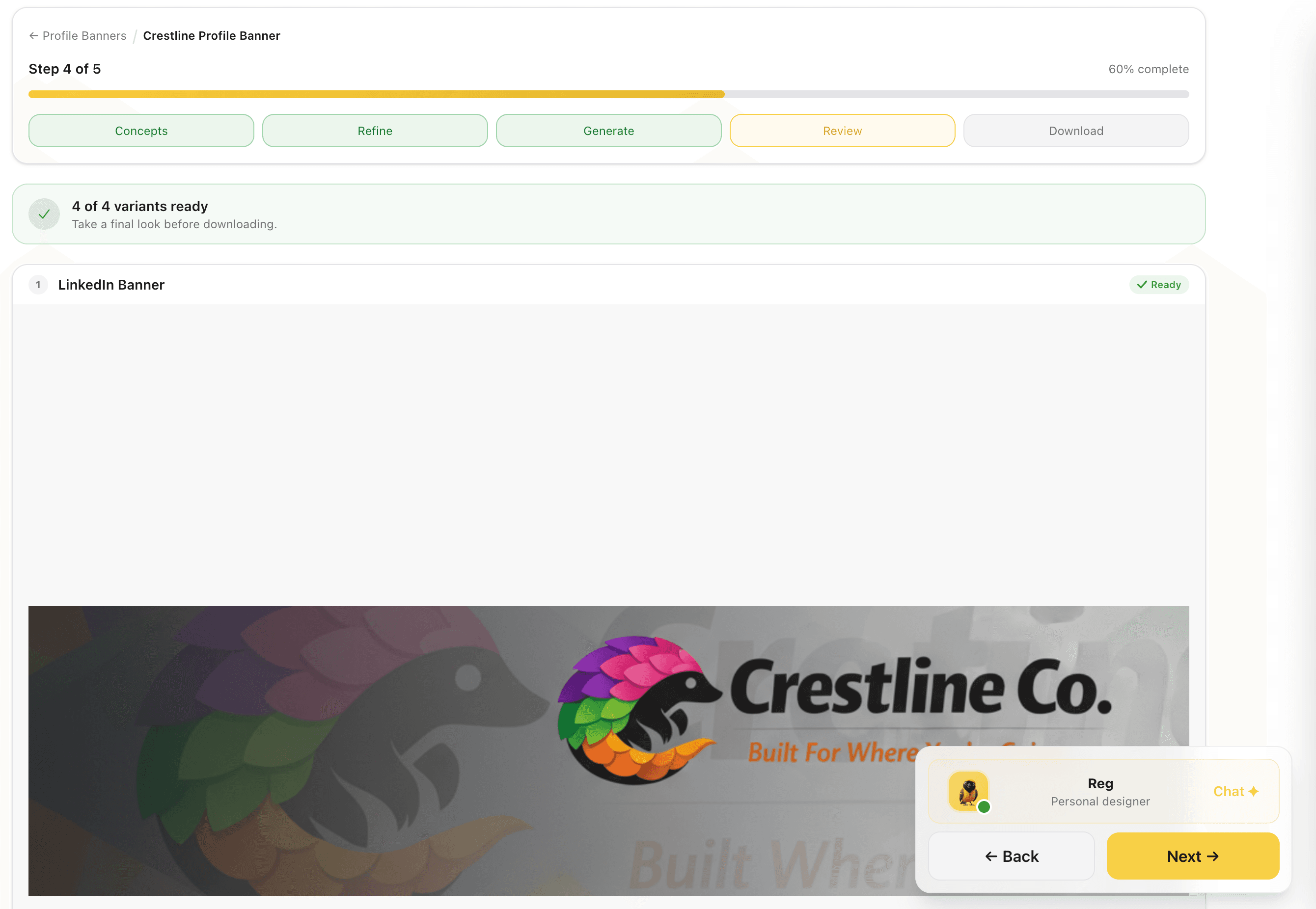
Review All Platform Banners
All banner variants are presented for a final check before download, each marked Ready. Review how the design sits at full size across every platform dimension. If any platform missed the mark, you can still navigate to the prevvious step from here toregenerate it individually without rerunning the full set.
Reviewing all variants together surfaces inconsistencies you would miss looking at each one in isolation.
Captures
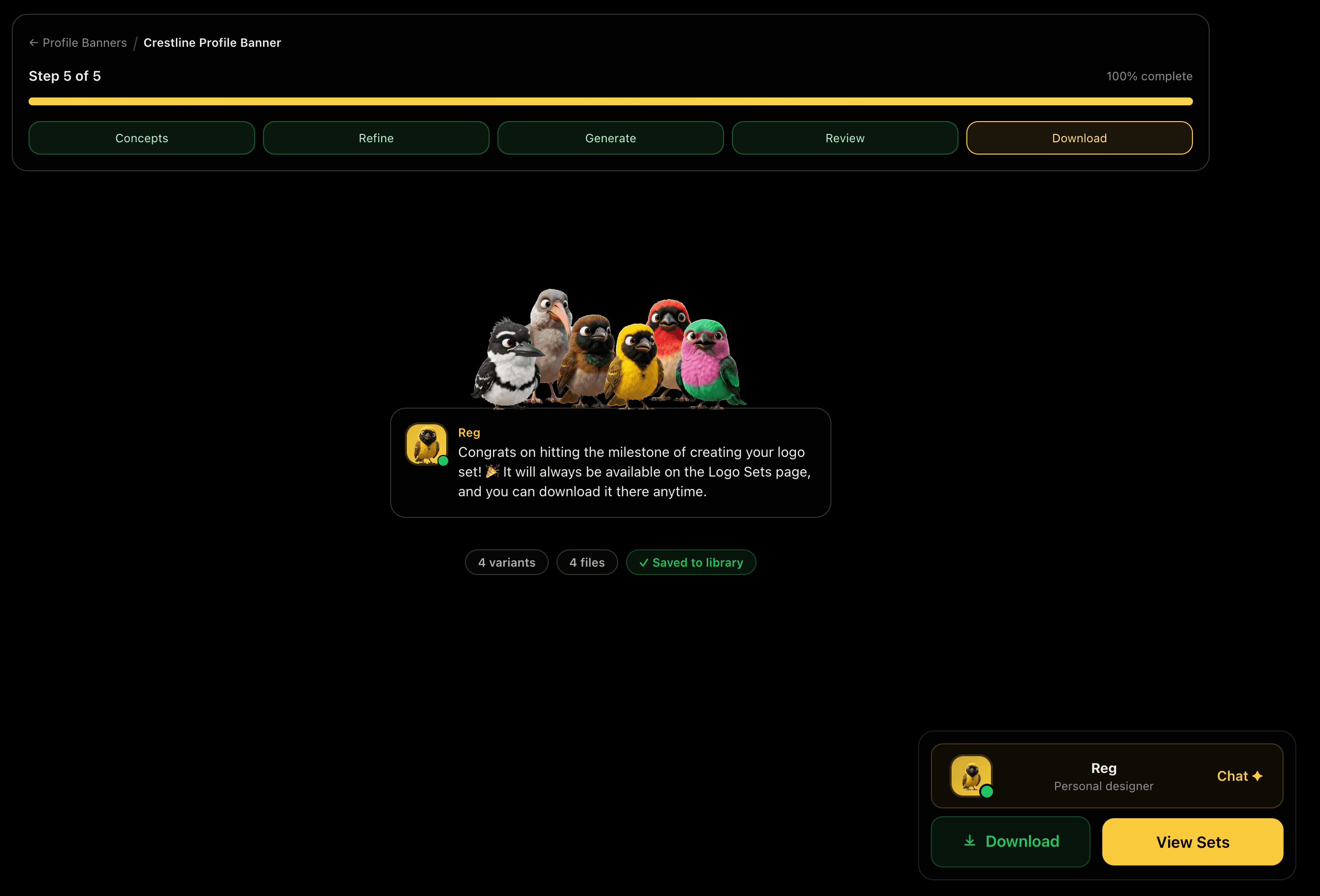
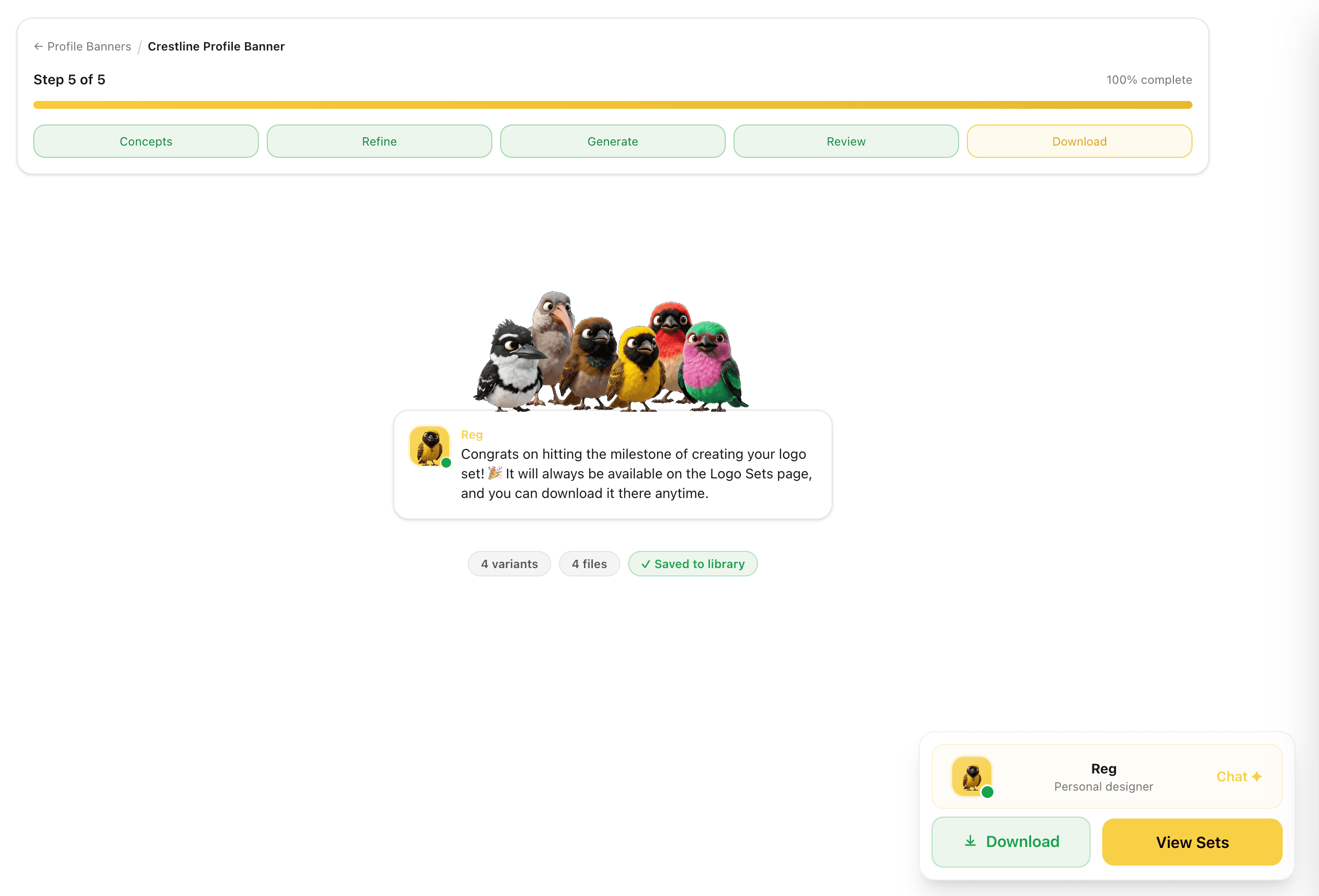
Download and Save to Library
Your complete banner set is ready. Download all platform files and the set is automatically saved to your banners library, marked Final, always available for future team members or brand refreshes.
Banners saved to library means any new team member can get the same branded profile set without starting from scratch.
Captures
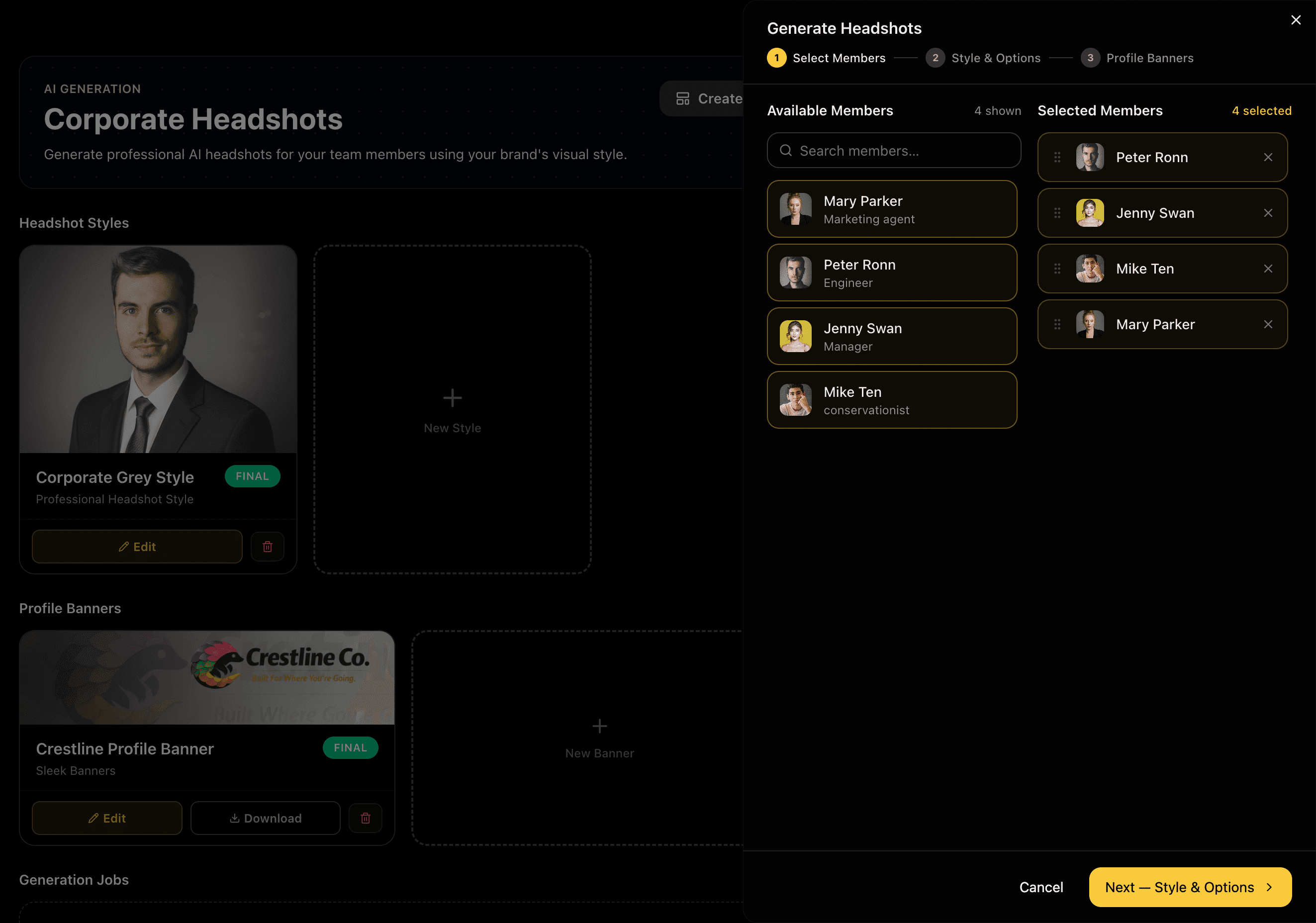
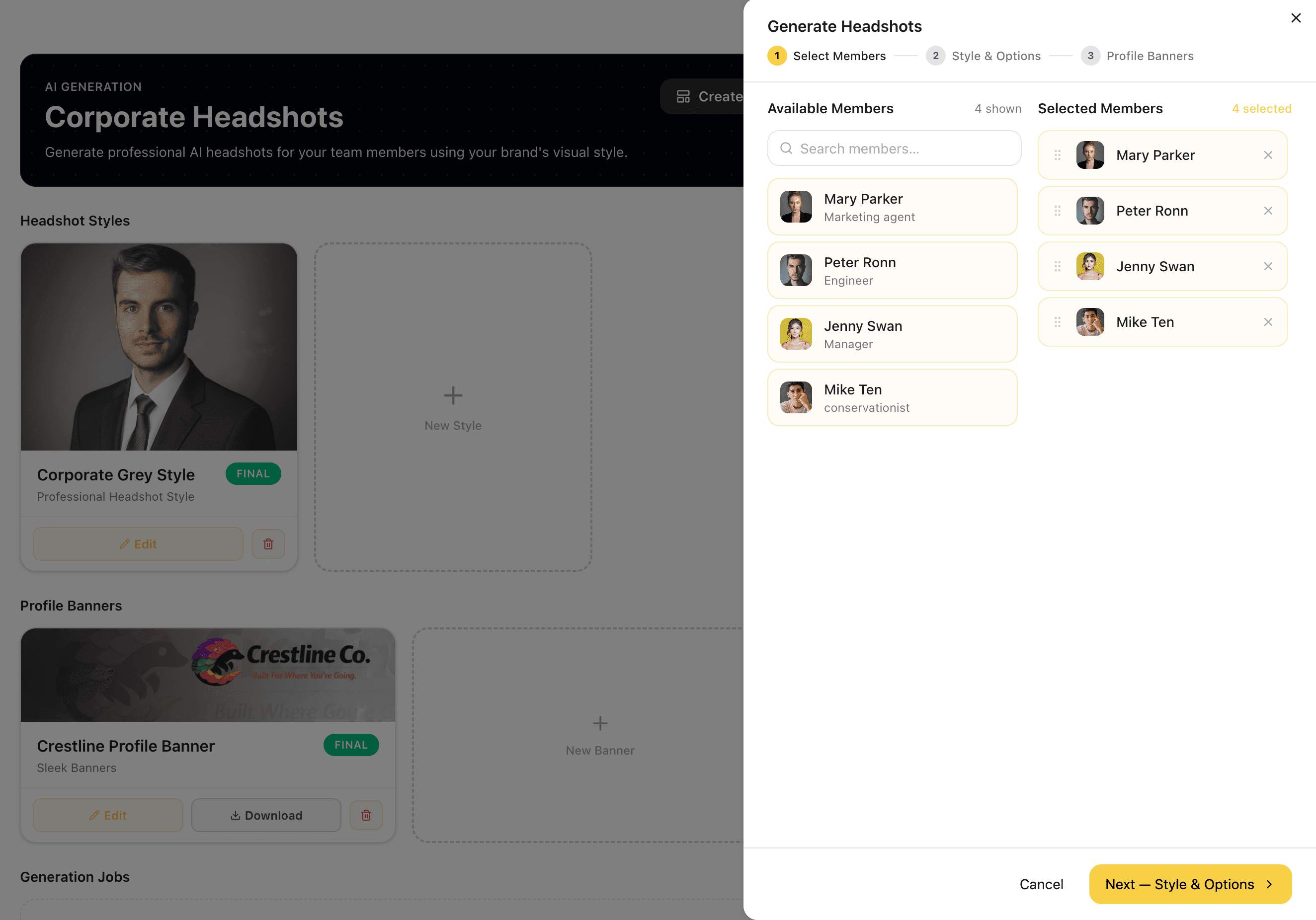
Select Team Members to Generate
Open Generate Headshots and select which team members to include in this run. Members are listed with their roles and group assignments. Search by name, filter by group, or select all. The approved style set and any active banners are applied automatically to every selected member.
Selecting members in one modal keeps batch generation fast, no per-member configuration required once the style is approved.
Captures
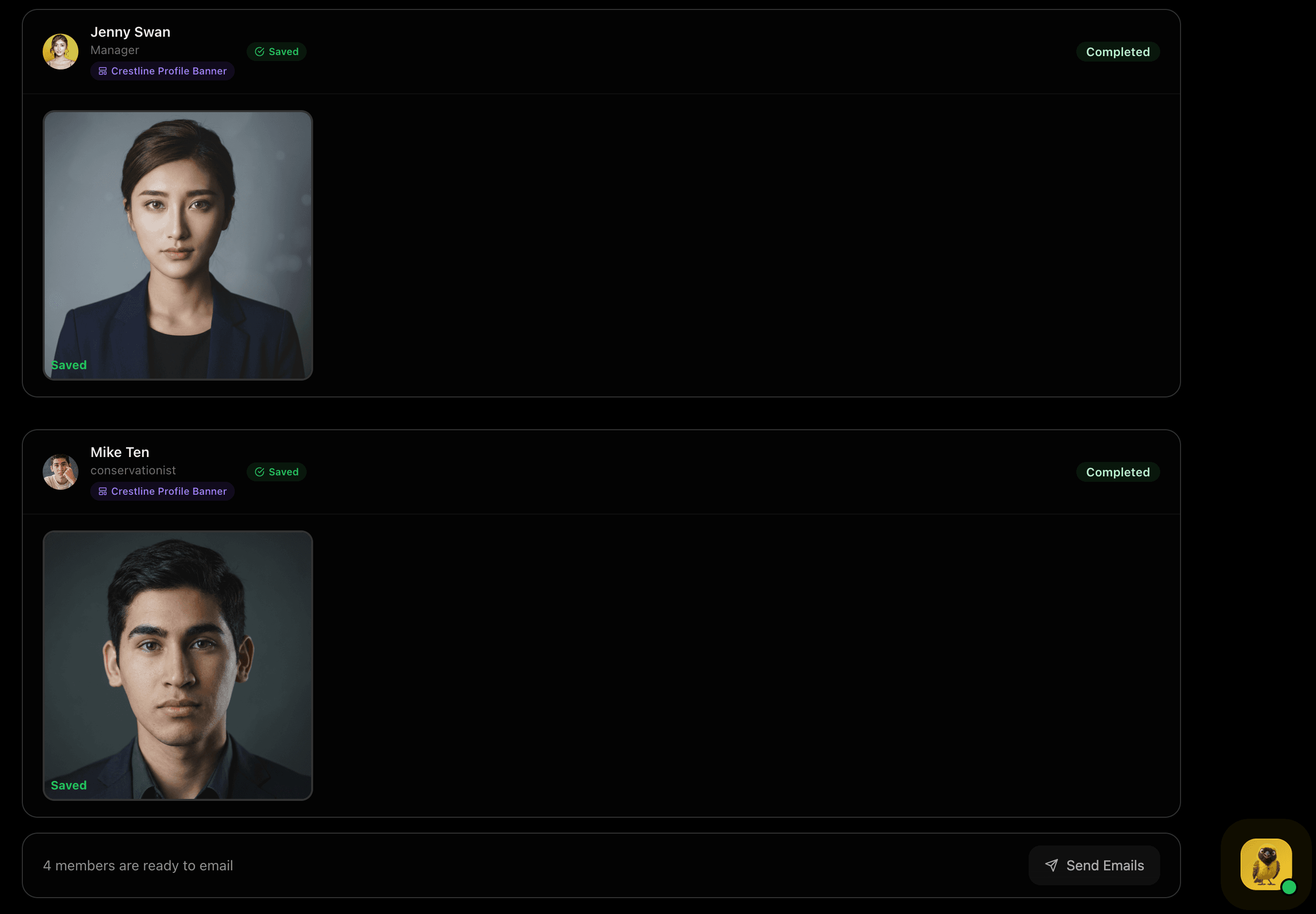
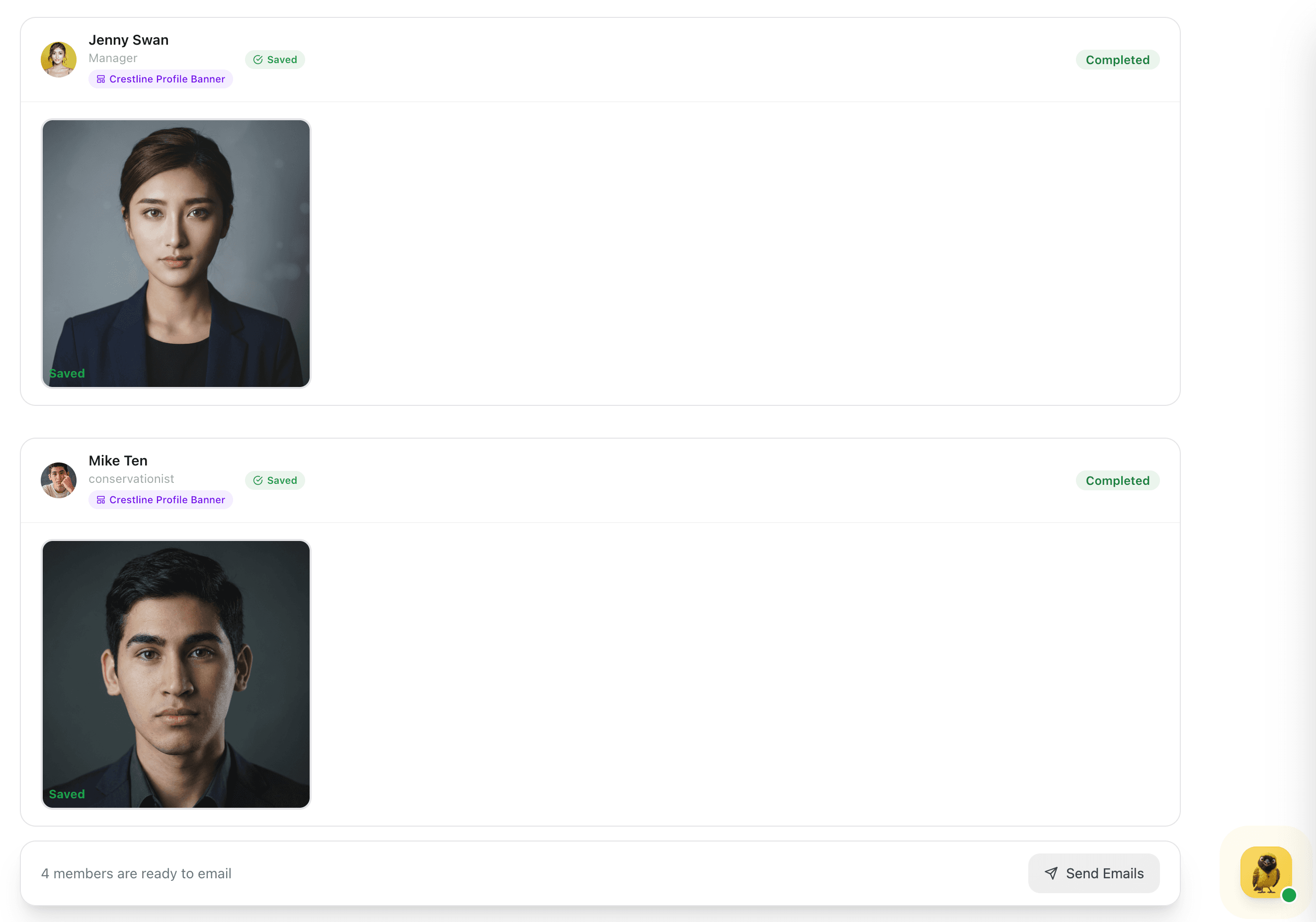
Review Each Member's Headshot
Generated headshots are displayed per team member with a Completed status. Review each result at the size it will be used. If a member's headshot missed the mark, regenerate individually without rerunning the full batch. When all results look right, Approve & Finalise to save everything.
Per-member review prevents one missed shot from holding up the whole team, approve the batch once you're satisfied with every result.
Captures
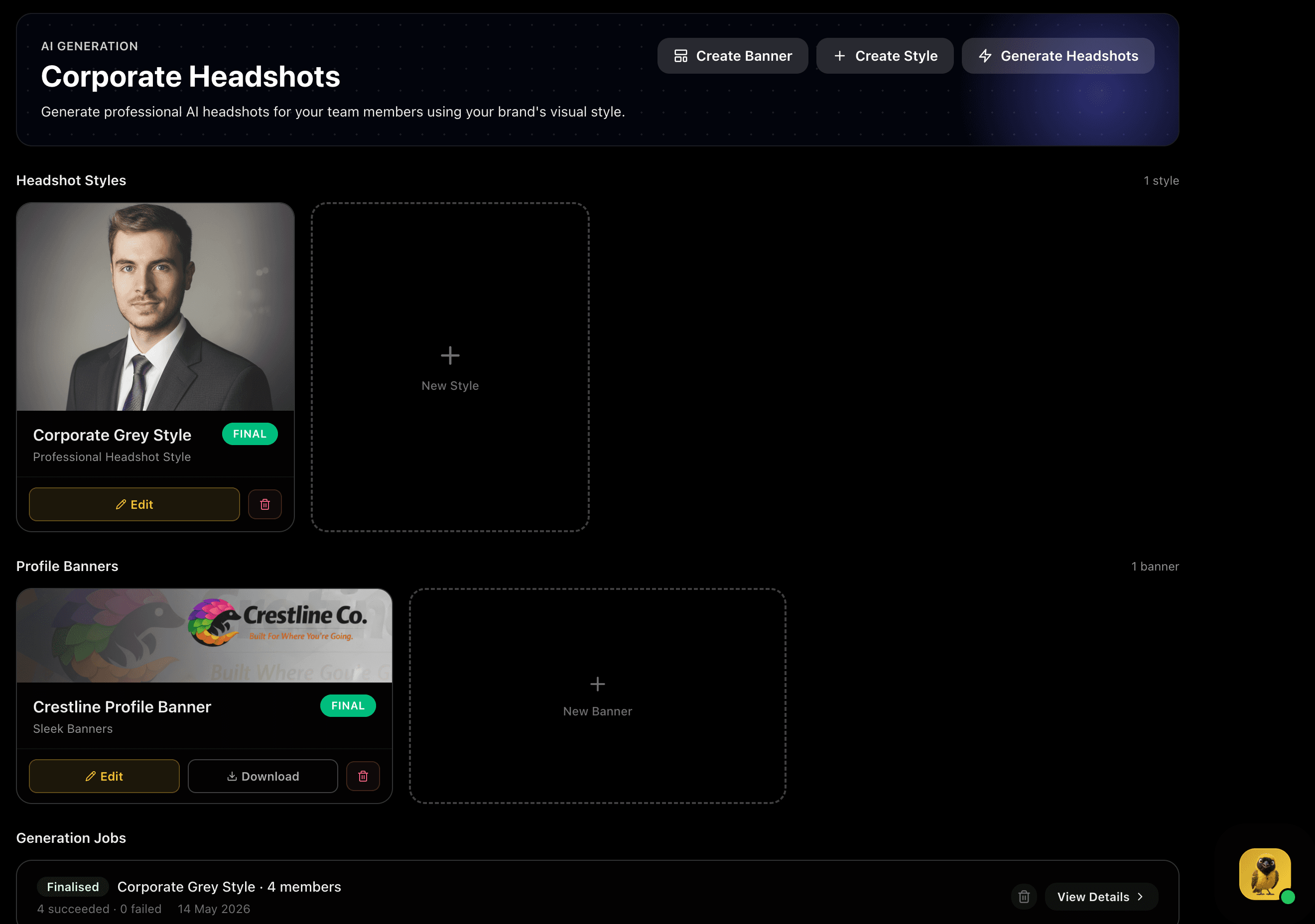
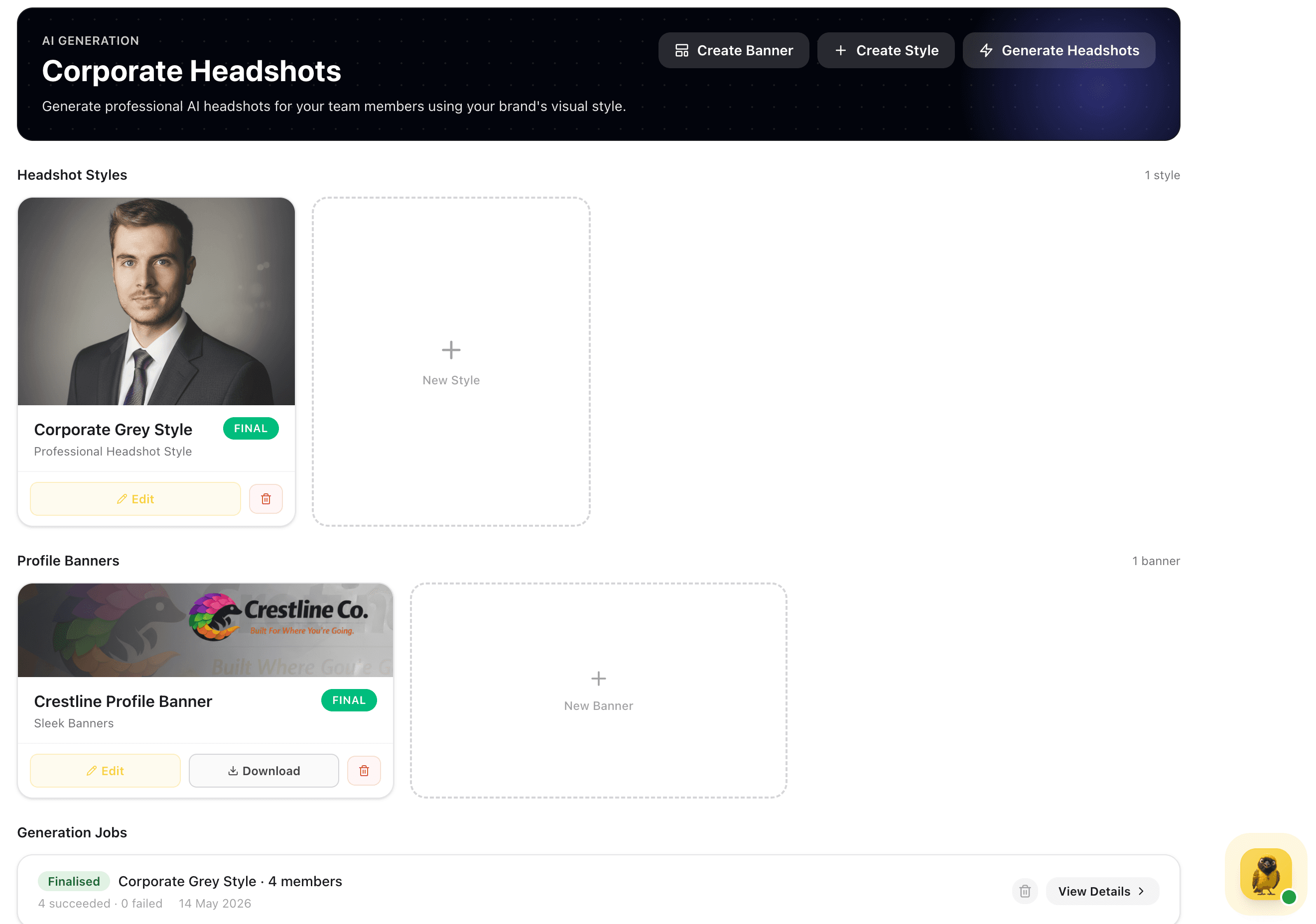
Headshots Hub Overview
The Corporate Headshots hub shows the full picture: your finalised headshot style, saved profile banners, and completed generation jobs with member counts and success rates. Edit a style to kick off a new generation, or create an additional banner style for a different brand direction.
Everything organised in one hub, styles, banners, and job history, means you can manage team visuals without digging through separate tools.
Captures
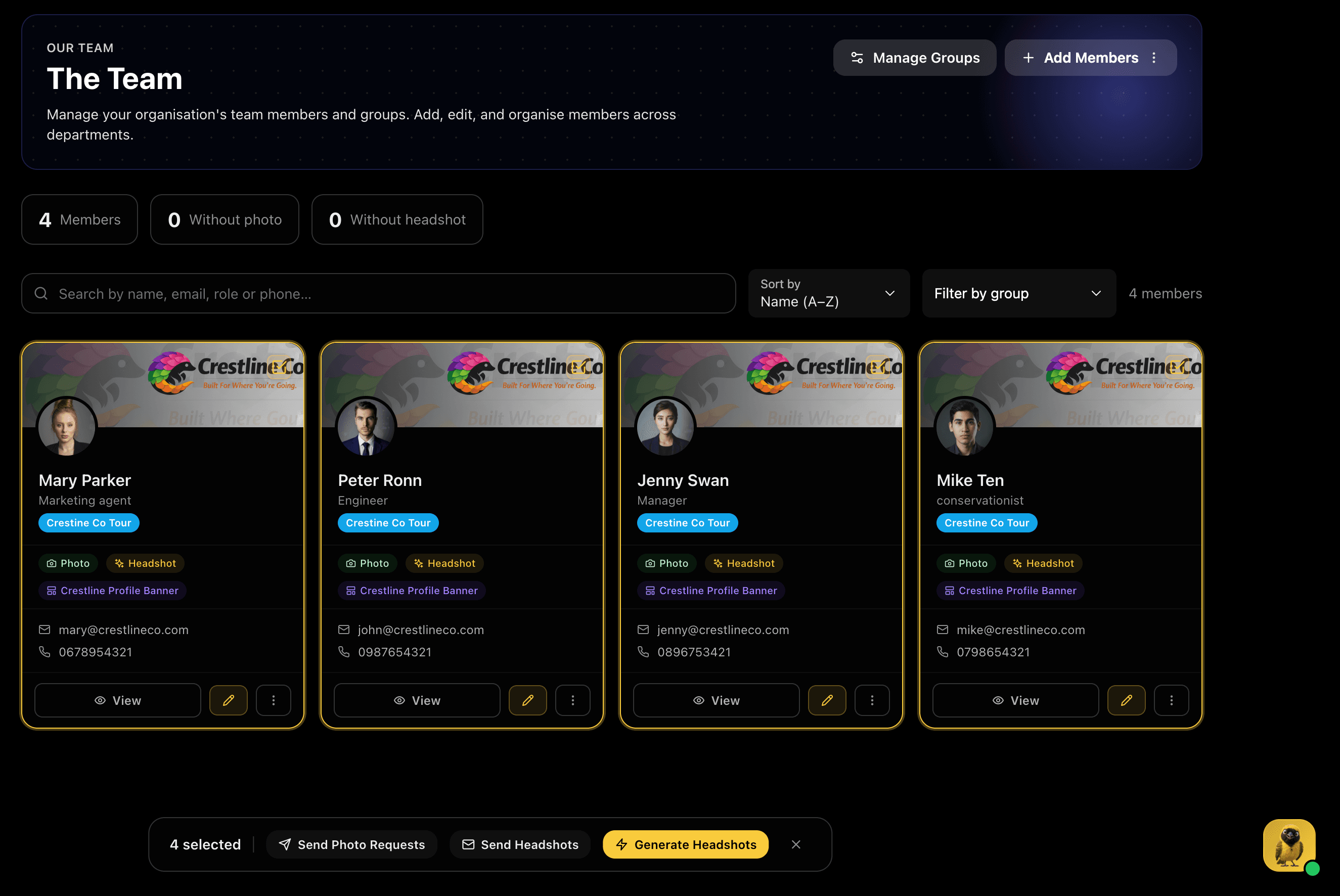
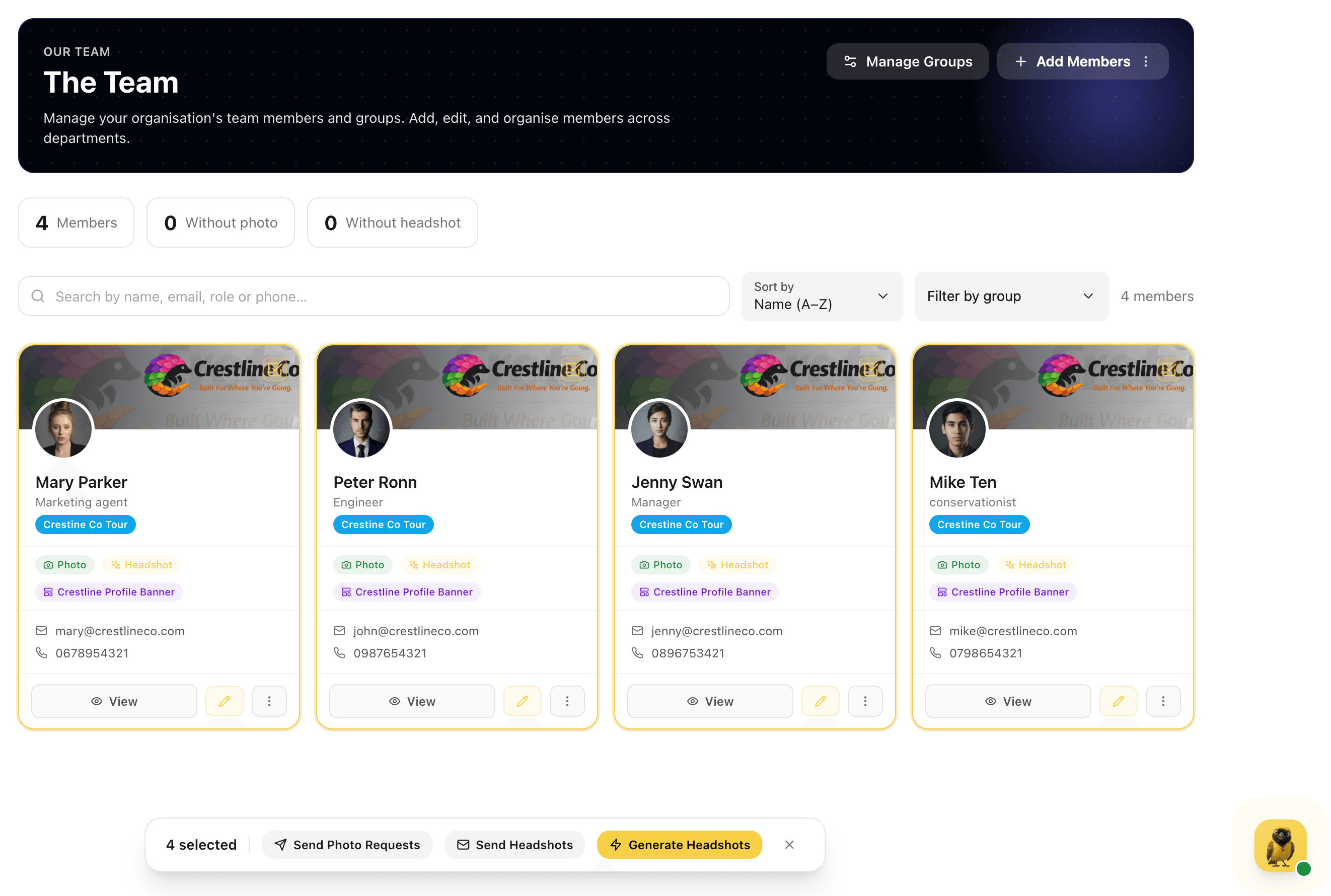
Team Page: Every Member Updated
The team page now shows every member with their headshot, profile banner, and source photo linked. Select members and send headshots directly, push banners to their profiles, or trigger a new generation batch for the whole team from the floating action toolbar.