BrandWeave
BrandWeave
Back home
Log in
Get Started
Theme
Log in
Feature Tour
BrandWeave

Pages

HomeFeatures TourPersona Journeys

Use Cases

Founder JourneySmall Business JourneyEnterprise Journey

Explore

PricingCompareFAQ

© 2026 BrandWeave. All rights reserved.

Ide8 Technologies
A proud product of Ide8 Technologies (Pty) Ltd
Privacy PolicyTerms of ServiceRefund Policy
Mockups

See your brand on real surfaces before you spend on production.

Mock-Up Sets place your logo on real-world surfaces and generate photorealistic scenes across multiple contexts in one run. Choose from built-in types, create custom ones, and produce Clean Studio, Multi Colour, and Lifestyle variants, all from an approved base concept.
Choose Your Mock-Up TypeChoose Your Mock-Up Type
TYPE·Step 1

Choose Your Mock-Up Type

Choose Your Mock-Up Type

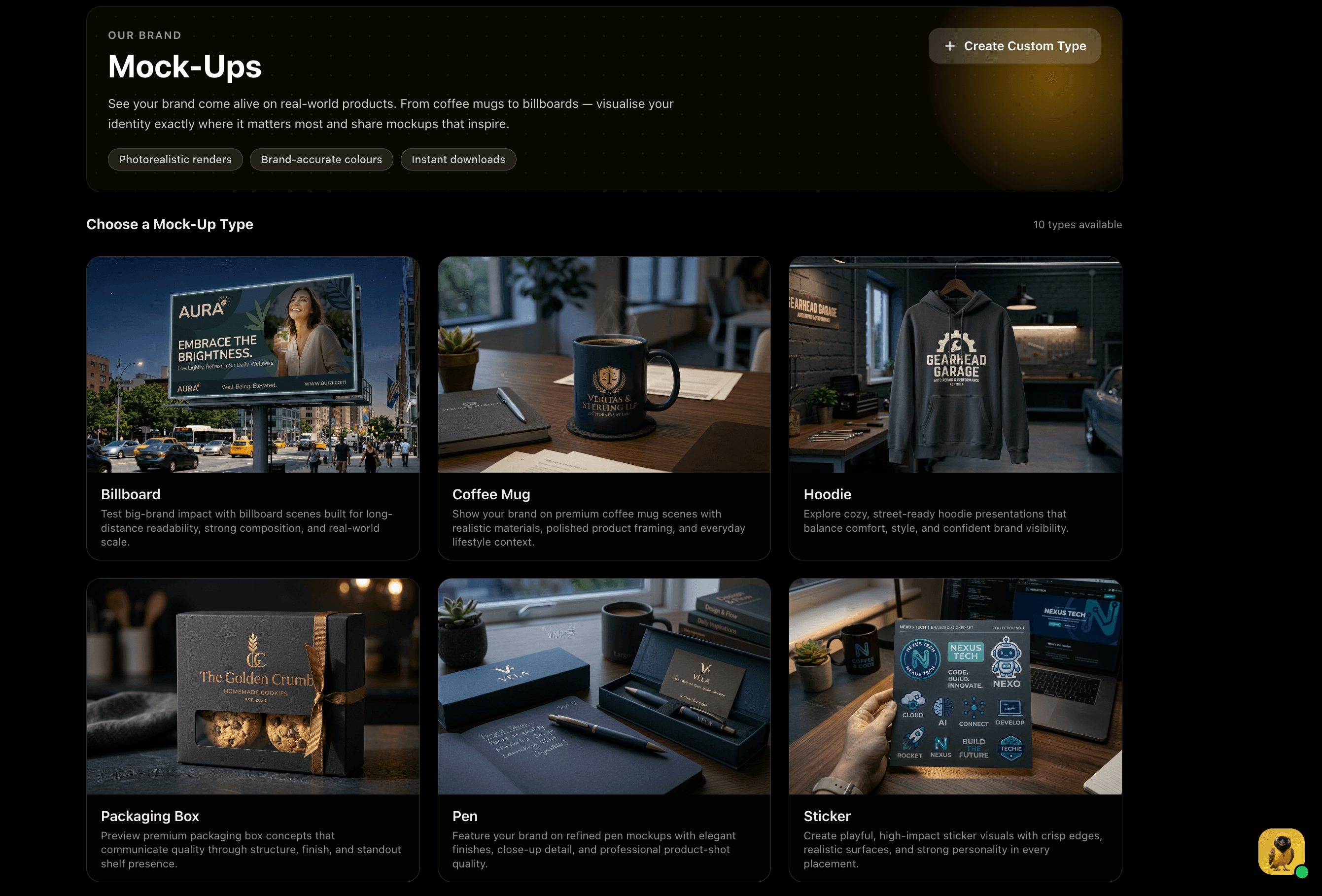
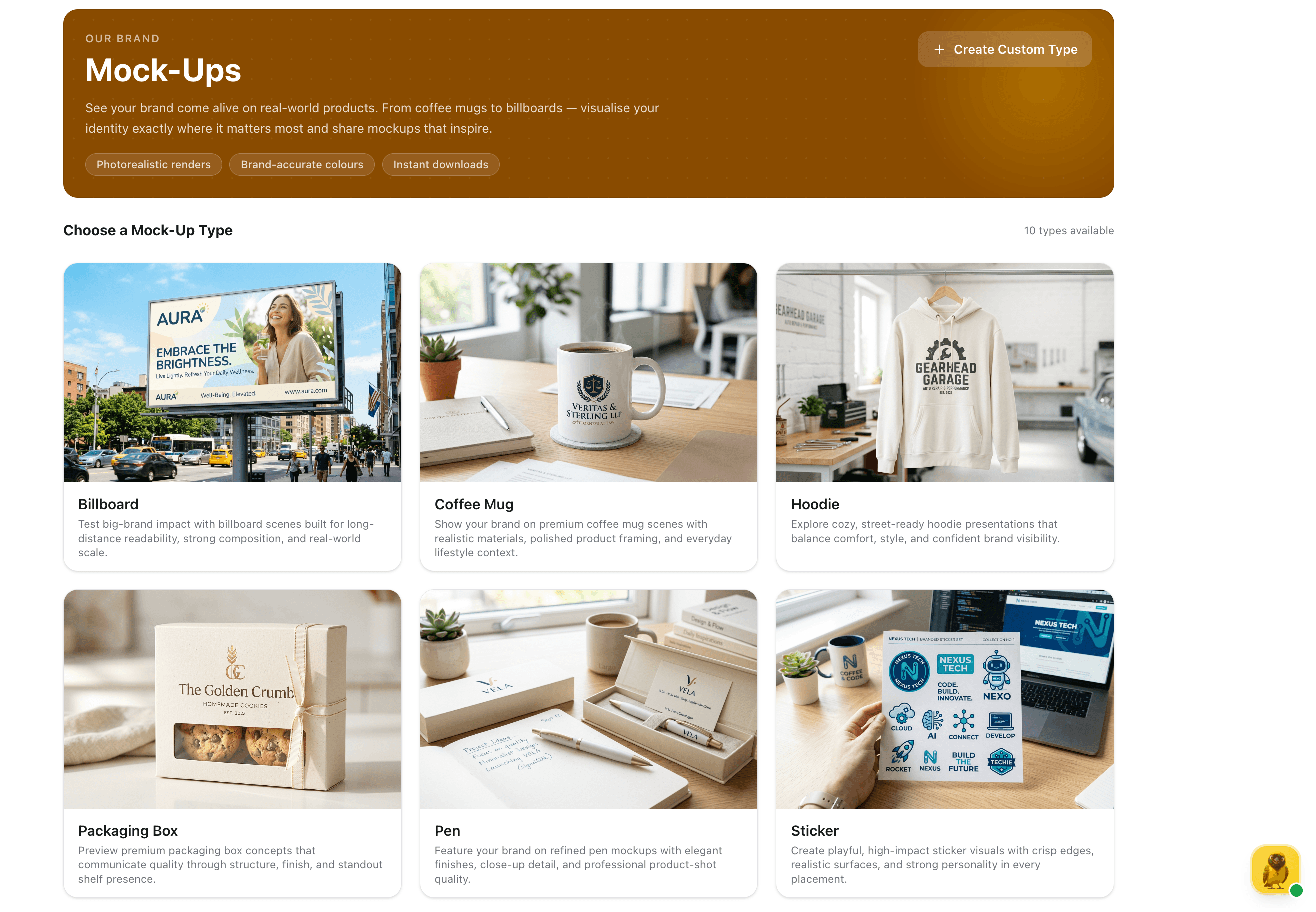
Start by choosing the surface your brand will appear on: Billboard, Coffee Mug, Hoodie, Packaging Box, Pen, or Sticker, with more available. Don't see what you need? Use Create Custom Type to describe any surface and BrandWeave will generate a new type with Assistant-suggested variants for it.

Feature Preview

Choose Your Mock-Up Type

01
TYPE·Step 1

Choose Your Mock-Up Type

Start by choosing the surface your brand will appear on: Billboard, Coffee Mug, Hoodie, Packaging Box, Pen, or Sticker, with more available. Don't see what you need? Use Create Custom Type to describe any surface and BrandWeave will generate a new type with Assistant-suggested variants for it.

The mock-up type anchors every visual that follows. It determines what scenes, angles, and environments the Assistant generates.

Captures
Built-in typesCustom typesAssistant-suggested variants10+ surfaces
Create Your Mock-Up SetCreate Your Mock-Up Set
CREATE·Step 2

Create Your Mock-Up Set

Create Your Mock-Up Set

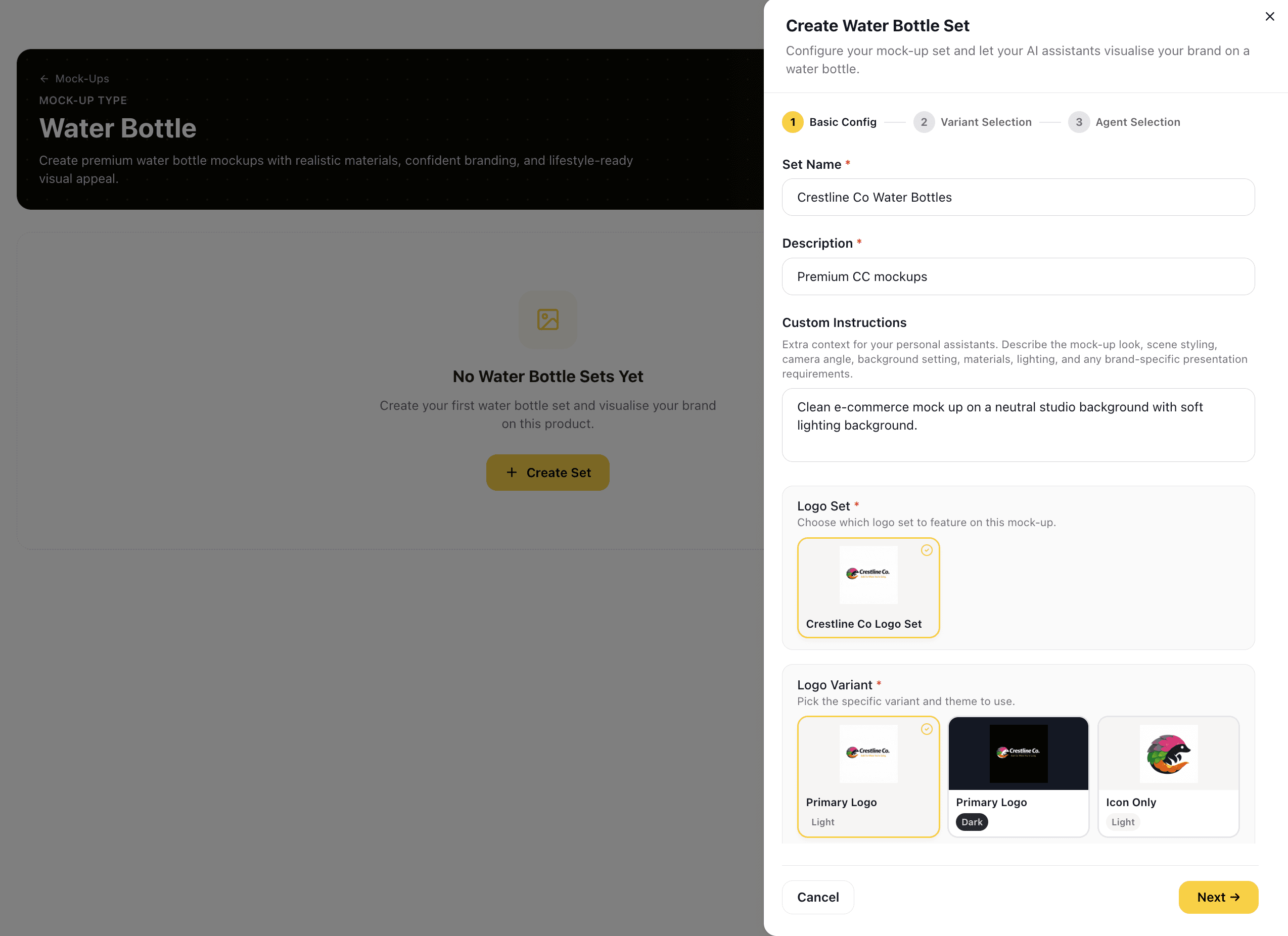
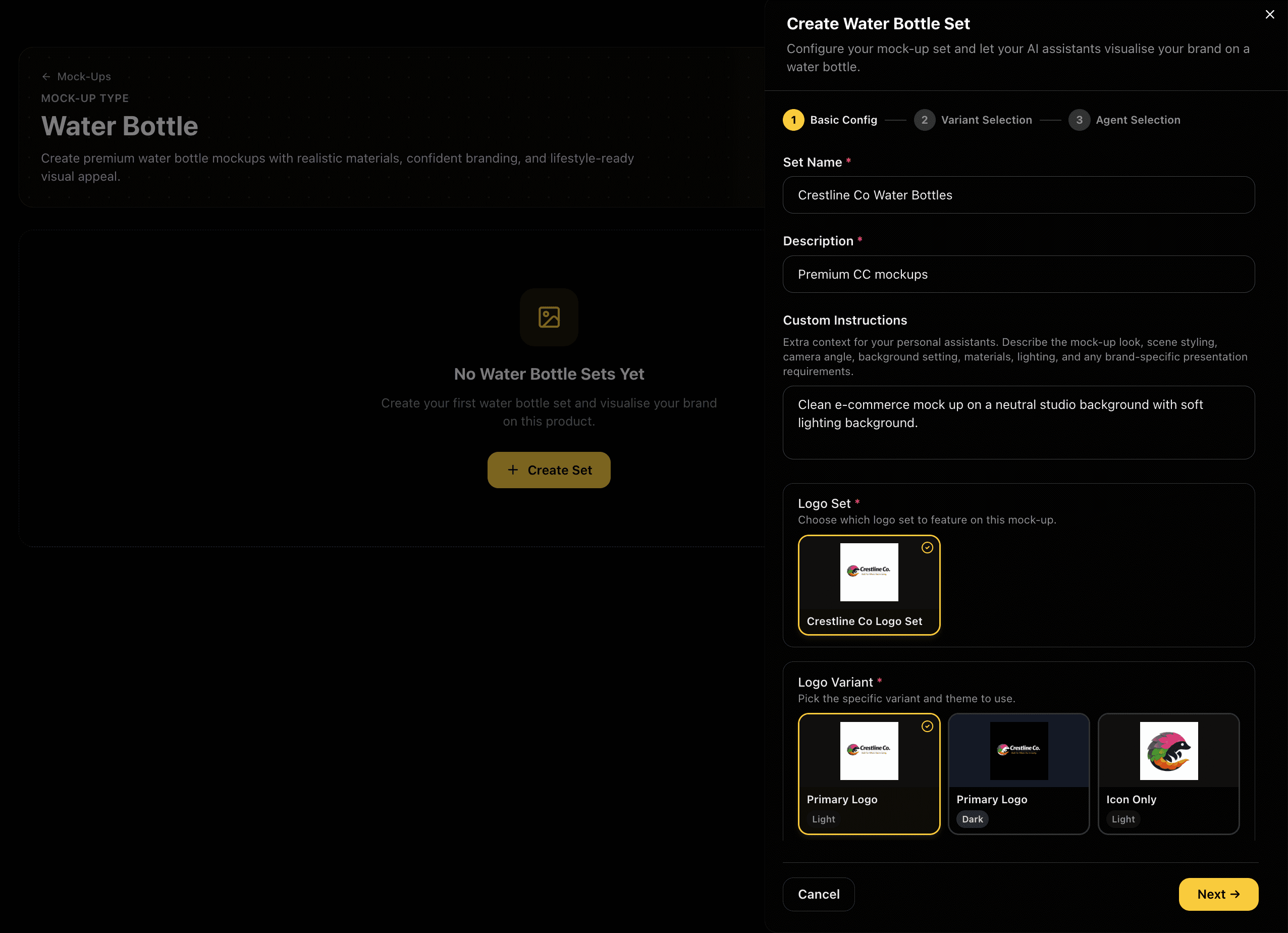
Name your set and write custom instructions to direct the scene: lighting style, camera angle, background type, material context. Then link the set to a specific logo set and choose exactly which logo variant gets placed on the mockup: Primary Light, Primary Dark, Icon Only, and more.

Feature Preview

Create Your Mock-Up Set

02
CREATE·Step 2

Create Your Mock-Up Set

Name your set and write custom instructions to direct the scene: lighting style, camera angle, background type, material context. Then link the set to a specific logo set and choose exactly which logo variant gets placed on the mockup: Primary Light, Primary Dark, Icon Only, and more.

Linking a specific logo variant ensures every scene renders with the right colours and proportions for that surface.

Captures
Set nameCustom instructionsLogo setLogo variantScene direction
Concepts from Assistant DesignersConcepts from Assistant Designers
CONCEPTS·Step 3

Concepts from Assistant Designers

Concepts from Assistant Designers

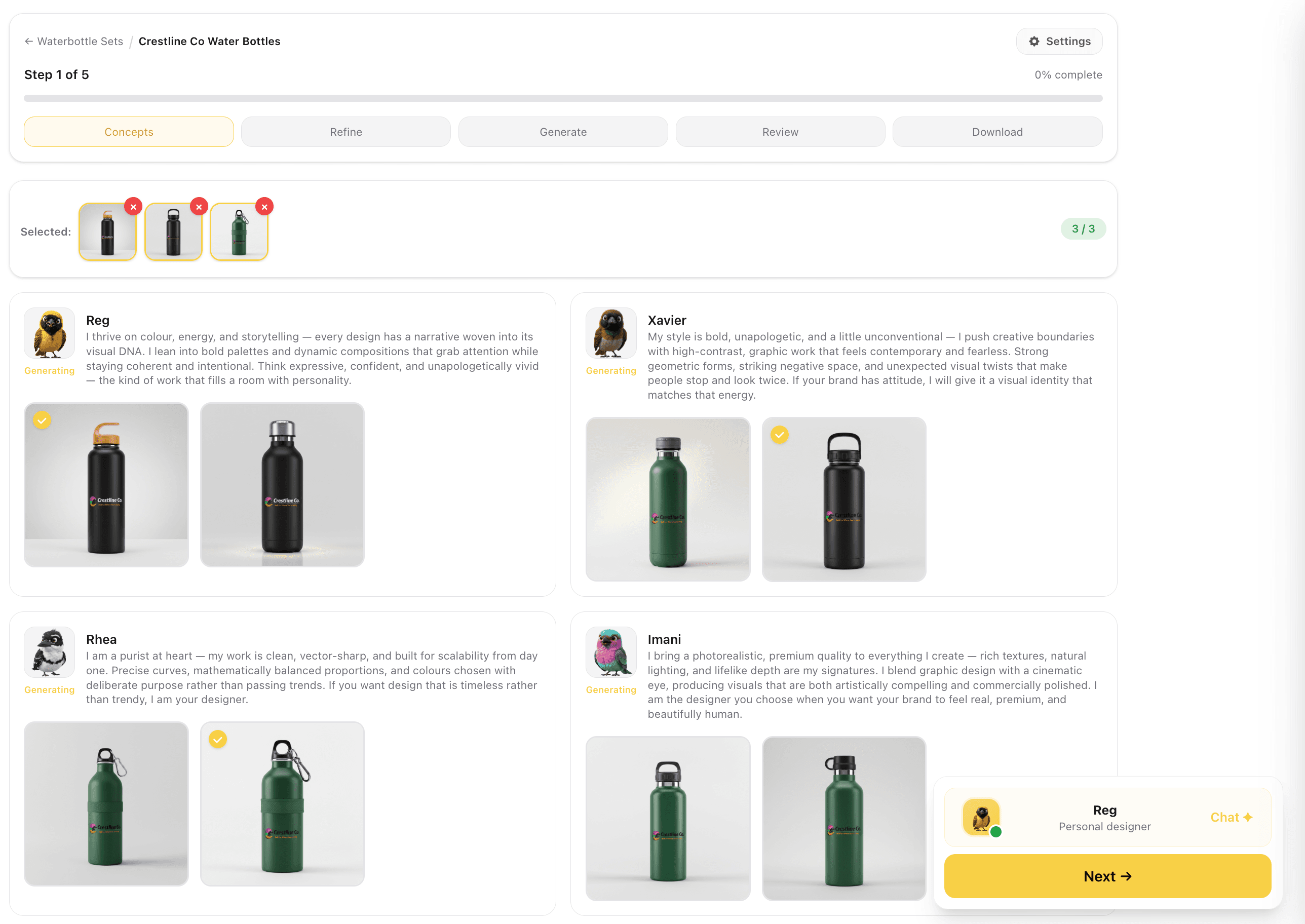
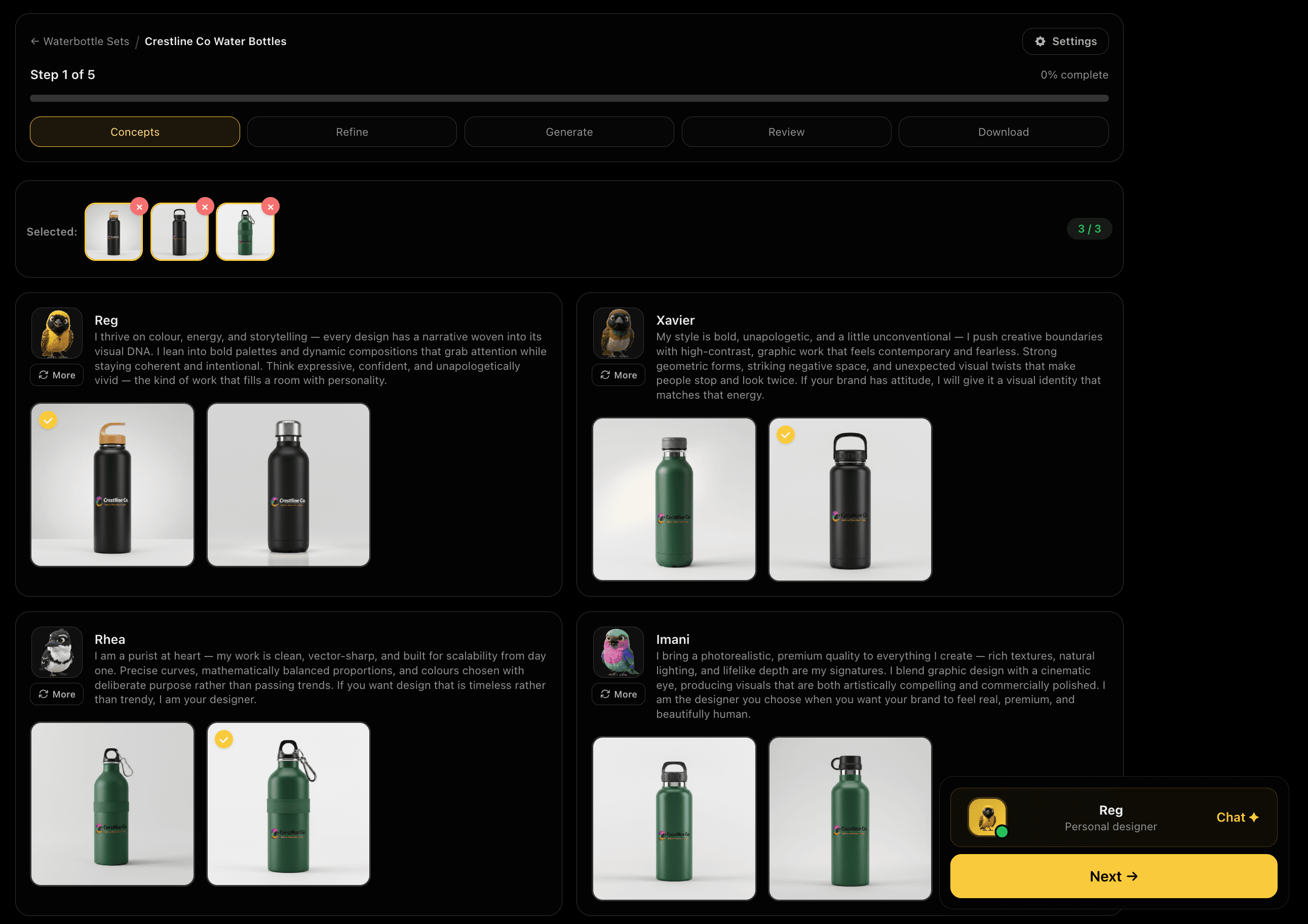
Design agents each interpret your brief and generate their own mockup scene. You can watch them generate in real time. Each brings a different compositional style, lighting approach, and surface treatment. Select up to 3 concepts to carry into refinement.

Feature Preview

Concepts from Assistant Designers

03
CONCEPTS·Step 3

Concepts from Assistant Designers

Design agents each interpret your brief and generate their own mockup scene. You can watch them generate in real time. Each brings a different compositional style, lighting approach, and surface treatment. Select up to 3 concepts to carry into refinement.

Different agents bring different scene styles, so you get genuine creative range to choose from, not variations of the same shot.

Captures
4 Assistant designersLive generationSelect up to 3Scene diversity
Pick Your Base ScenePick Your Base Scene
REFINE·Step 4

Pick Your Base Scene

Pick Your Base Scene

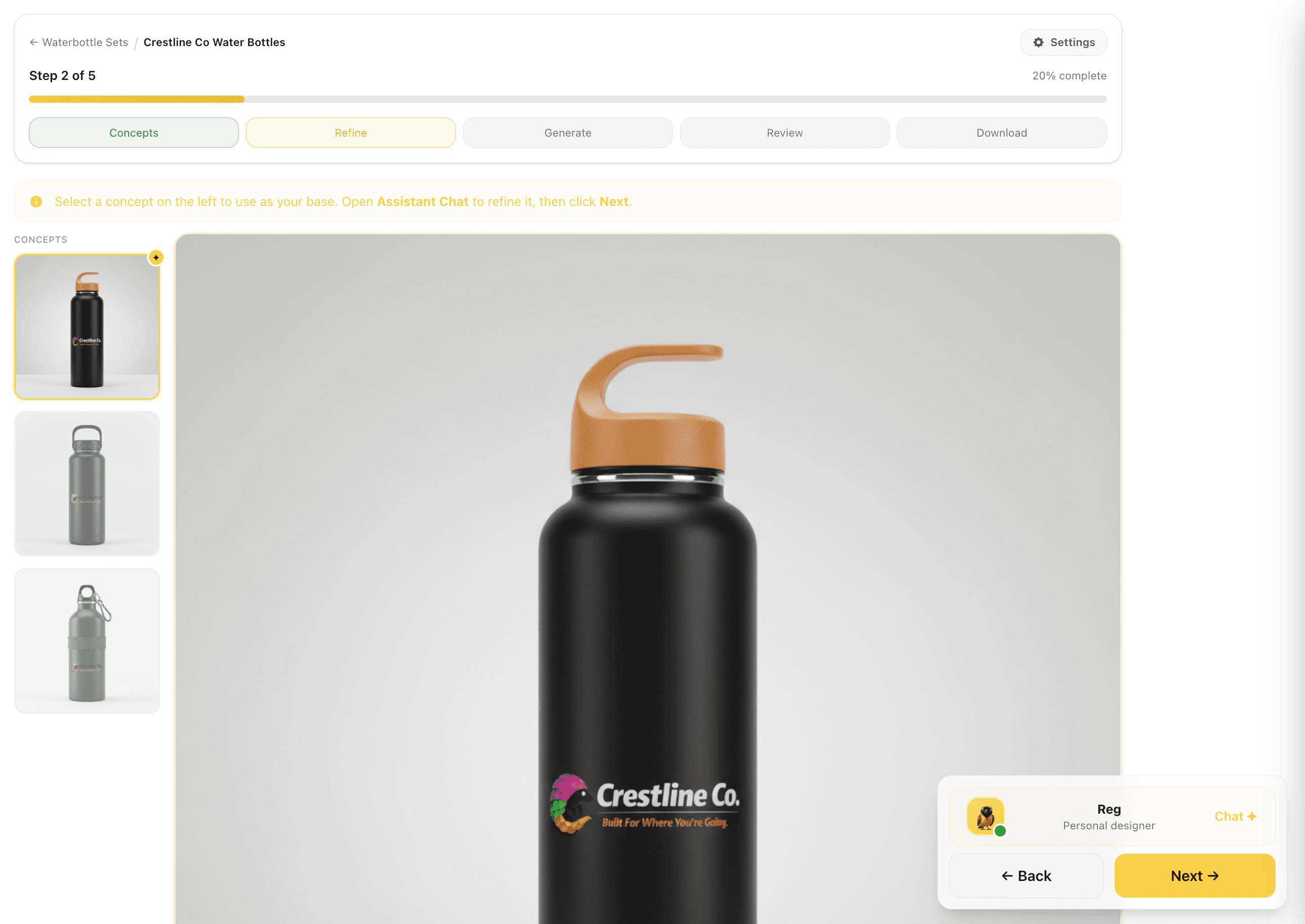
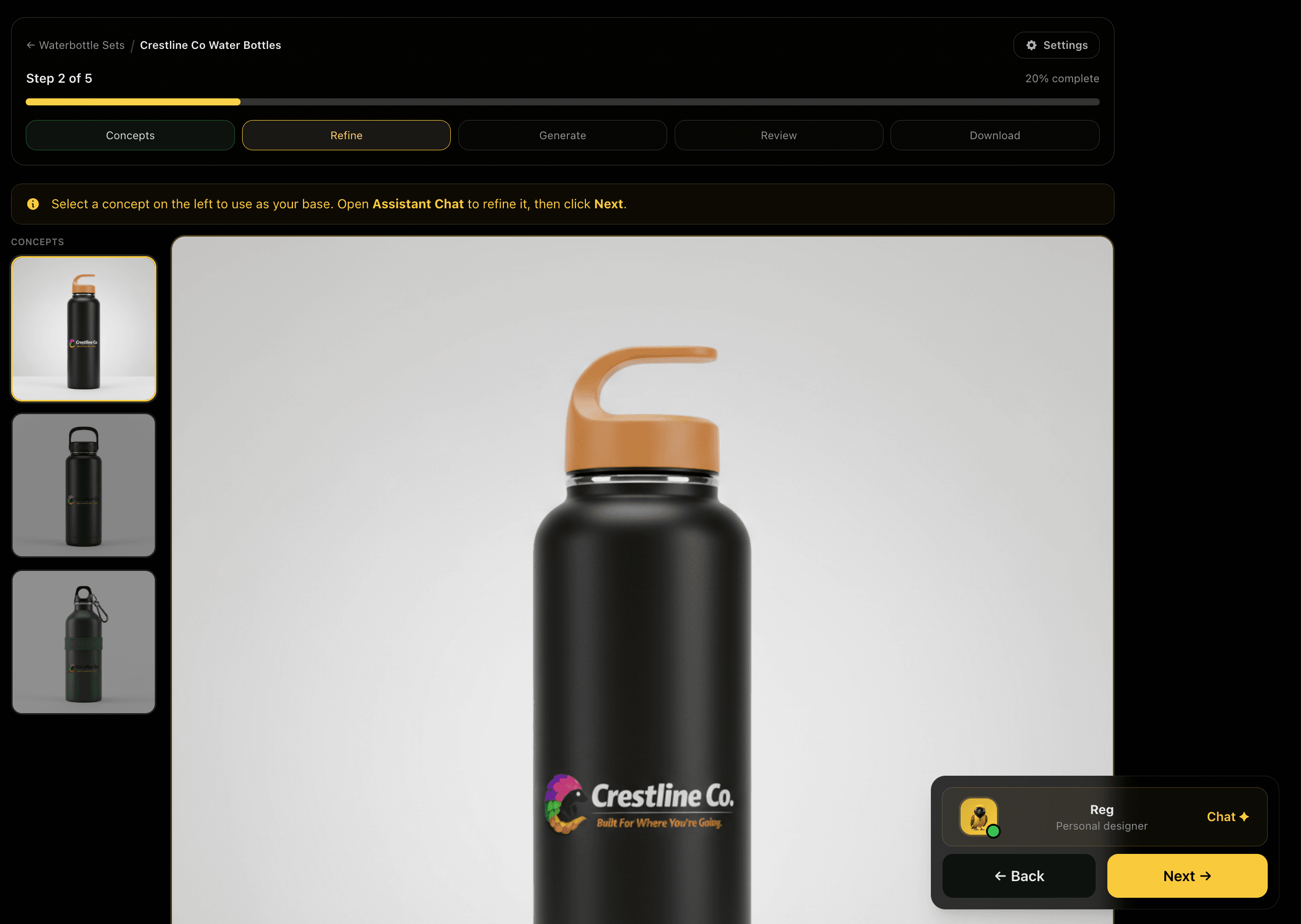
Choose one concept as your base: the scene you'll refine and generate all variants from. It's shown at full size so you can properly assess the composition, lighting, and how your brand sits on the surface. Pick the one with the strongest scene quality, not just the best colour.

Feature Preview

Pick Your Base Scene

04
REFINE·Step 4

Pick Your Base Scene

Choose one concept as your base: the scene you'll refine and generate all variants from. It's shown at full size so you can properly assess the composition, lighting, and how your brand sits on the surface. Pick the one with the strongest scene quality, not just the best colour.

The base concept sets the visual language for your full variant set. Choosing quality here saves regeneration credits later.

Captures
Base selectionFull-size previewScene assessment
Refine with Assistant ChatRefine with Assistant Chat
REFINE·Step 5

Refine with Assistant Chat

Refine with Assistant Chat

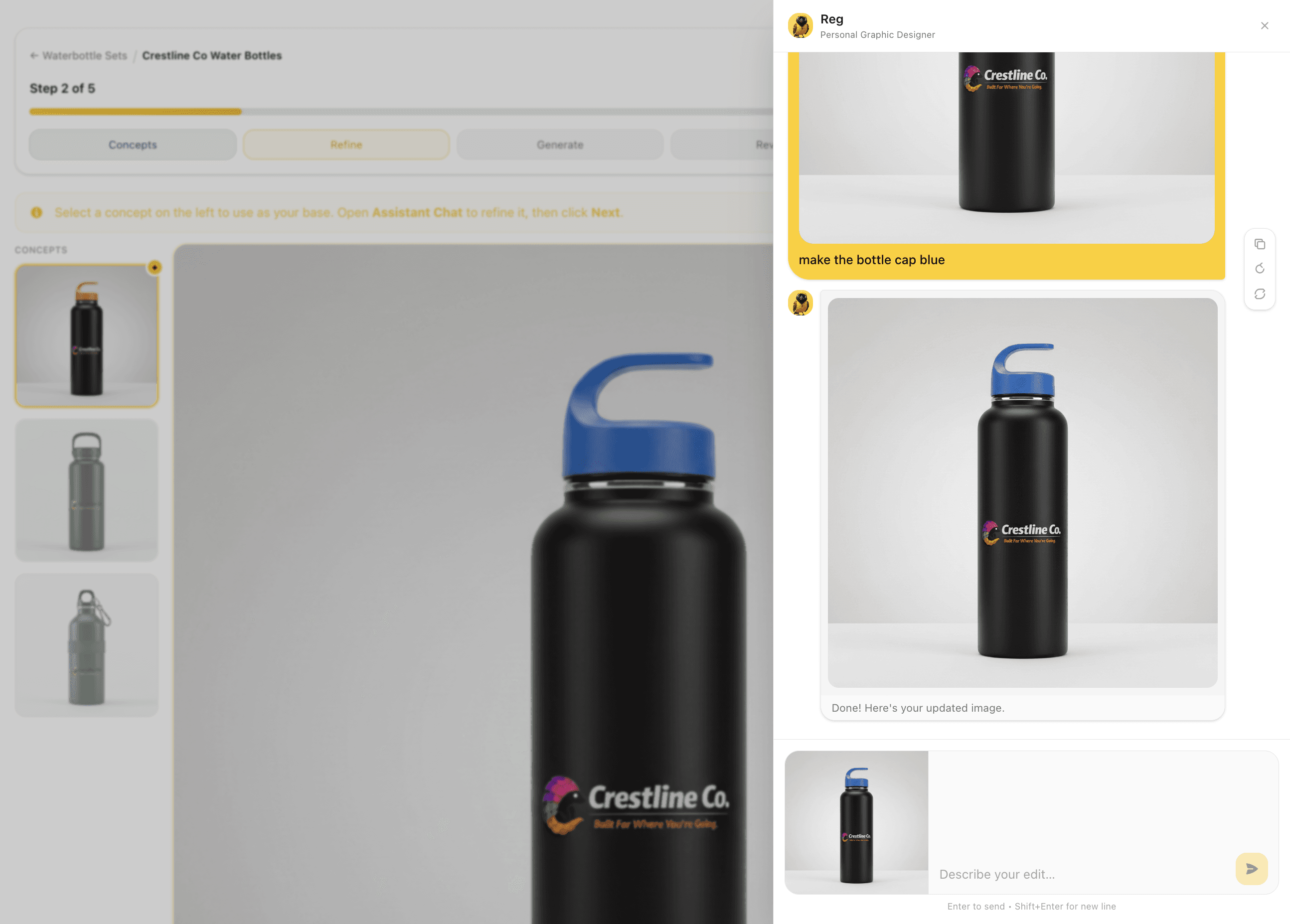
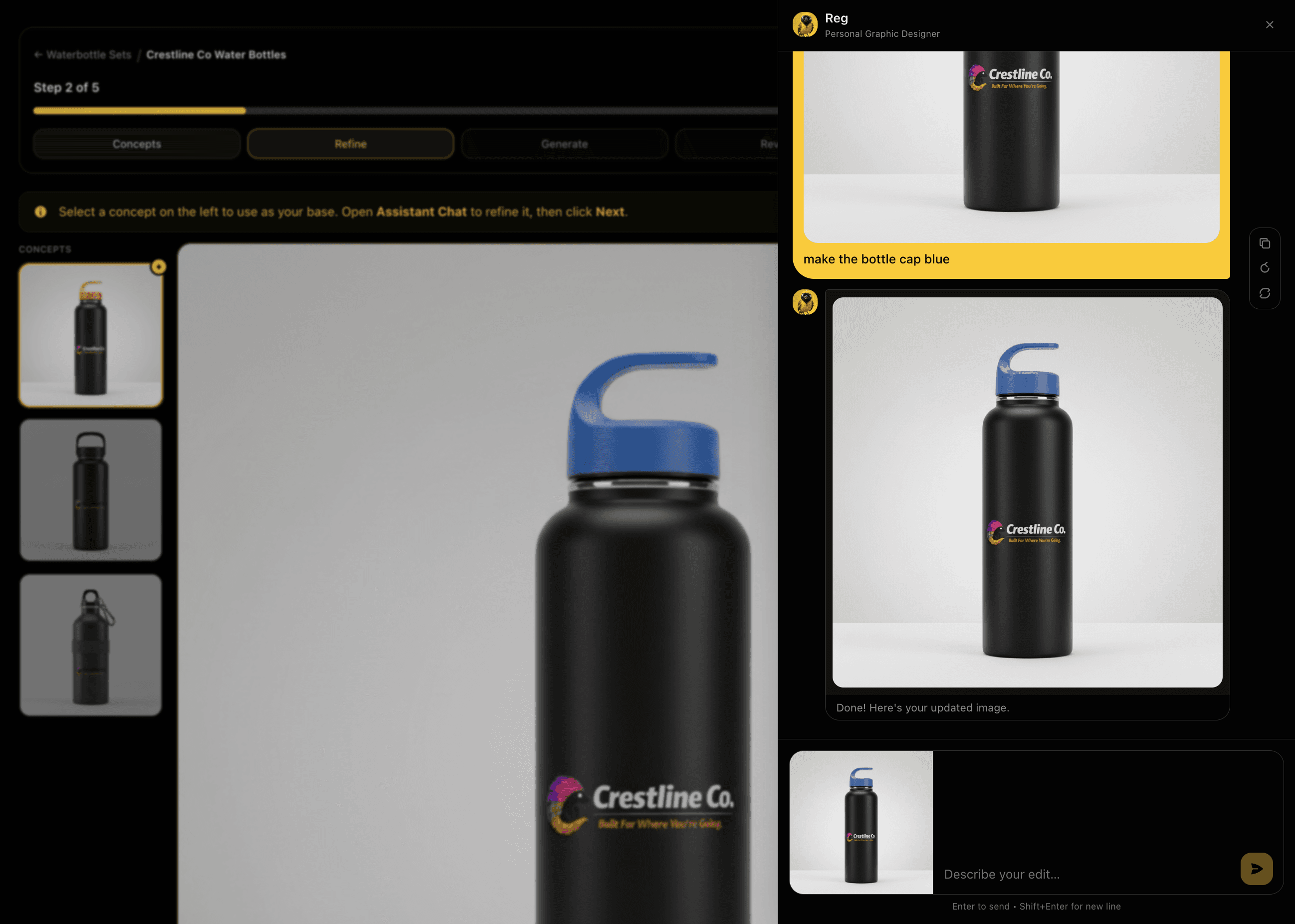
Chat with David to adjust the selected scene before generating all variants. Change the product colour, adjust the background, reposition the logo, shift the lighting. David applies your request and shows you the updated mockup inline. Iterate until the scene is exactly right.

Feature Preview

Refine with Assistant Chat

05
REFINE·Step 5

Refine with Assistant Chat

Chat with David to adjust the selected scene before generating all variants. Change the product colour, adjust the background, reposition the logo, shift the lighting. David applies your request and shows you the updated mockup inline. Iterate until the scene is exactly right.

Refining before generation means every variant starts from an approved base. Fewer regenerations, lower credit spend.

Captures
Assistant chatLive updatesColour editsBackground changesLighting tweaks
Review Generation SettingsReview Generation Settings
GENERATE·Step 6

Review Generation Settings

Review Generation Settings

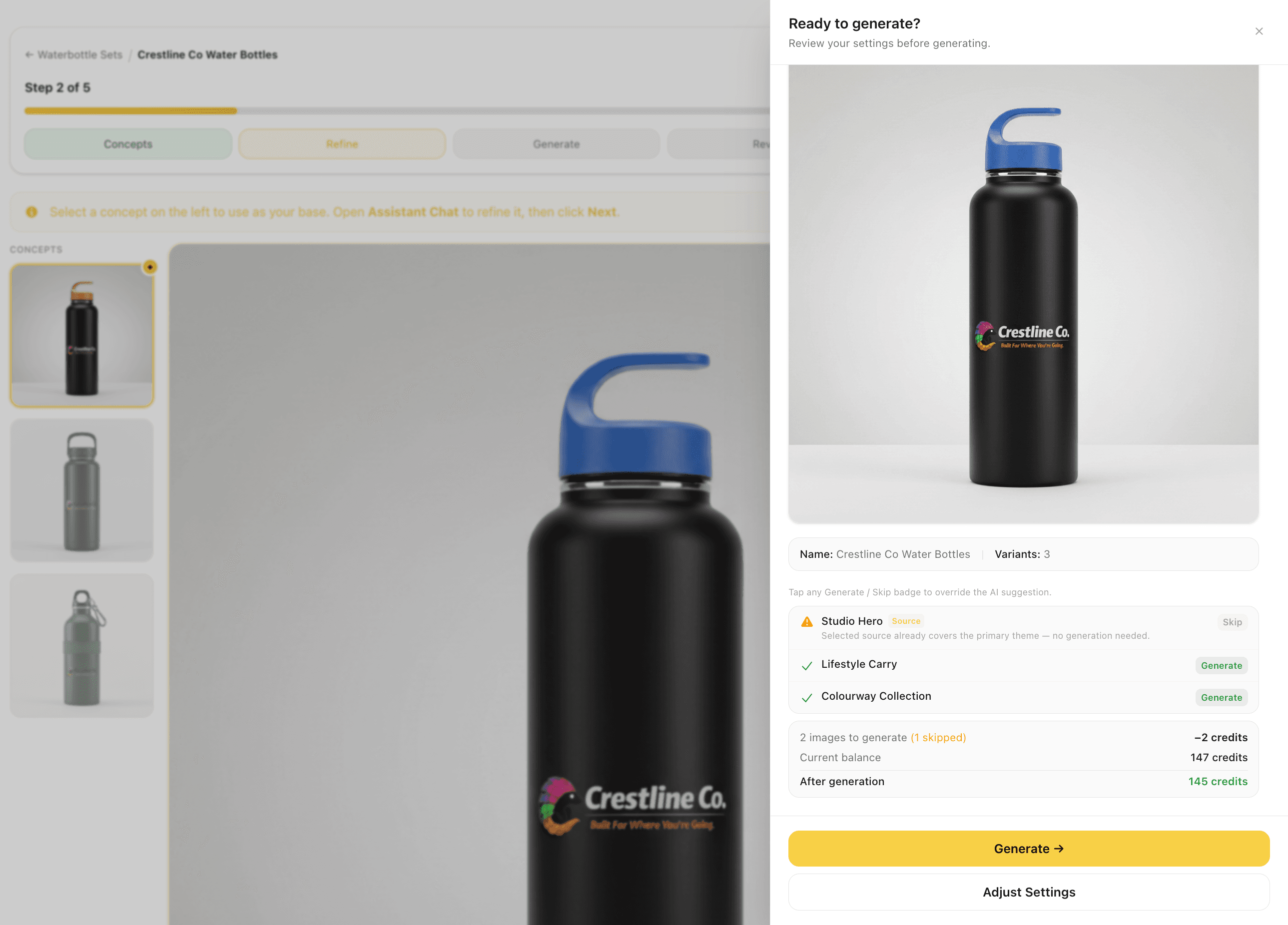
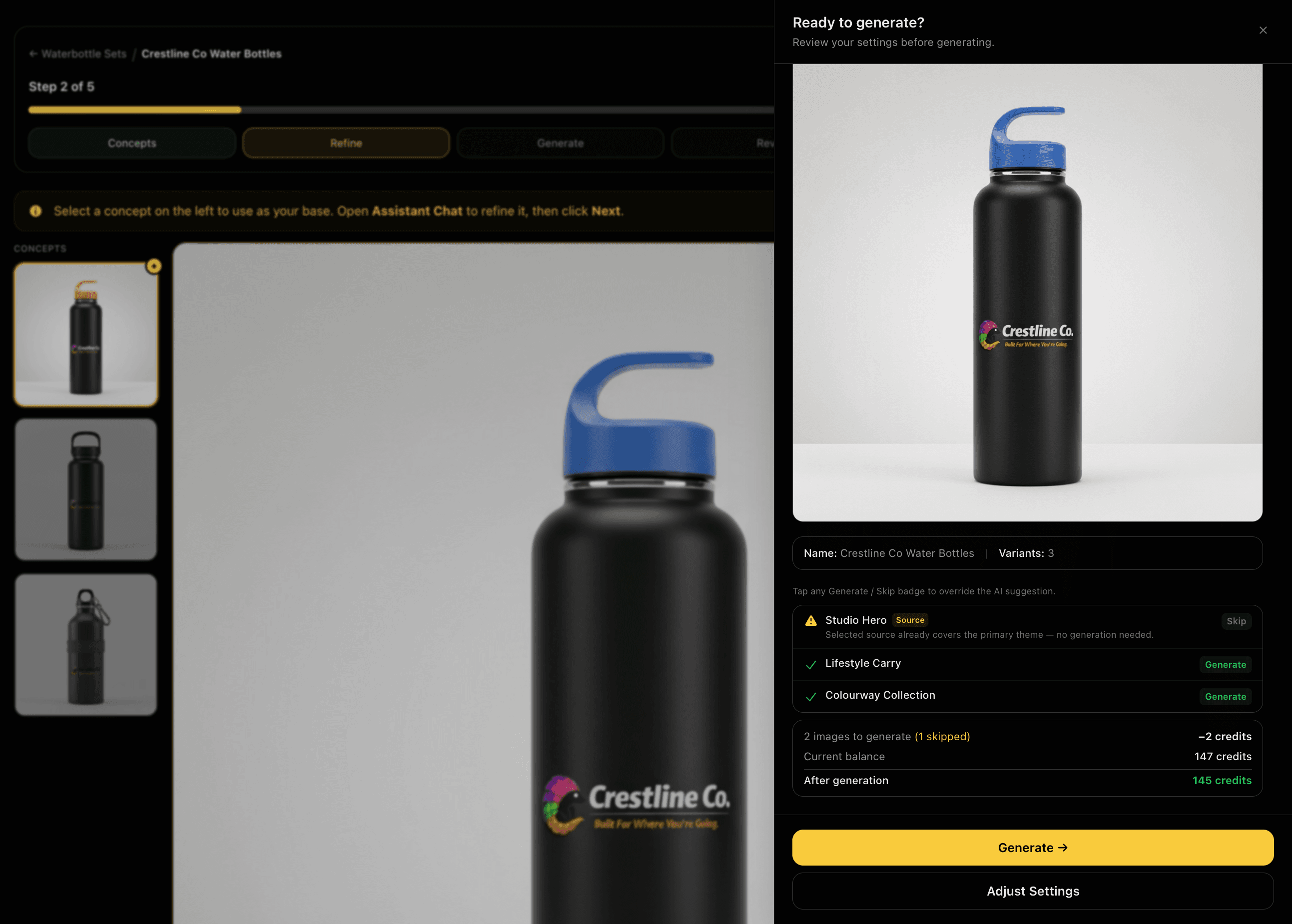
Before anything generates, review the exact variants that will be produced: Clean Studio, Multi Colour Set, and Lifestyle Counter. The source concept already counts as your first variant, so you see precisely what's new, what's already done, and the exact credit cost before committing.

Feature Preview

Review Generation Settings

06
GENERATE·Step 6

Review Generation Settings

Before anything generates, review the exact variants that will be produced: Clean Studio, Multi Colour Set, and Lifestyle Counter. The source concept already counts as your first variant, so you see precisely what's new, what's already done, and the exact credit cost before committing.

Full transparency before generation. No surprises on the credit bill when the run completes.

Captures
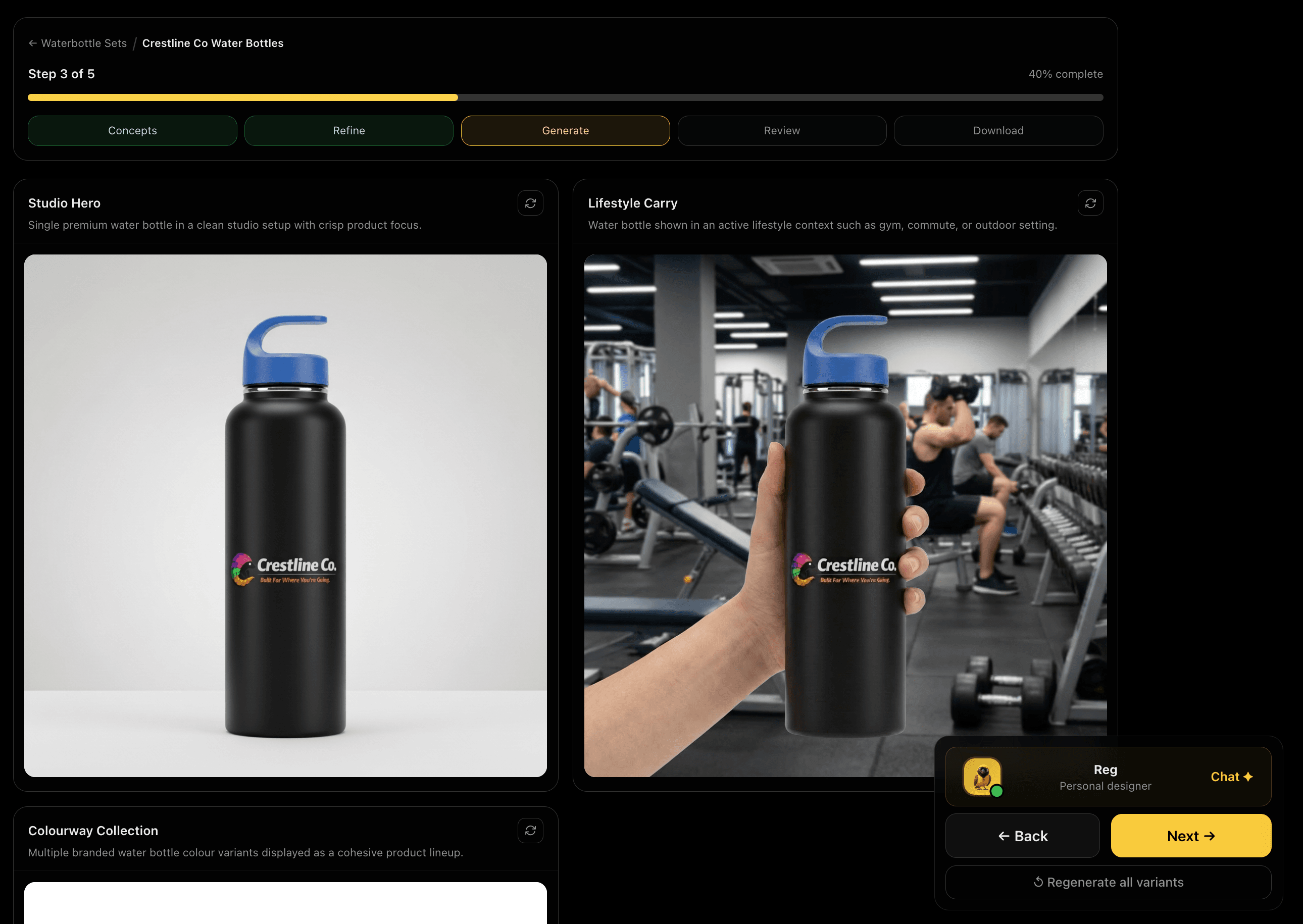
Variant checklistSource countsCredit previewSkip generated
Generated VariantsGenerated Variants
GENERATE·Step 7

Generated Variants

Generated Variants

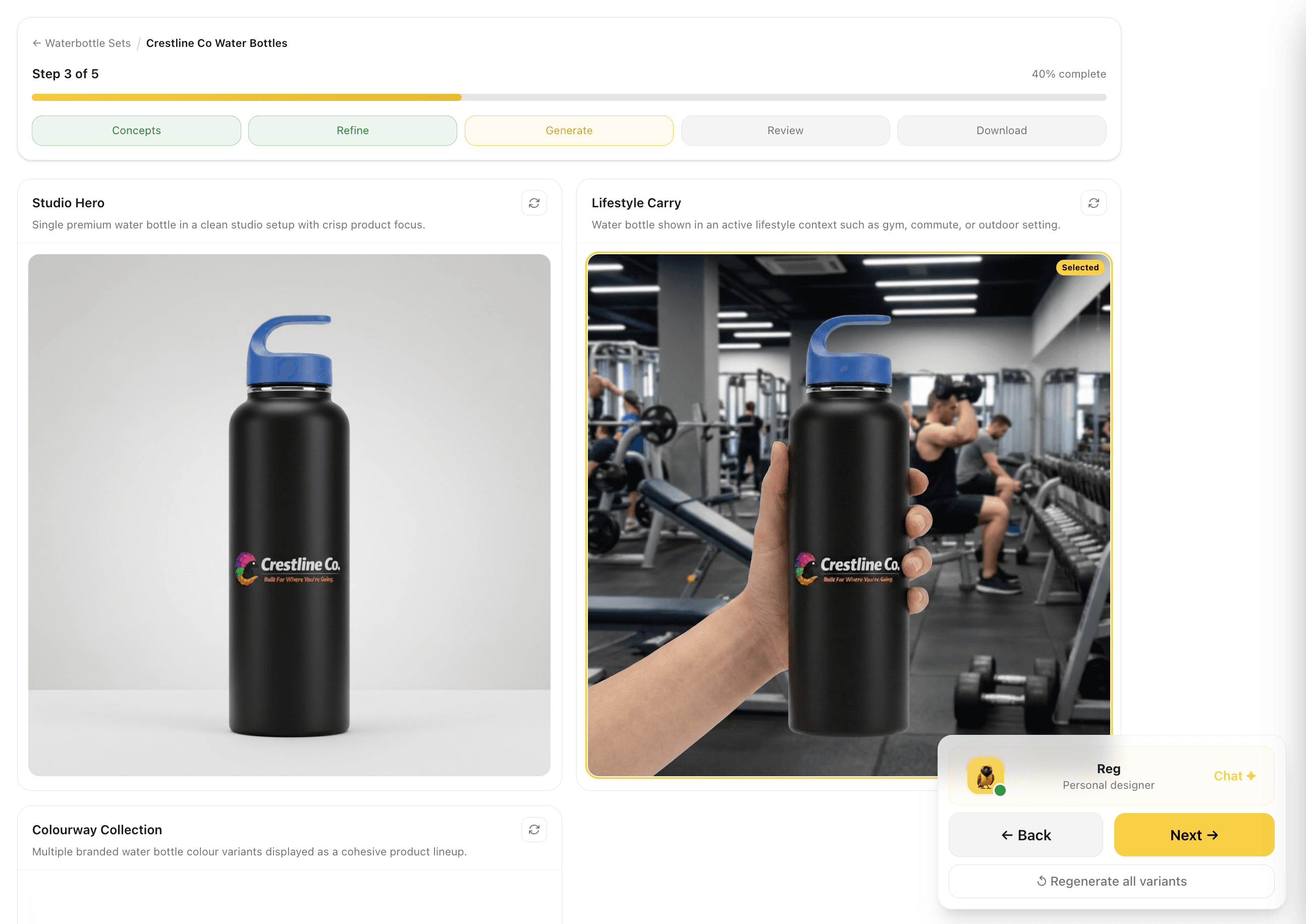
All selected variants generate in one run: Clean Studio (your product isolated on a neutral background for e-commerce and presentations), Multi Colour Set (your logo across a range of brand colour options to test palette coverage), and Lifestyle Counter (the product in a real-world environment for social and campaigns).

Feature Preview

Generated Variants

07
GENERATE·Step 7

Generated Variants

All selected variants generate in one run: Clean Studio (your product isolated on a neutral background for e-commerce and presentations), Multi Colour Set (your logo across a range of brand colour options to test palette coverage), and Lifestyle Counter (the product in a real-world environment for social and campaigns).

Selected scene types in one generation covers every use case: product pages, social media, stakeholder decks, and print.

Captures
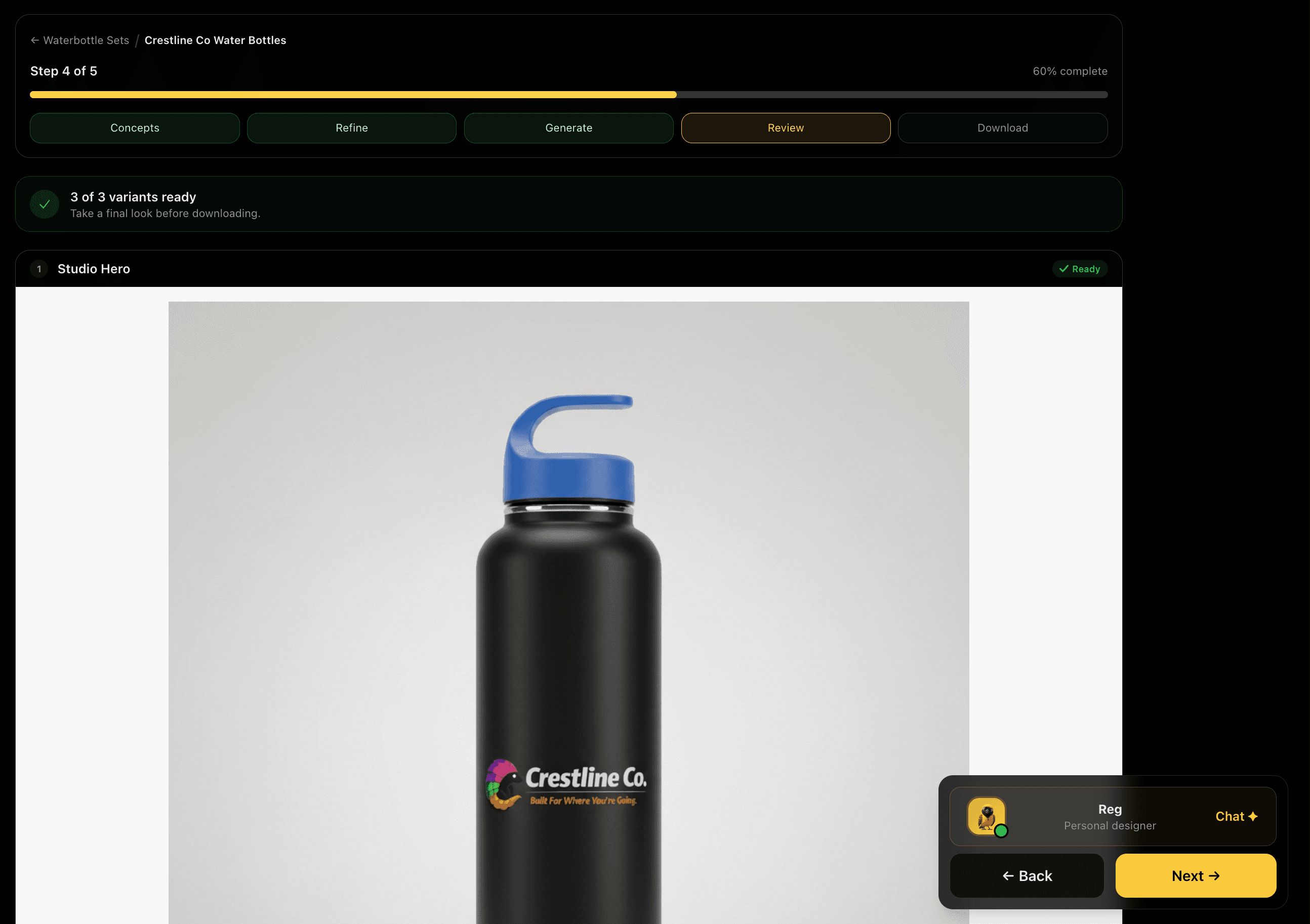
Clean StudioMulti Colour SetLifestyle CounterOne run
Review All VariantsReview All Variants
REVIEW·Step 8

Review All Variants

Review All Variants

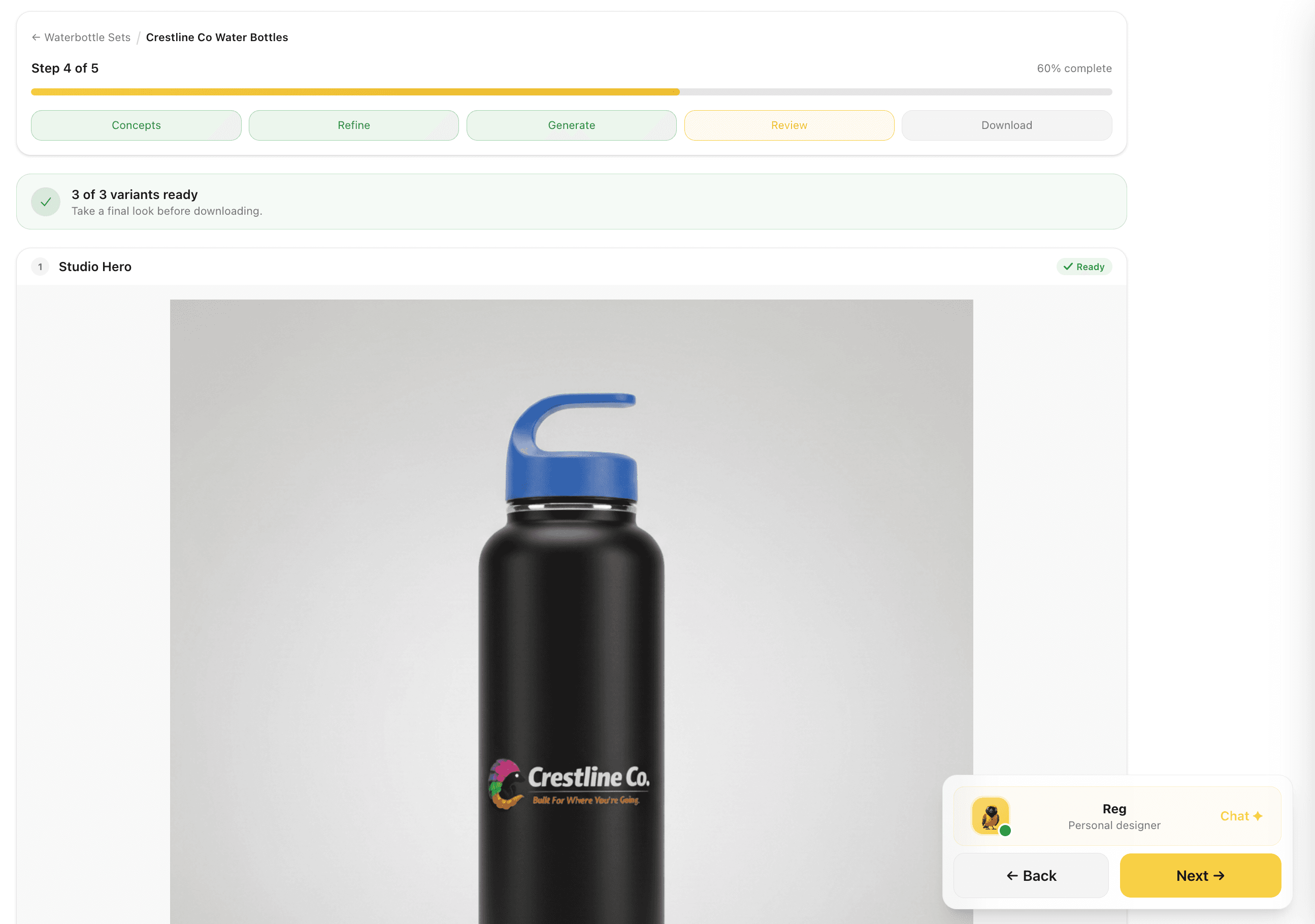
All variants are presented for a final check before download, each with a ready indicator. If any scene missed the mark, regenerate it individually without rerunning the full set. Take a final look at how your brand sits across every context before committing to download.

Feature Preview

Review All Variants

08
REVIEW·Step 8

Review All Variants

All variants are presented for a final check before download, each with a ready indicator. If any scene missed the mark, regenerate it individually without rerunning the full set. Take a final look at how your brand sits across every context before committing to download.

Reviewing all variants together reveals inconsistencies you'd miss looking at each one in isolation.

Captures
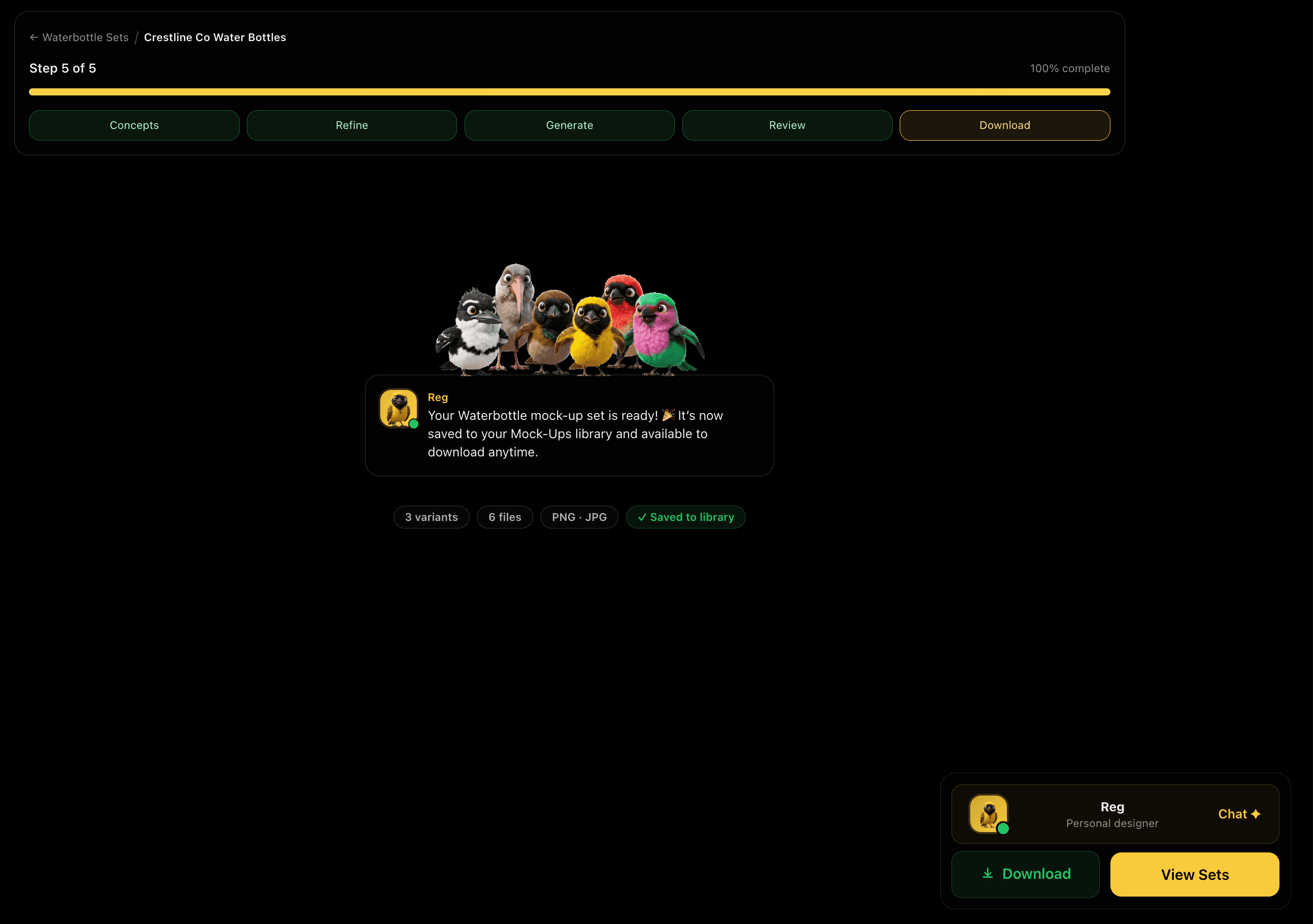
3 variants readySelective regenerationFinal check
Download Your SetDownload Your Set
DOWNLOAD·Step 9

Download Your Set

Download Your Set

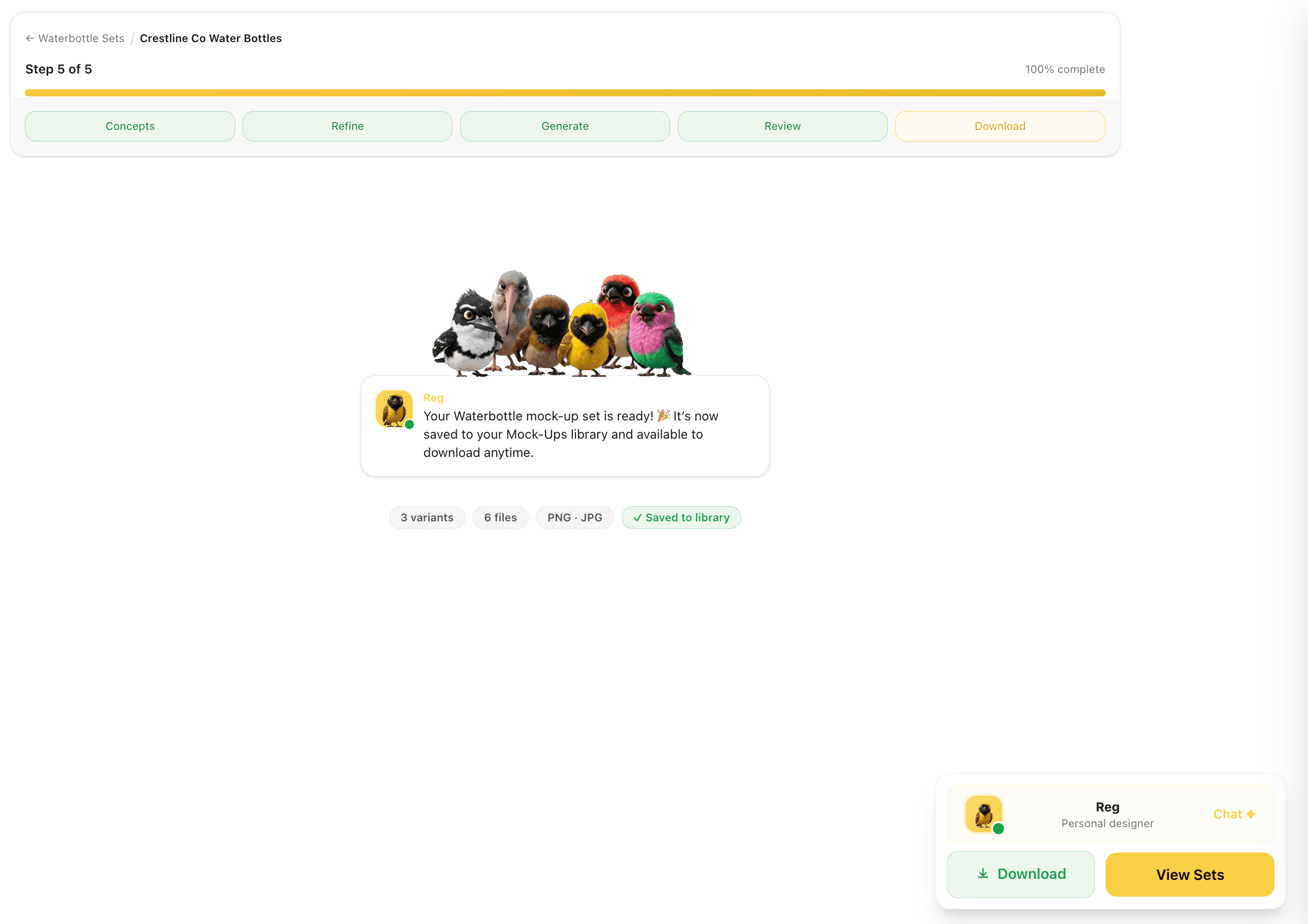
Your complete mockup set is ready. Download all files and the set is automatically saved to your Mock-Ups library under its surface type, always available for future campaigns, social posts, pitch decks, or stakeholder presentations.

Feature Preview

Download Your Set

09
DOWNLOAD·Step 9

Download Your Set

Your complete mockup set is ready. Download all files and the set is automatically saved to your Mock-Ups library under its surface type, always available for future campaigns, social posts, pitch decks, or stakeholder presentations.

Production-ready mockup files across every context, saved automatically. Nothing to export or reformat manually.

Captures
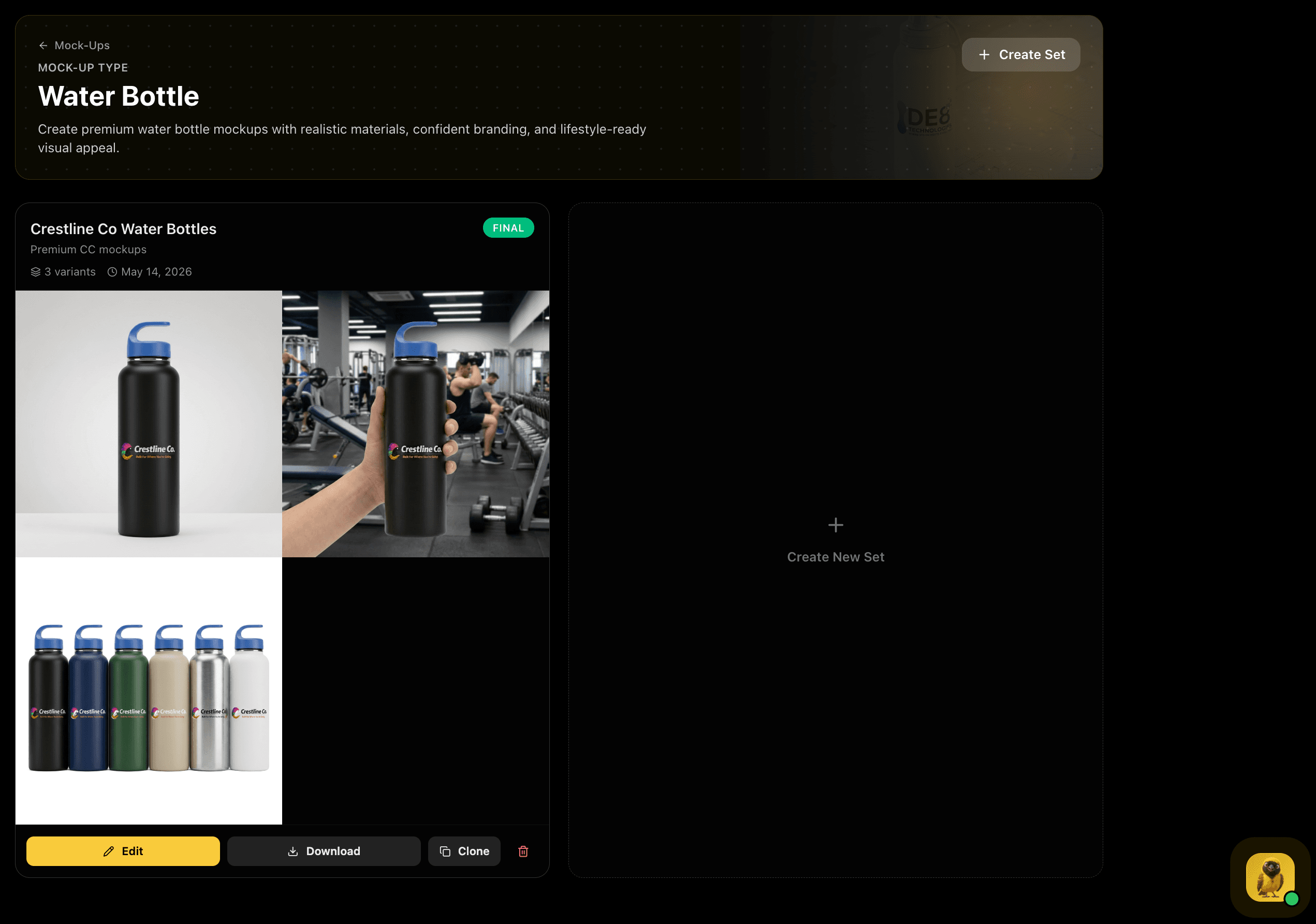
3 variants3 filesSaved to libraryDownload anytime
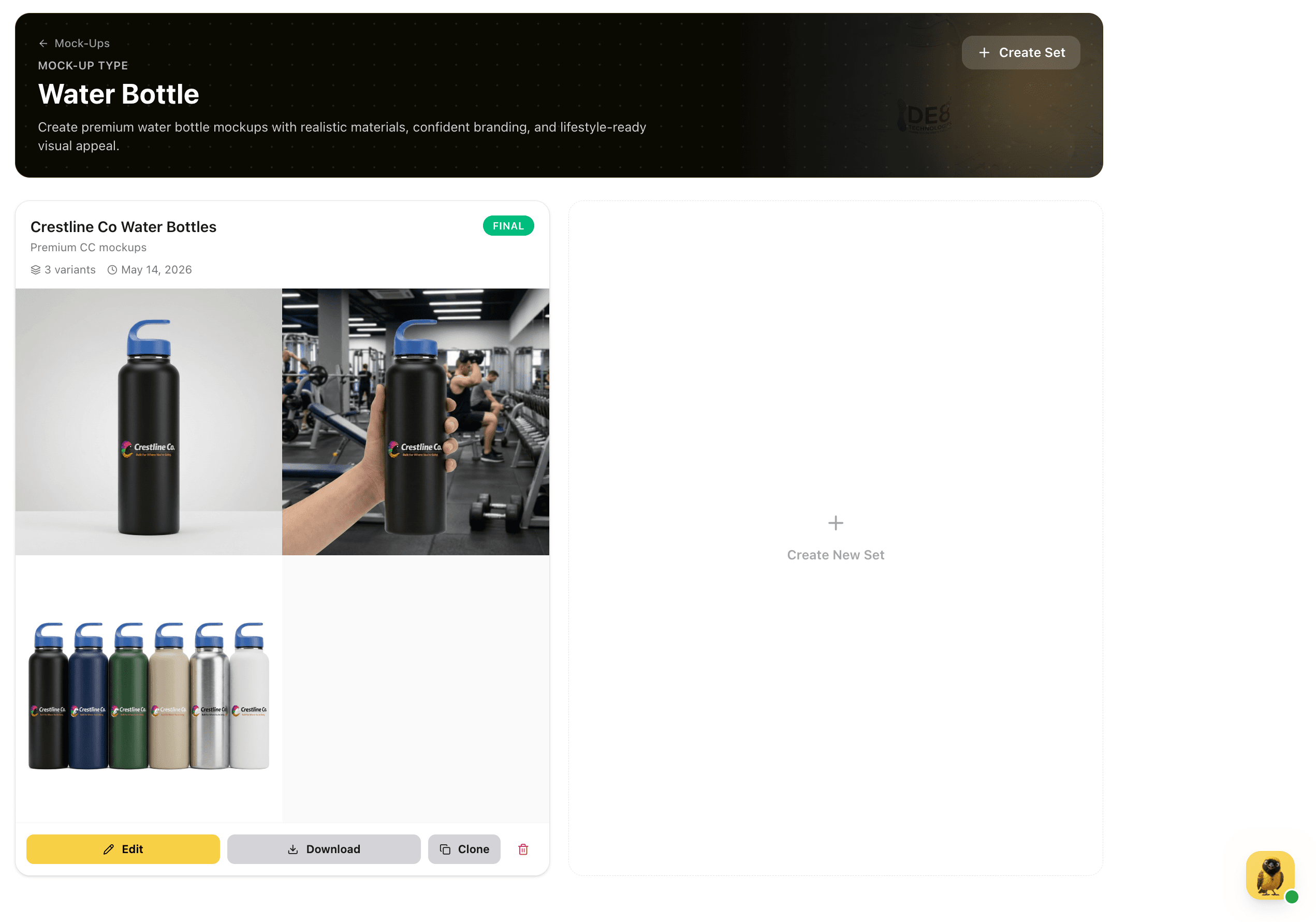
Mock-Ups LibraryMock-Ups Library
COMPLETE·Step 10 of 10

Mock-Ups Library

Your finalized set lives in the Mock-Ups library, organized by surface type, marked Final, with all variants displayed as a visual grid. Clone it to explore alternative colour directions, download at any time, or create a new set for a different campaign brief.

Final badgeType-organizedCloneDownload anytime