BrandWeave
BrandWeave
Back home
Log in
Get Started
Theme
Log in
Feature Tour
BrandWeave

Pages

HomeFeatures TourPersona Journeys

Use Cases

Founder JourneySmall Business JourneyEnterprise Journey

Explore

PricingCompareFAQ

© 2026 BrandWeave. All rights reserved.

Ide8 Technologies
A proud product of Ide8 Technologies (Pty) Ltd
Privacy PolicyTerms of ServiceRefund Policy
Marketing Campaign

Go from a campaign goal to a fully written strategy, with Assistant building alongside you at every step.

Marketing Campaigns is an 8-step Assistant-powered strategy builder. Tell the Assistant your goal and platforms, and it generates complete campaign concepts for you to choose from. Then work through each step, audience, messaging, content, creative, risks, and phases, with David available to generate or regenerate any section at any point.
Campaigns Hub, Strategy Meets ContextCampaigns Hub, Strategy Meets Context
HUB·Step 1

Campaigns Hub, Strategy Meets Context

Campaigns Hub, Strategy Meets Context

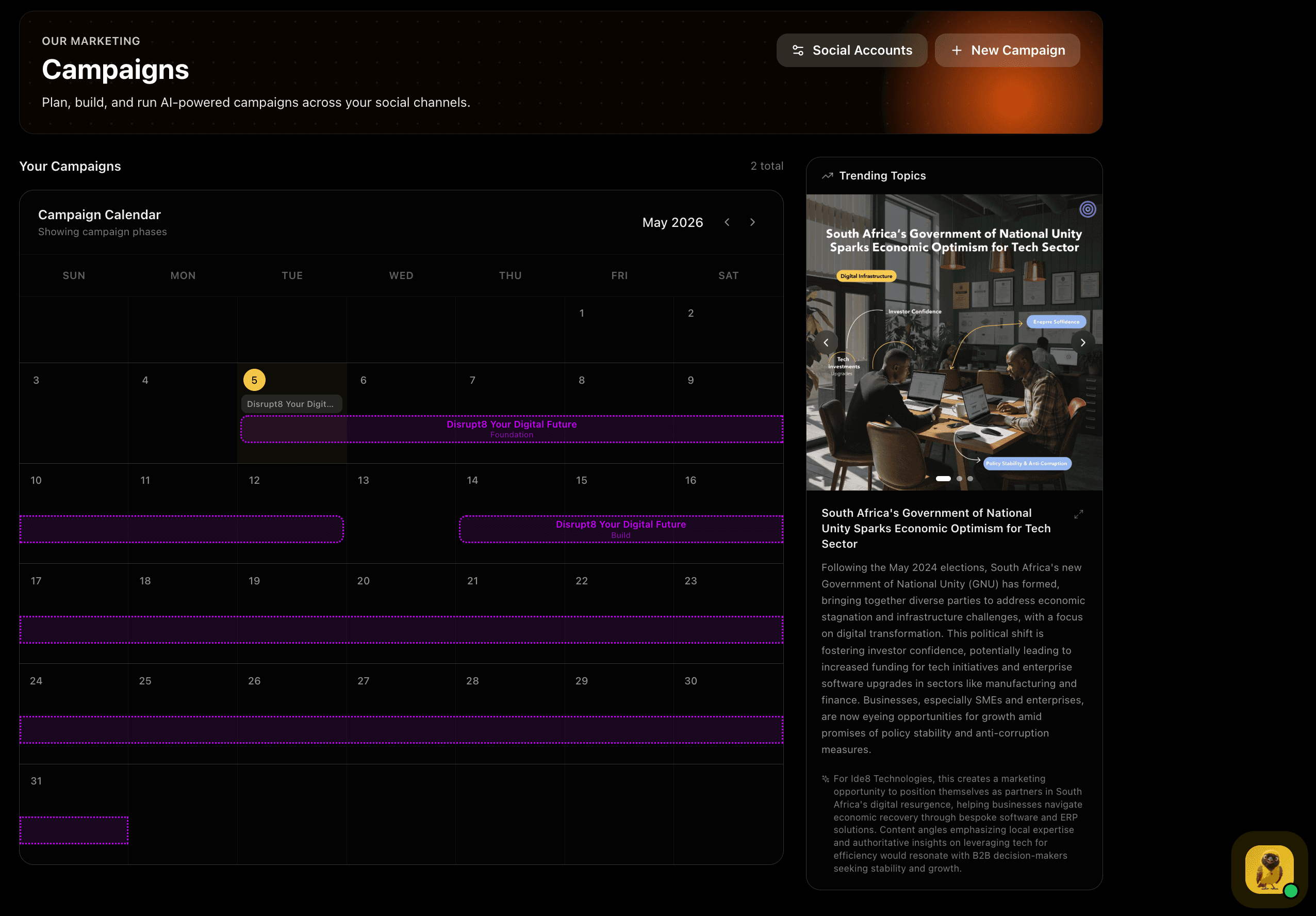
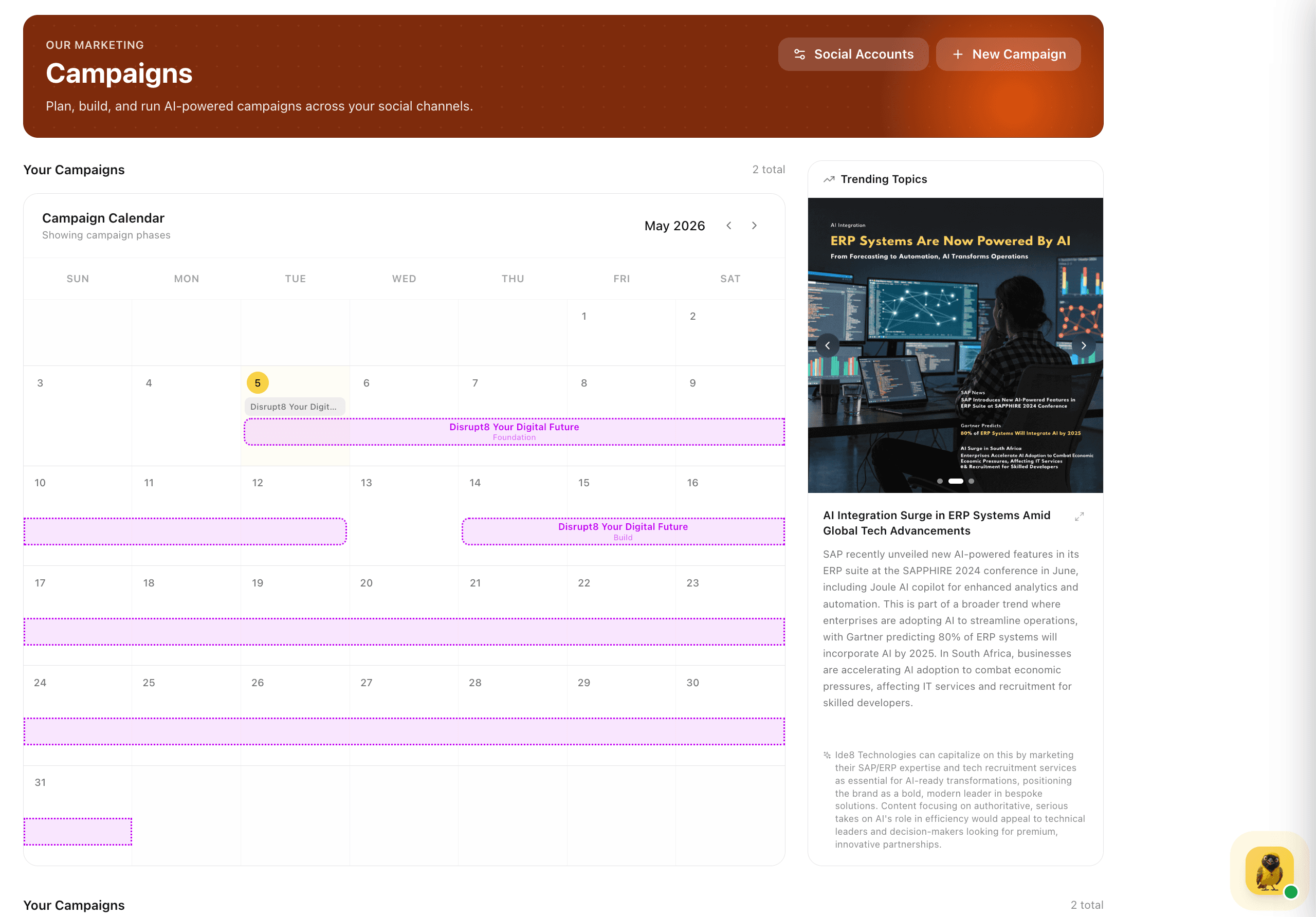
The Campaigns hub gives you two things at once: a visual calendar showing your active campaigns as colour-coded phase bars across the month, and a Trending Topics panel that surfaces live news and developments relevant to your brand. Before you brief the Assistant, you can see what is happening in your industry right now, and let that shape what you build.

Feature Preview

Campaigns Hub, Strategy Meets Context

01
HUB·Step 1

Campaigns Hub, Strategy Meets Context

The Campaigns hub gives you two things at once: a visual calendar showing your active campaigns as colour-coded phase bars across the month, and a Trending Topics panel that surfaces live news and developments relevant to your brand. Before you brief the Assistant, you can see what is happening in your industry right now, and let that shape what you build.

Starting a campaign with live context means your brief is grounded in what is actually moving in your market, not what was relevant last quarter.

Captures
Campaign calendarPhase visualisationTrending TopicsIndustry contextLive news
Choose How to StartChoose How to Start
SETUP·Step 2

Choose How to Start

Choose How to Start

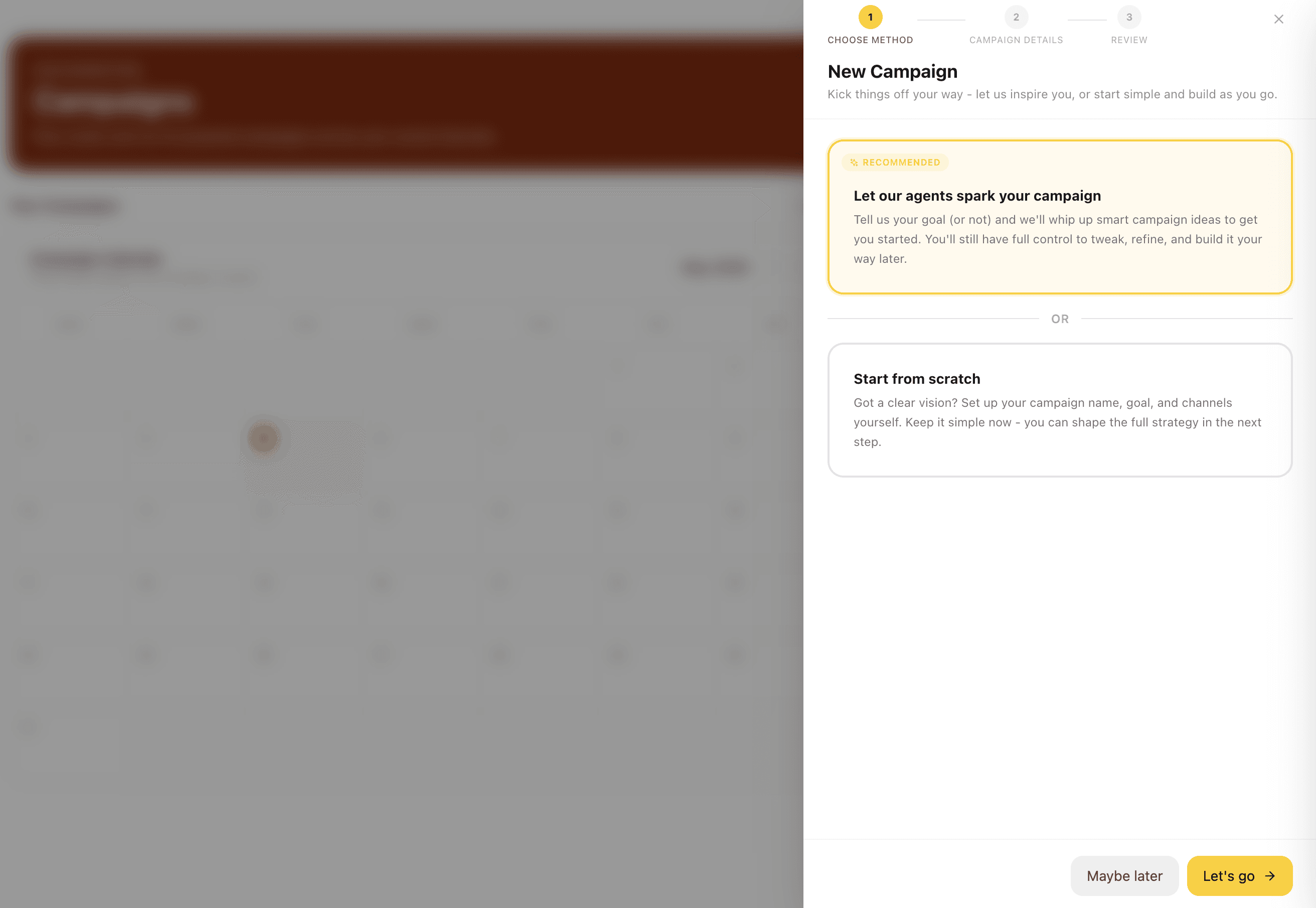
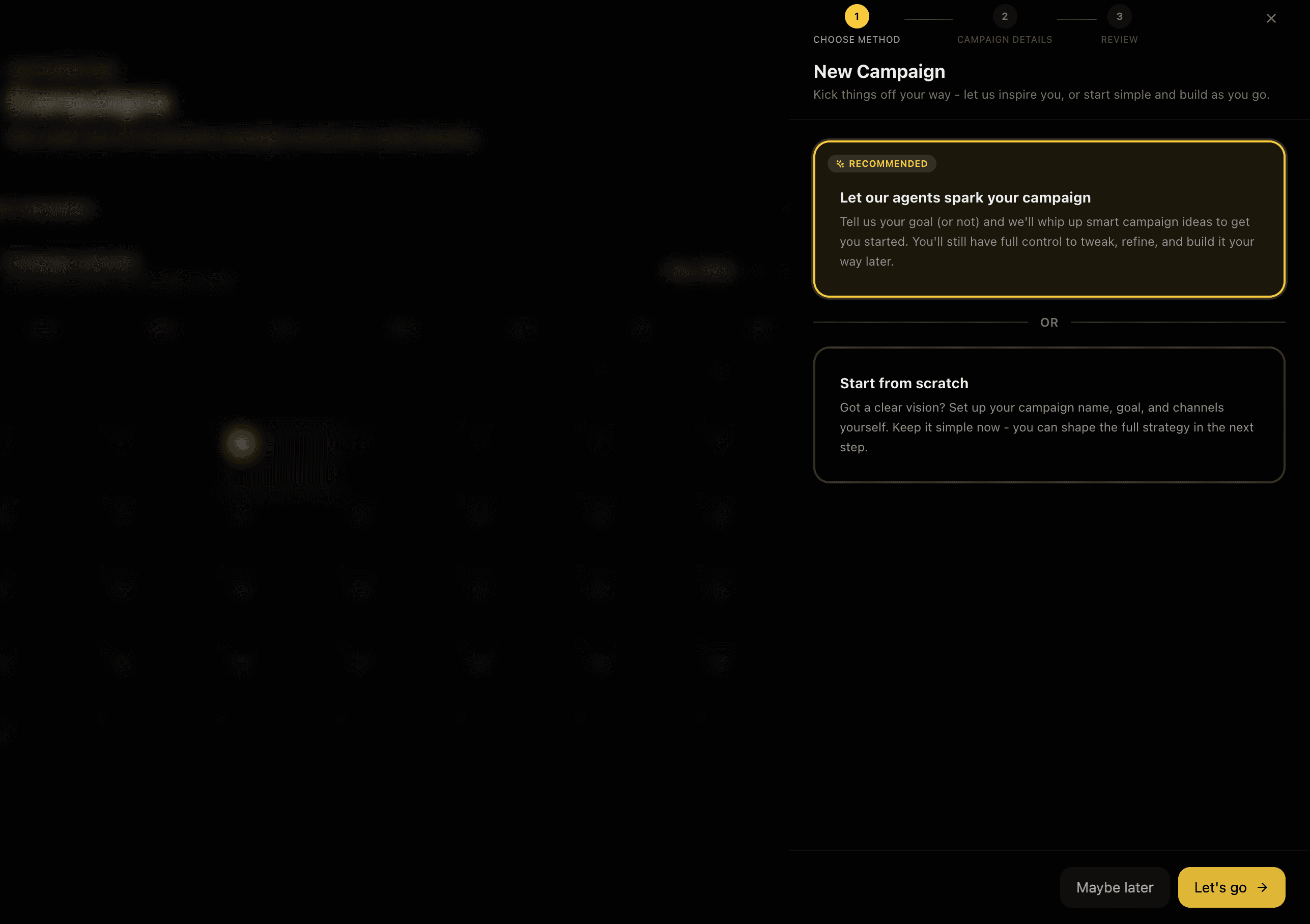
Every campaign starts with a choice: let the Assistant generate a full campaign concept from your brief, or build from scratch with full manual control. The recommended path hands the heavy lifting to the Assistant, you still have complete control to tweak, refine, and build from there. The scratch path gives you a blank strategy framework to fill in your own way.

Feature Preview

Choose How to Start

02
SETUP·Step 2

Choose How to Start

Every campaign starts with a choice: let the Assistant generate a full campaign concept from your brief, or build from scratch with full manual control. The recommended path hands the heavy lifting to the Assistant, you still have complete control to tweak, refine, and build from there. The scratch path gives you a blank strategy framework to fill in your own way.

Two paths means the tool works for teams who want a fast Assistant-generated starting point and for those who need to own the strategy from line one.

Captures
Assistant-generated conceptStart from scratchFull control either way
Brief the Assistant in Two FieldsBrief the Assistant in Two Fields
SETUP·Step 3

Brief the Assistant in Two Fields

Brief the Assistant in Two Fields

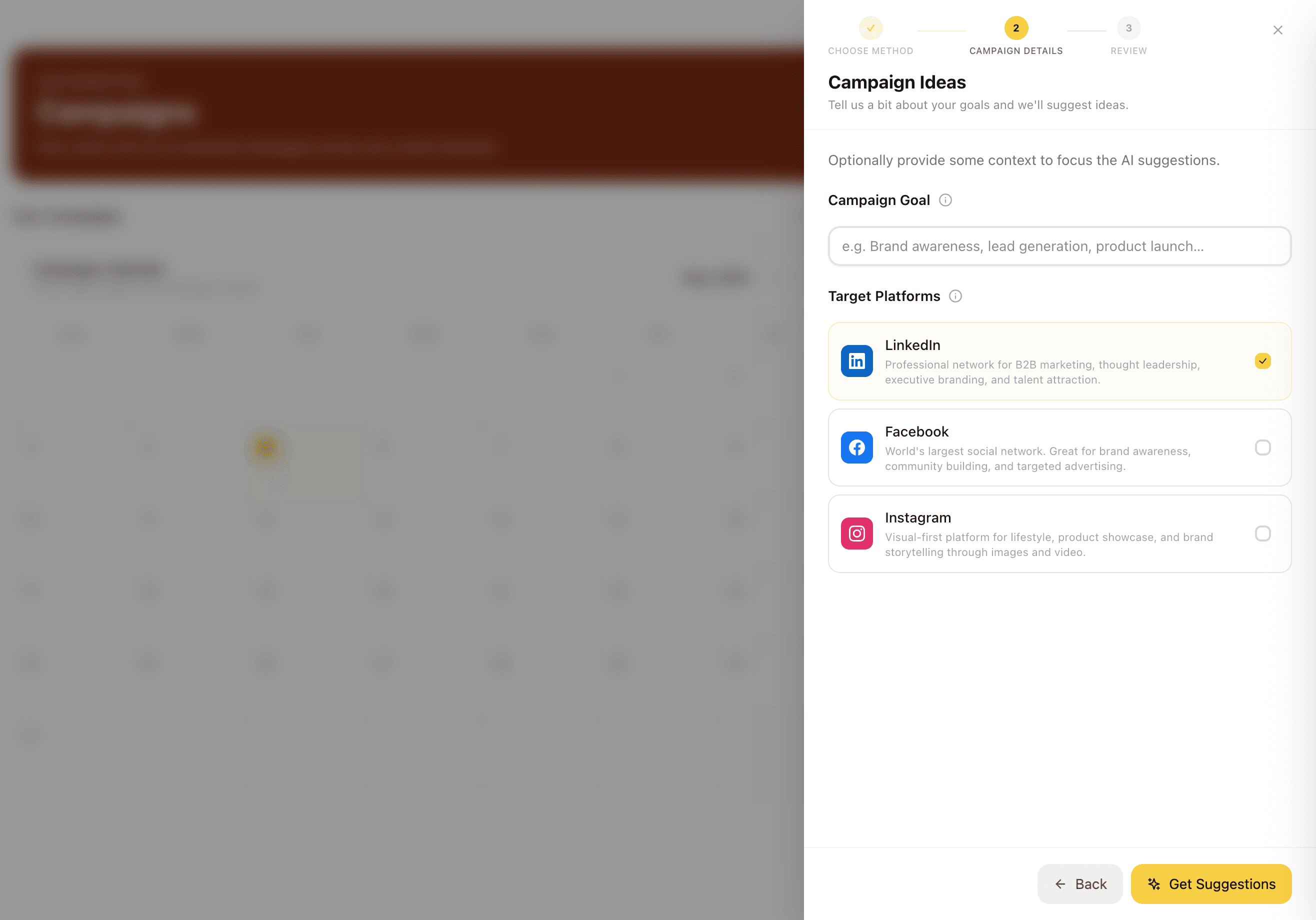
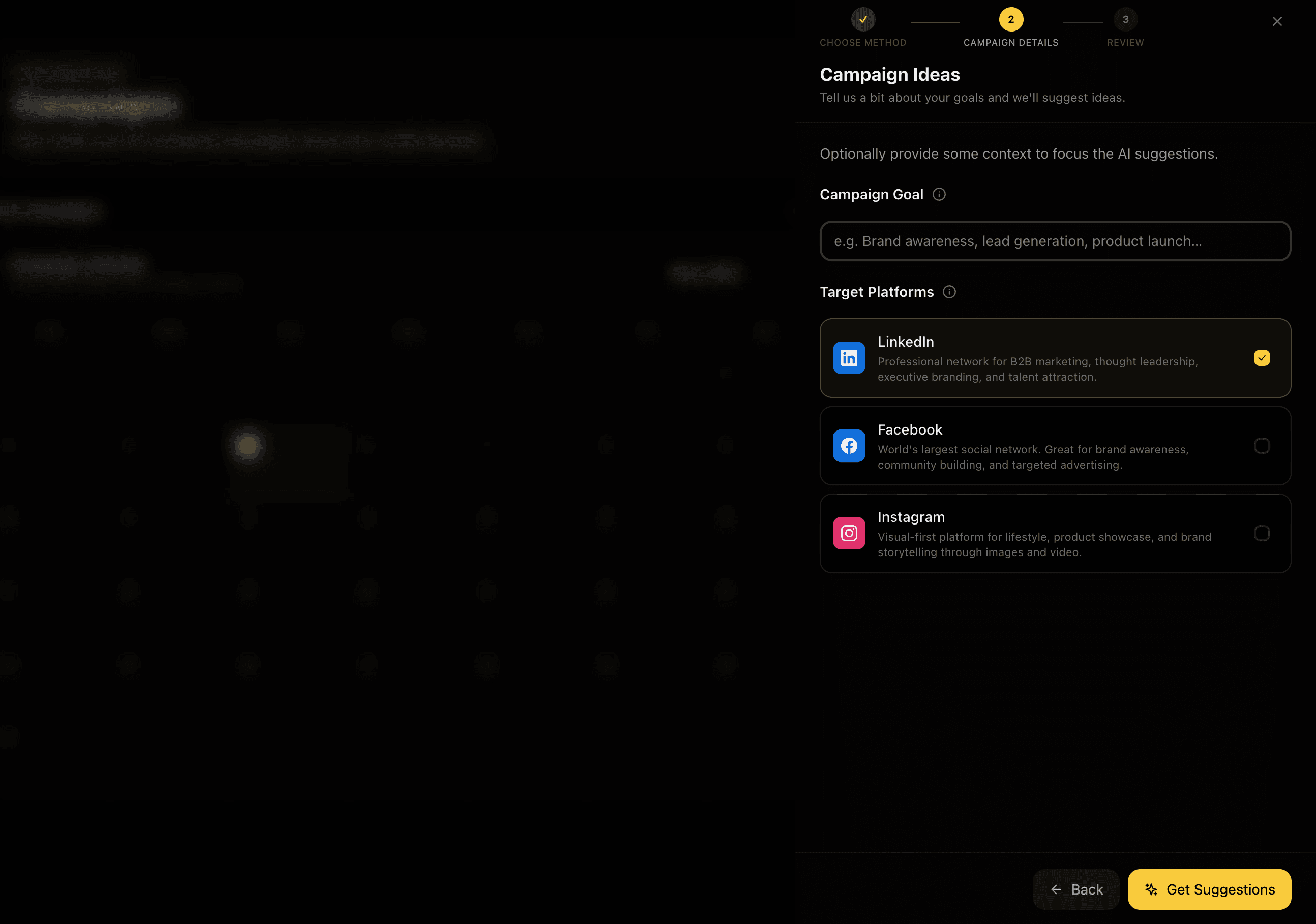
Tell the Assistant your campaign goal, a single sentence is enough, and select your target platforms: LinkedIn, Facebook, Instagram, Twitter/X, or a combination. That's the entire brief. The Assistant uses your brand profile, the goal, and the platform context to generate multiple distinct campaign concepts tailored to how each channel actually works.

Feature Preview

Brief the Assistant in Two Fields

03
SETUP·Step 3

Brief the Assistant in Two Fields

Tell the Assistant your campaign goal, a single sentence is enough, and select your target platforms: LinkedIn, Facebook, Instagram, Twitter/X, or a combination. That's the entire brief. The Assistant uses your brand profile, the goal, and the platform context to generate multiple distinct campaign concepts tailored to how each channel actually works.

The less you have to write, the faster you start. Two fields is a deliberately low barrier, the Assistant fills the gaps from your brand context.

Captures
Campaign goalPlatform selectionLinkedInFacebookInstagramBrand context
Assistant Generates Complete Campaign ConceptsAssistant Generates Complete Campaign Concepts
CONCEPTS·Step 4

Assistant Generates Complete Campaign Concepts

Assistant Generates Complete Campaign Concepts

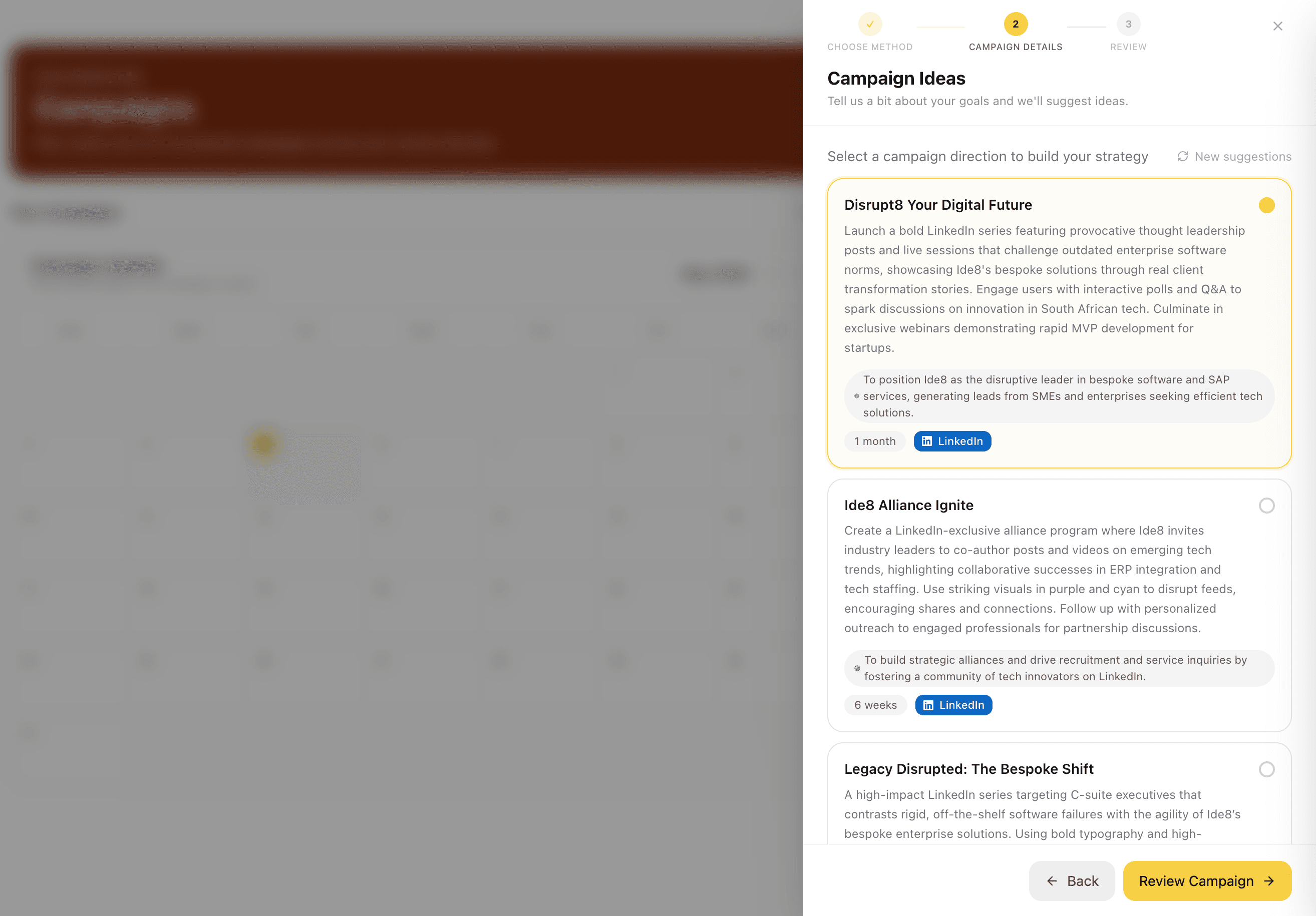
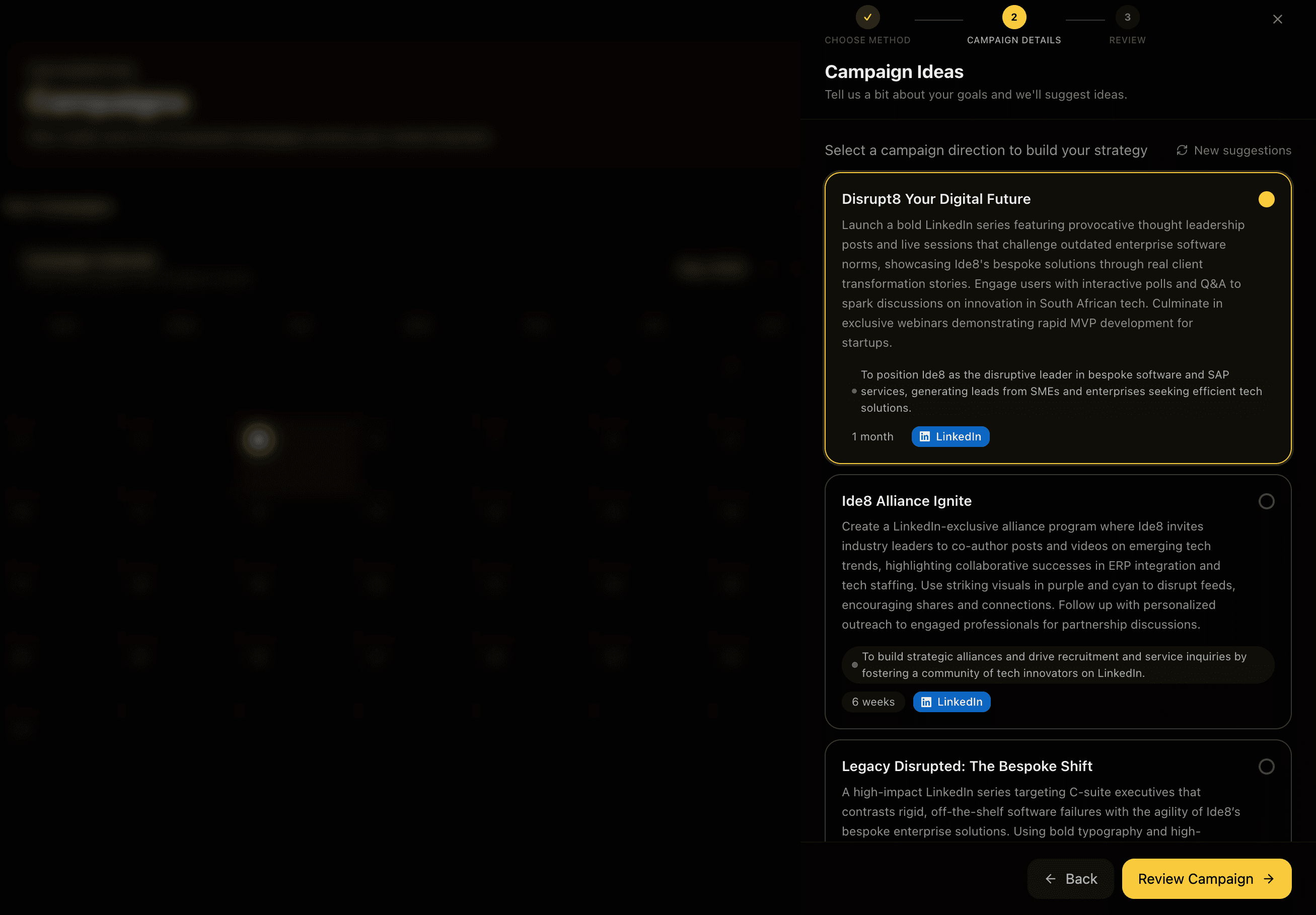
From your goal and platforms, the Assistant generates multiple complete, named campaign concepts, not prompts or titles, but full strategic directions each with a name, a detailed description, a primary goal, estimated duration, and the target platform. Each concept is a different angle on the same brief. Select the one that fits and move straight into review.

Feature Preview

Assistant Generates Complete Campaign Concepts

04
CONCEPTS·Step 4

Assistant Generates Complete Campaign Concepts

From your goal and platforms, the Assistant generates multiple complete, named campaign concepts, not prompts or titles, but full strategic directions each with a name, a detailed description, a primary goal, estimated duration, and the target platform. Each concept is a different angle on the same brief. Select the one that fits and move straight into review.

Getting three fully-formed campaign strategies from a single sentence is the moment the tool earns its keep, real range, real structure, zero blank-page friction.

Captures
Named conceptsFull descriptionsPrimary goalEstimated durationPlatform-matchedMultiple directions
Review Before You CreateReview Before You Create
REVIEW·Step 5

Review Before You Create

Review Before You Create

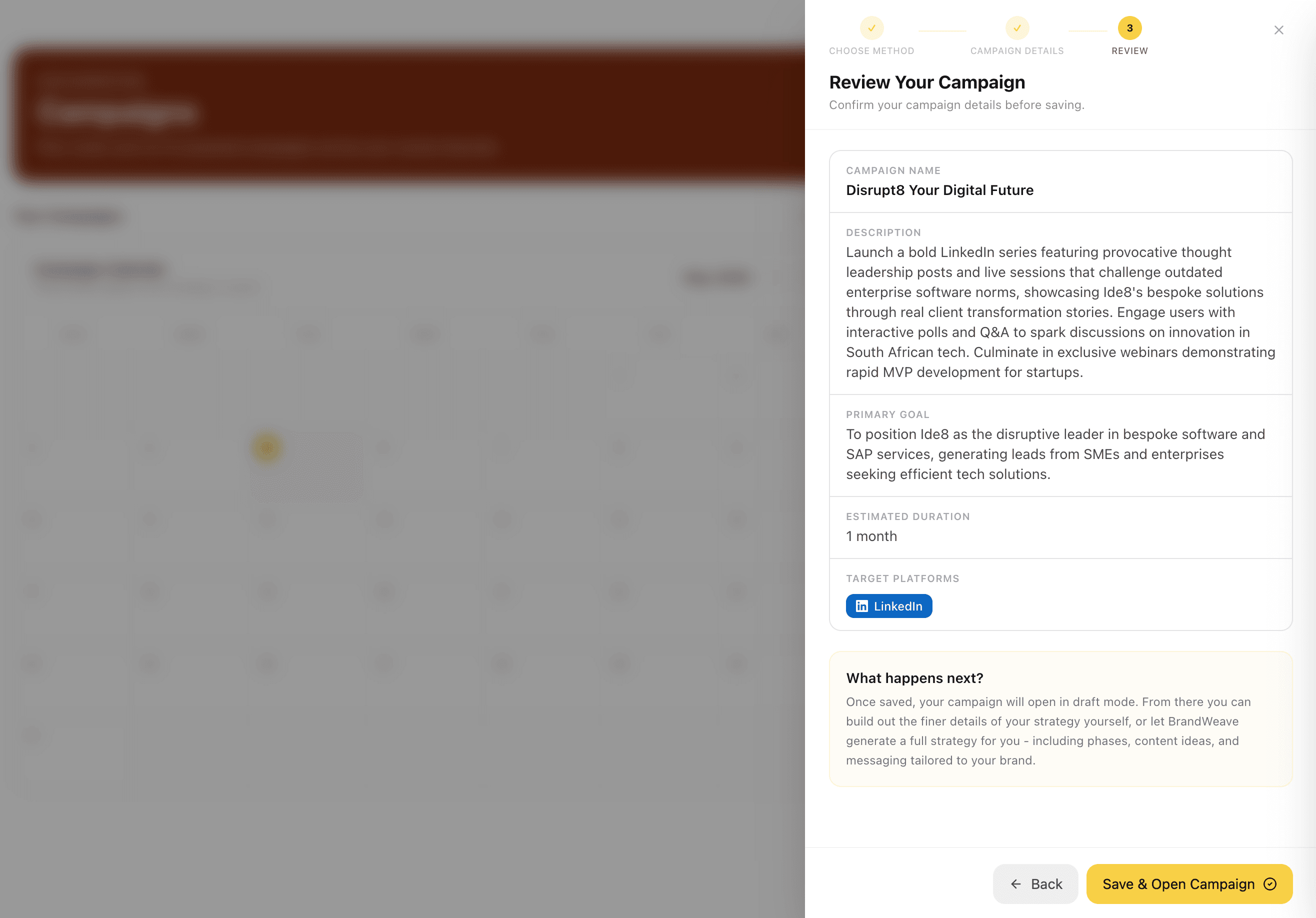
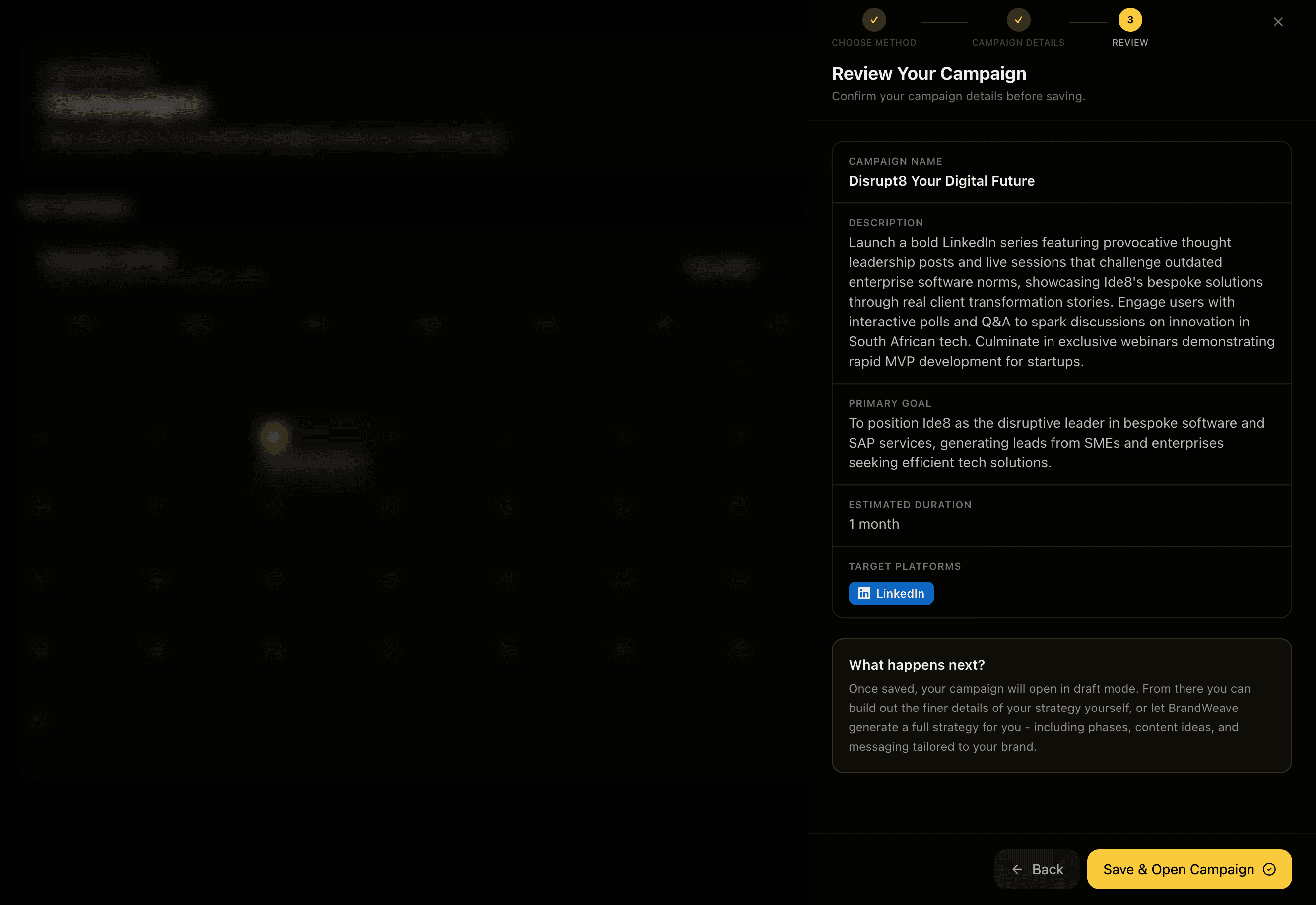
Before the campaign is saved, review everything the Assistant has produced: the campaign name, full description, primary goal statement, estimated duration, and target platforms. This is the last checkpoint before the strategy builder opens, make sure the direction is right before committing to the 8-step process.

Feature Preview

Review Before You Create

05
REVIEW·Step 5

Review Before You Create

Before the campaign is saved, review everything the Assistant has produced: the campaign name, full description, primary goal statement, estimated duration, and target platforms. This is the last checkpoint before the strategy builder opens, make sure the direction is right before committing to the 8-step process.

A review gate before creation prevents the common mistake of opening a complex builder and realising the concept was wrong on step 4.

Captures
Campaign nameDescriptionPrimary goalDurationPlatformsLast checkpoint
Step 1 of 8, OverviewStep 1 of 8, Overview
STRATEGY·Step 6

Step 1 of 8, Overview

Step 1 of 8, Overview

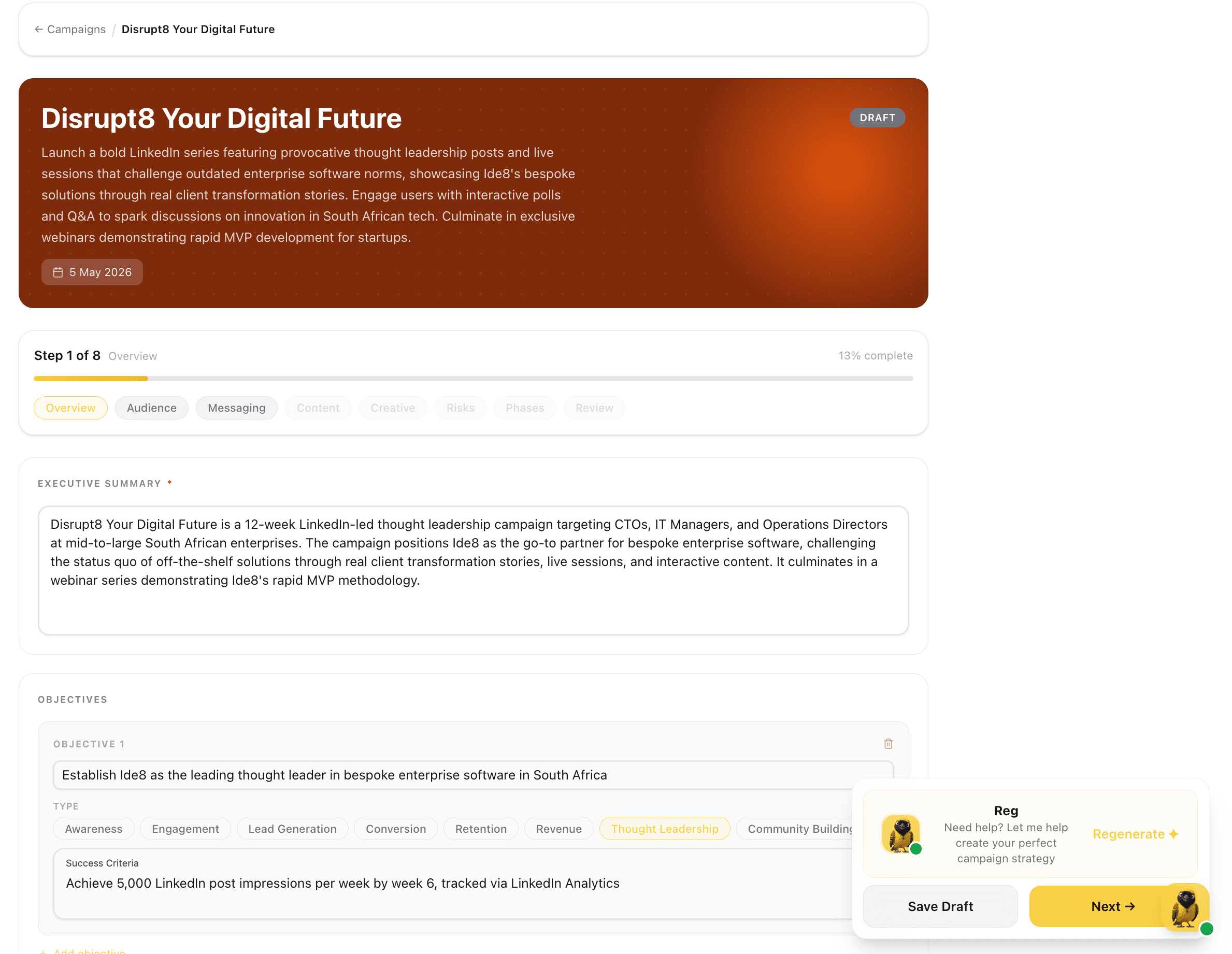
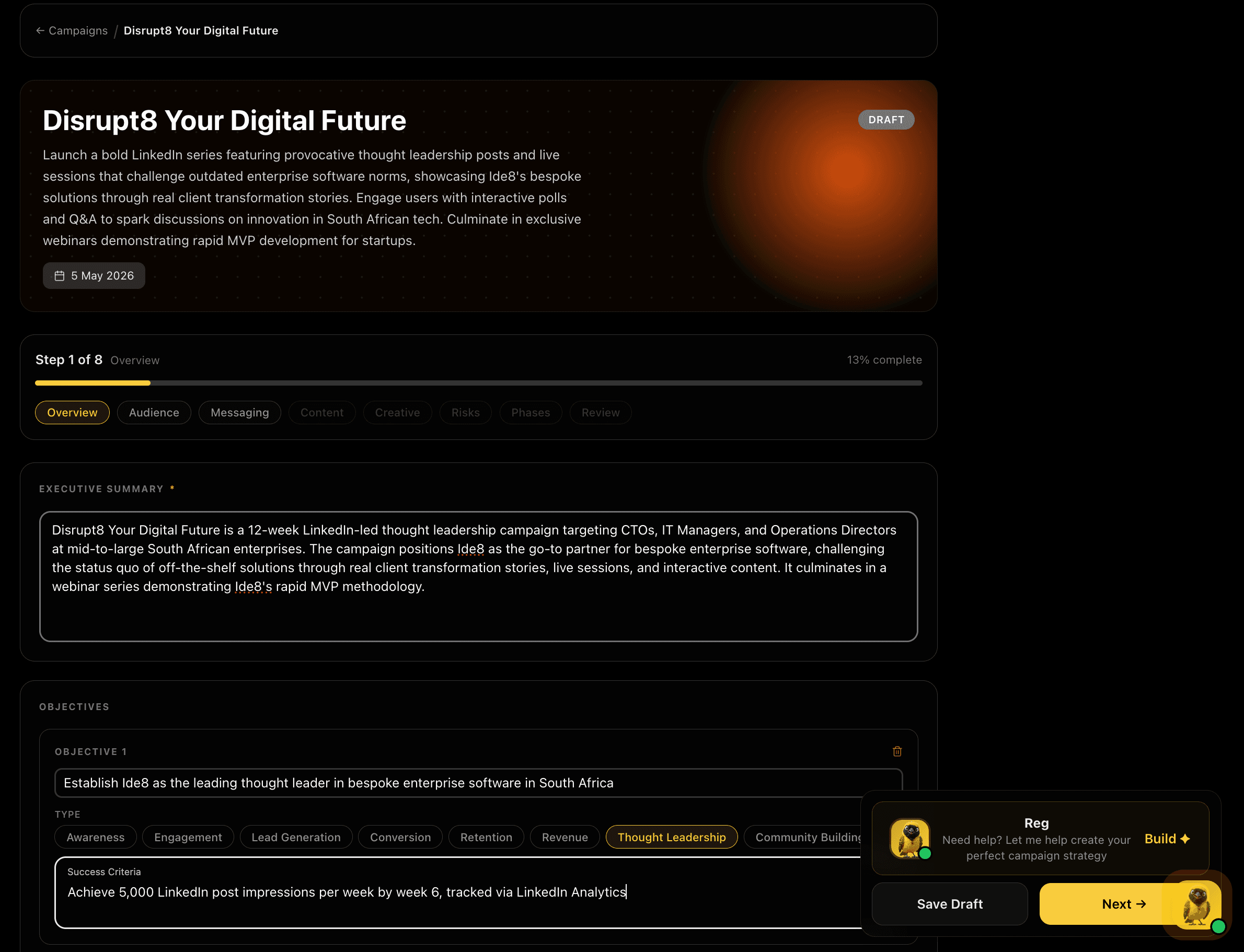
The strategy builder opens at the Overview step. Write the executive summary, a high-level description of who this campaign targets, what it aims to achieve, and the overall approach. Then define your objectives: one per row, each with a type (Awareness, Lead Generation, Thought Leadership, Conversion, and more) and a measurable success criterion. David is available in the sidebar to generate or regenerate any section.

Feature Preview

Step 1 of 8, Overview

06
STRATEGY·Step 6

Step 1 of 8, Overview

The strategy builder opens at the Overview step. Write the executive summary, a high-level description of who this campaign targets, what it aims to achieve, and the overall approach. Then define your objectives: one per row, each with a type (Awareness, Lead Generation, Thought Leadership, Conversion, and more) and a measurable success criterion. David is available in the sidebar to generate or regenerate any section.

Objectives with types and measurable criteria set the standard that every later step, messaging, content, phases, is written to meet.

Captures
Executive summaryObjectivesObjective typesSuccess criteria8 typesDavid co-creation
Messaging, Voice and Supporting StructureMessaging, Voice and Supporting Structure
STRATEGY·Step 7

Messaging, Voice and Supporting Structure

Messaging, Voice and Supporting Structure

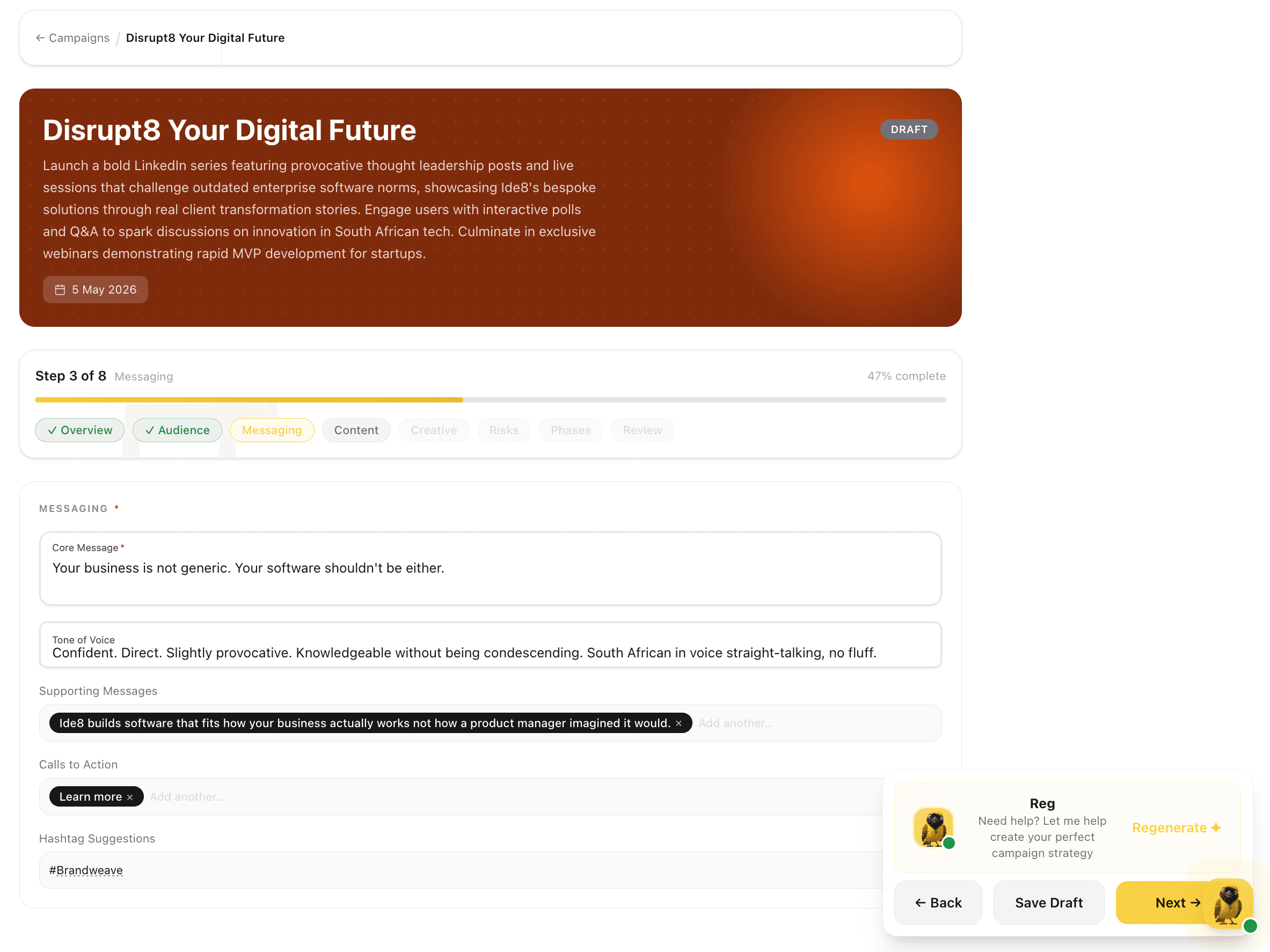
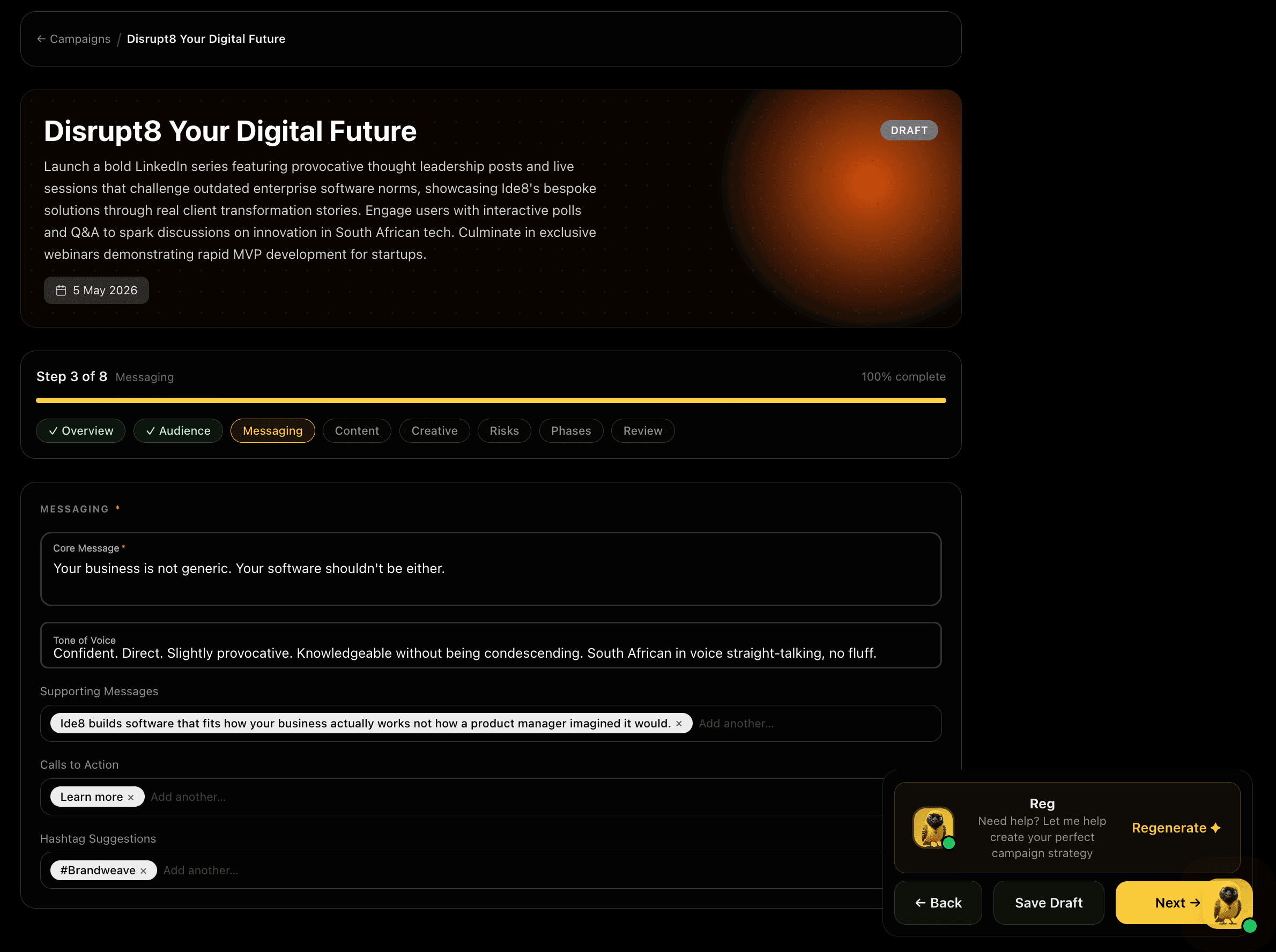
The Messaging step captures your core message, tone of voice, supporting messages, calls to action, and hashtag suggestions, all in one structured section. Each field can be filled manually or handed to David to generate from your brand context and the campaign objectives already set. Supporting messages and CTAs are chips you can add, edit, or remove individually.

Feature Preview

Messaging, Voice and Supporting Structure

07
STRATEGY·Step 7

Messaging, Voice and Supporting Structure

The Messaging step captures your core message, tone of voice, supporting messages, calls to action, and hashtag suggestions, all in one structured section. Each field can be filled manually or handed to David to generate from your brand context and the campaign objectives already set. Supporting messages and CTAs are chips you can add, edit, or remove individually.

Locking in tone of voice and core messaging at step 3 means every content pillar and creative direction in later steps is anchored to the same voice.

Captures
Core messageTone of voiceSupporting messagesCTAsHashtagsDavid generation
Content, Pillars, Formats, and ExamplesContent, Pillars, Formats, and Examples
STRATEGY·Step 8

Content, Pillars, Formats, and Examples

Content, Pillars, Formats, and Examples

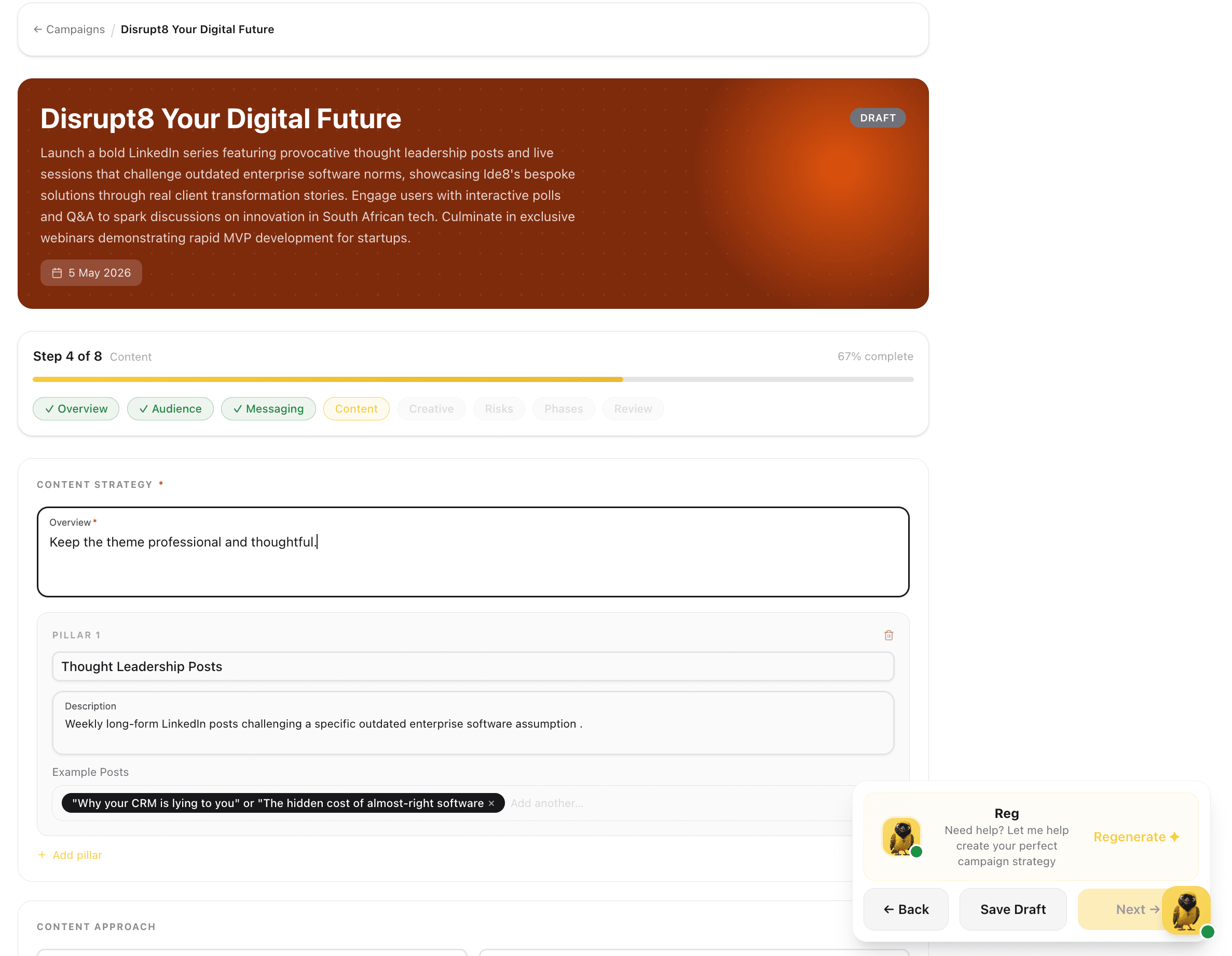
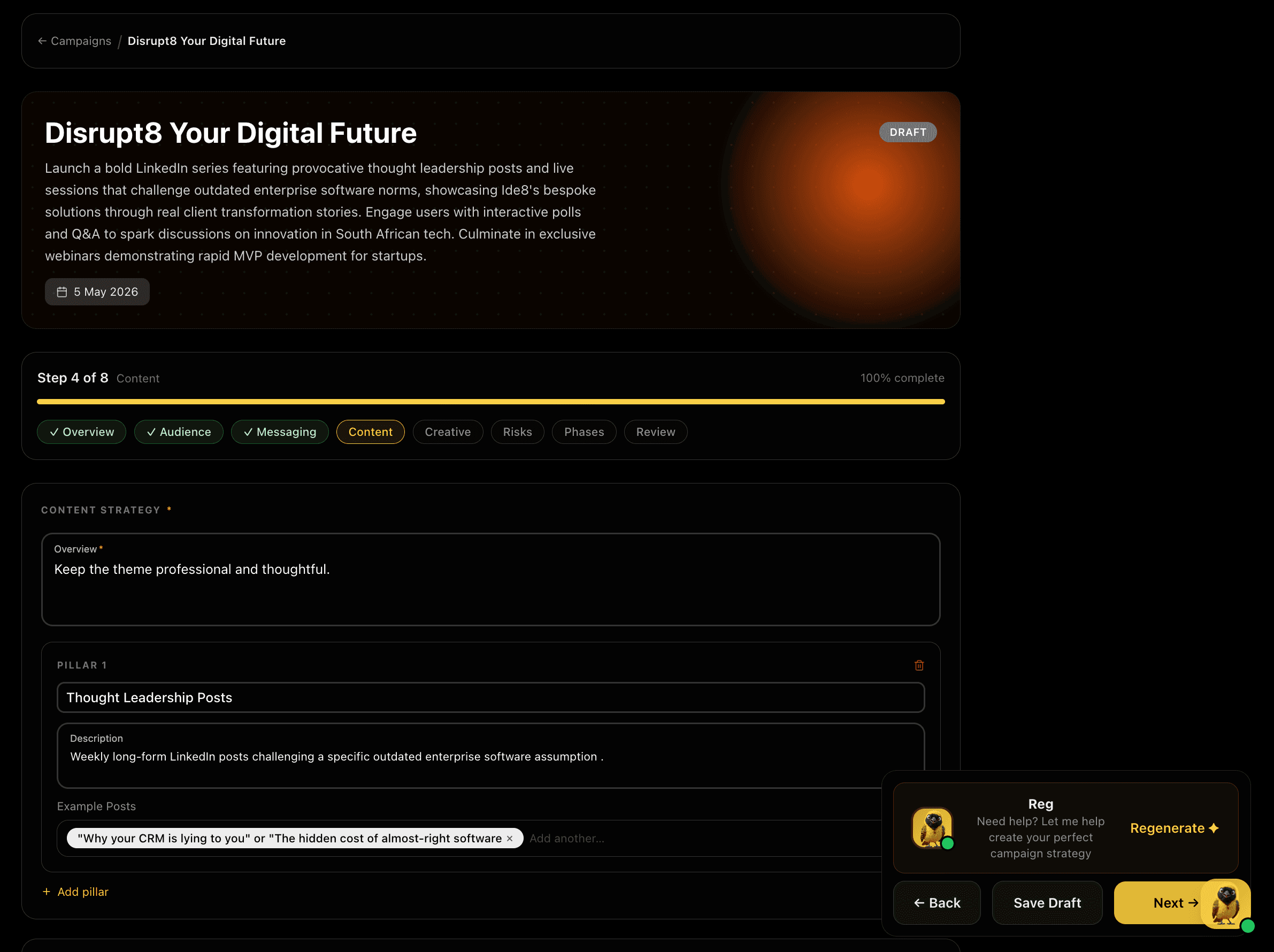
The Content step is built around pillars: each pillar has a name, a description of the content type, and example posts or formats. Add as many pillars as the campaign needs. The overview field sets the overall content tone. Example posts are chips, add specifics that can be handed directly to a content writer or used as Assistant generation prompts in the next campaign run.

Feature Preview

Content, Pillars, Formats, and Examples

08
STRATEGY·Step 8

Content, Pillars, Formats, and Examples

The Content step is built around pillars: each pillar has a name, a description of the content type, and example posts or formats. Add as many pillars as the campaign needs. The overview field sets the overall content tone. Example posts are chips, add specifics that can be handed directly to a content writer or used as Assistant generation prompts in the next campaign run.

Content pillars give writers and Assistant alike a structured brief, not just a vague direction, but named formats with example outputs attached.

Captures
Content overviewNamed pillarsContent descriptionsExample postsAdd pillarDavid generation
Phases, Execution Planning with DatesPhases, Execution Planning with Dates
STRATEGY·Step 9 of 10

Phases, Execution Planning with Dates

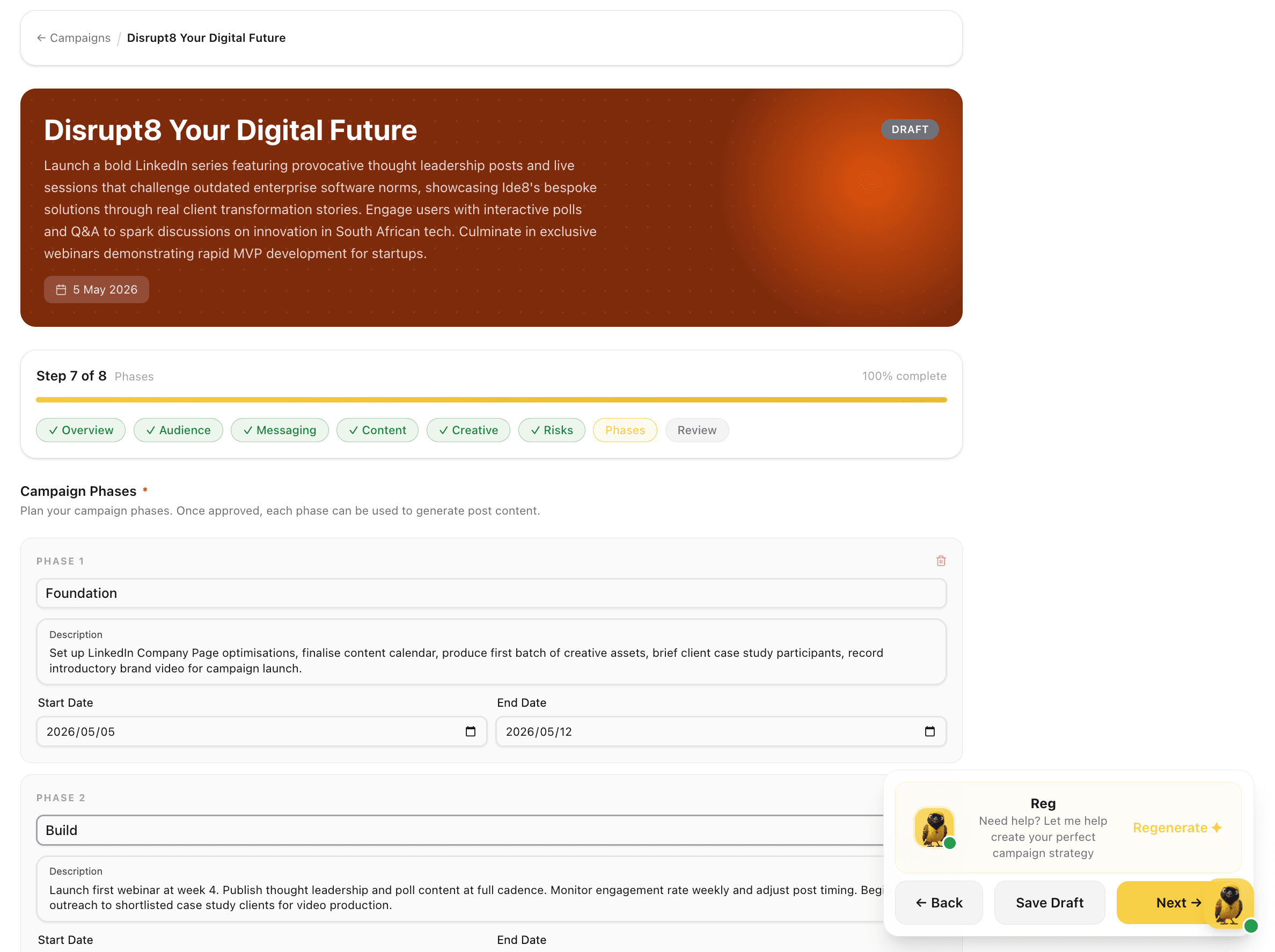
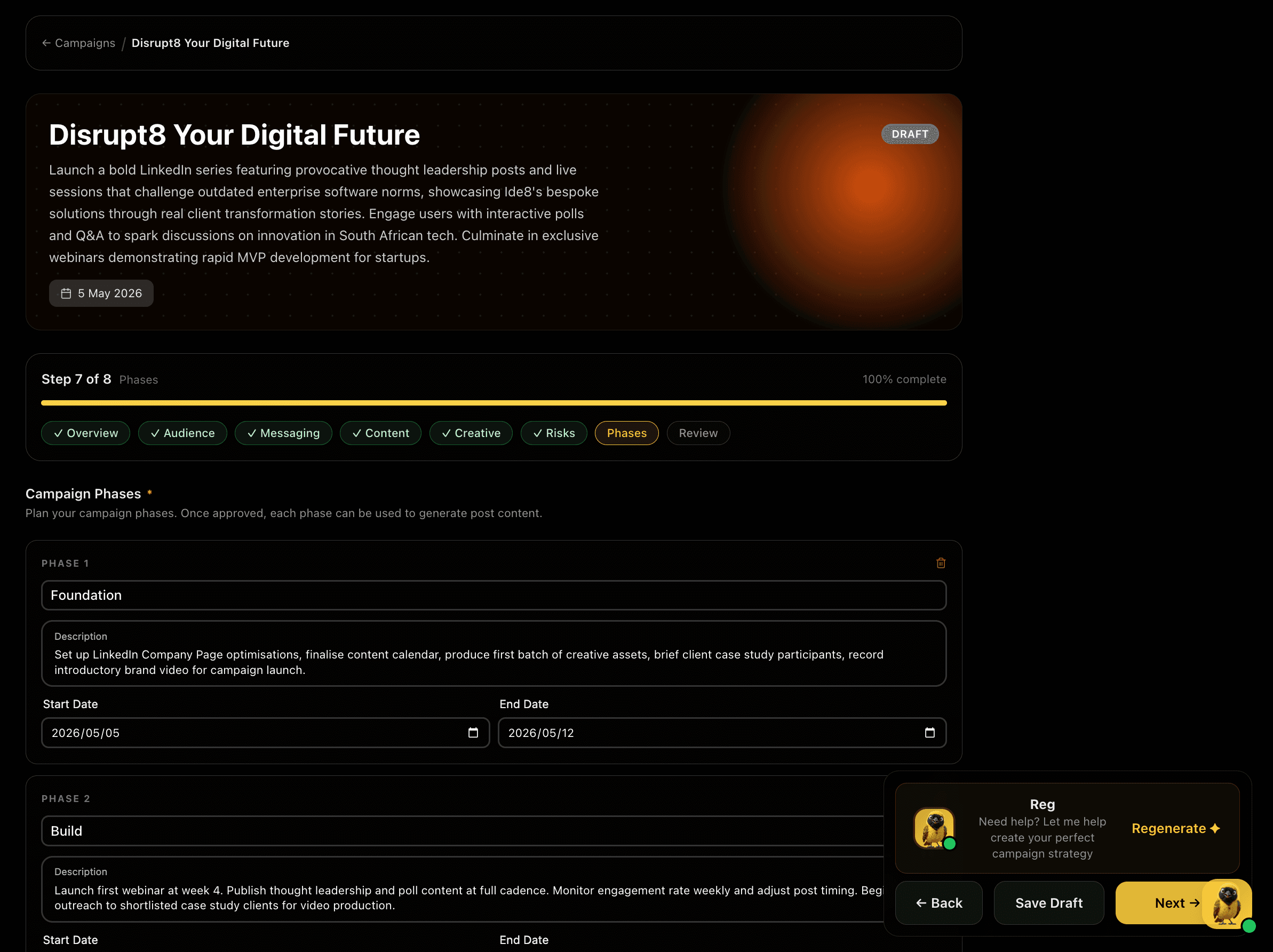
The Phases step breaks the campaign into named execution phases, Foundation, Build, Culminate, each with a description of what happens in that window and a start and end date.
Named phasesPhase descriptionsStart and end datesCalendar visualisationExecution arc
Step 8, Review and ApproveStep 8, Review and Approve
COMPLETE·Step 10

Step 8, Review and Approve

Step 8, Review and Approve

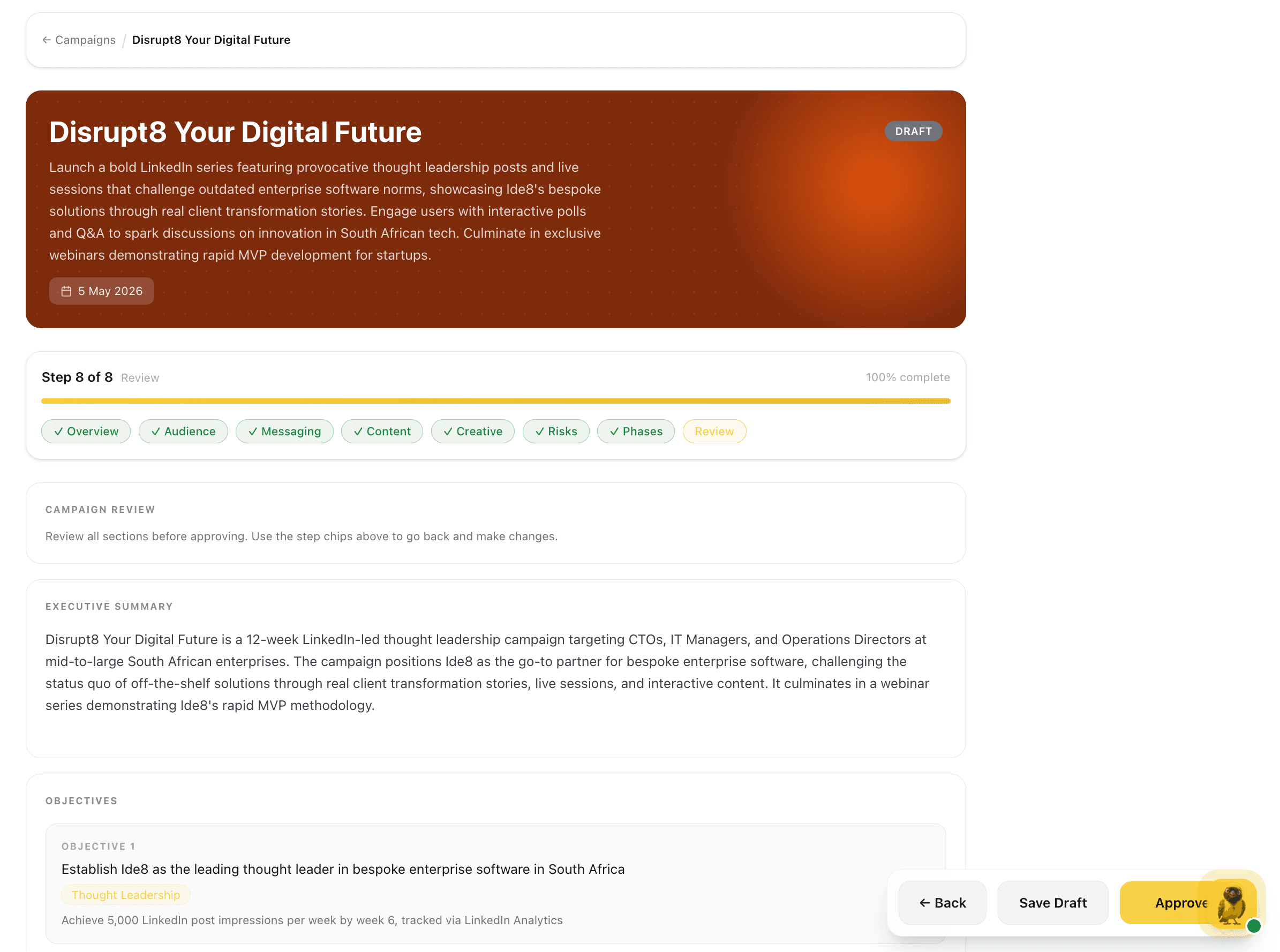
The final step shows the complete campaign strategy, every section filled, every step marked complete in the nav. Review the executive summary, objectives, audience personas, messaging, content pillars, creative direction, risk register, and phases in one scrollable view before approving. Use the step chips to jump back and edit any section before committing.

Feature Preview

Step 8, Review and Approve

10
COMPLETE·Step 10

Step 8, Review and Approve

The final step shows the complete campaign strategy, every section filled, every step marked complete in the nav. Review the executive summary, objectives, audience personas, messaging, content pillars, creative direction, risk register, and phases in one scrollable view before approving. Use the step chips to jump back and edit any section before committing.

Seeing the entire strategy in one view before approval surfaces gaps and inconsistencies that individual steps do not reveal, the final quality gate before execution begins.

Captures

All 8 steps completeFull strategy reviewJump to any stepApprove campaign