
BrandWeave
BrandWeave
Back home
Log in
Get Started
Theme
Log in
Feature Tour
BrandWeave

Pages

HomeFeatures TourPersona Journeys

Use Cases

Founder JourneySmall Business JourneyEnterprise Journey

Explore

PricingCompareFAQ

© 2026 BrandWeave. All rights reserved.

Ide8 Technologies
A proud product of Ide8 Technologies (Pty) Ltd
Privacy PolicyTerms of ServiceRefund Policy
Logo Sets

From brief to brand-ready logo set, in one structured flow.

Logo Sets take you from a written brief through concept selection, Assistant refinement, variant generation, and final review. Every step is built for decision quality, so the set you produce is one you can actually ship.
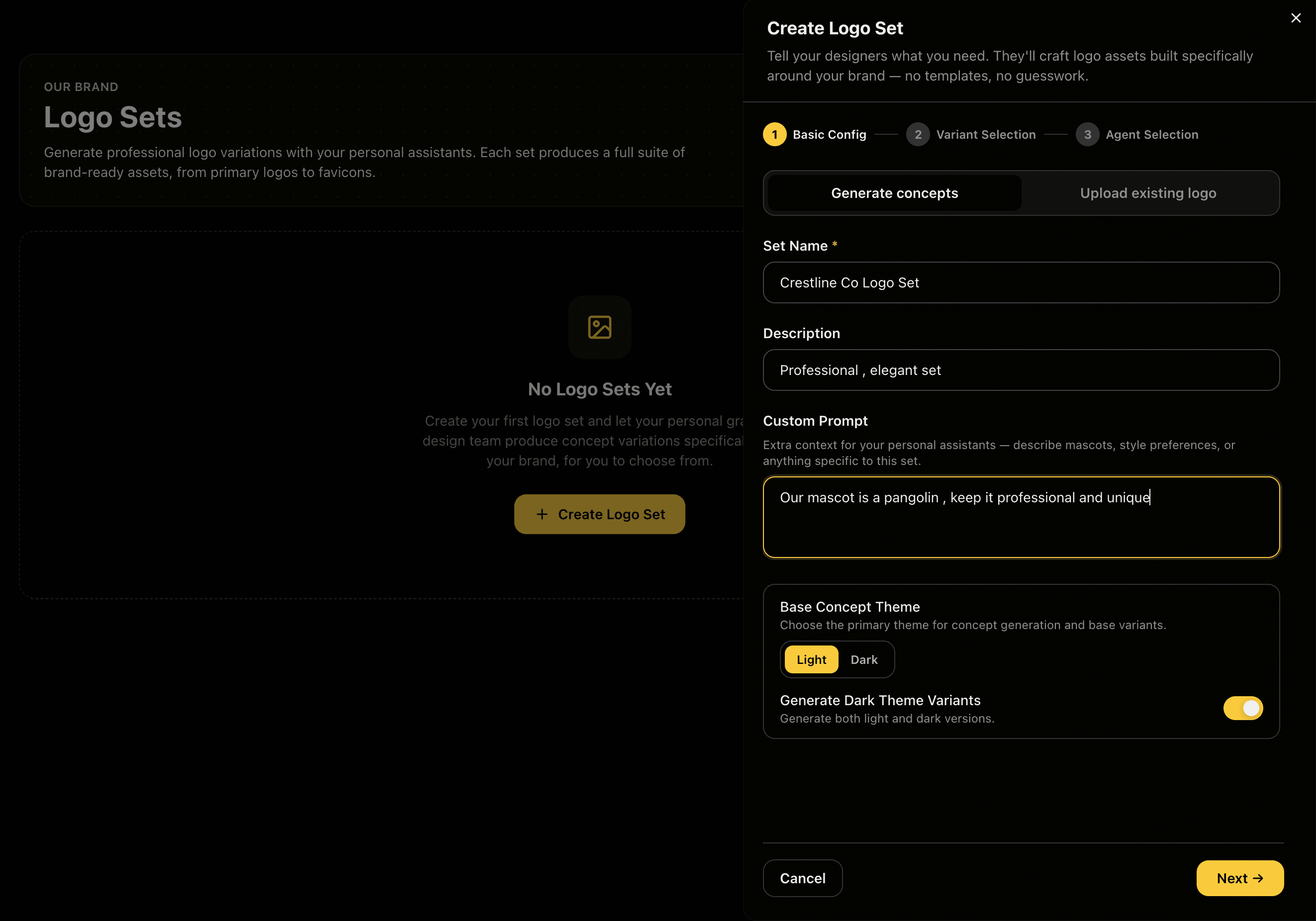
Set the BriefSet the Brief
CREATE·Step 1

Set the Brief

Set the Brief

Name your logo set and describe what it needs to achieve. Add a custom prompt for extra direction: mascot preferences, geometric shapes, colour hints, anything that matters. Choose your base concept theme (light or dark) and whether to generate both variants. You get to choose which variants you need together with the agents to generate your concepts accordingly.

Feature Preview

Set the Brief

01
CREATE·Step 1

Set the Brief

Name your logo set and describe what it needs to achieve. Add a custom prompt for extra direction: mascot preferences, geometric shapes, colour hints, anything that matters. Choose your base concept theme (light or dark) and whether to generate both variants. You get to choose which variants you need together with the agents to generate your concepts accordingly.

A sharp brief narrows the Assistant's creative range toward your actual vision. Vague in, vague out.

Captures

Set nameDescriptionCustom promptBase themeDark variants
Choose Concepts from Assistant DesignersChoose Concepts from Assistant Designers
CONCEPTS·Step 2

Choose Concepts from Assistant Designers

Choose Concepts from Assistant Designers

Four distinct Assistant design agents (David, Franky, Xavier, and Felix) each interpret your brief in their own style and generate two logo concepts. You see all directions side by side, then select up to three to carry forward. Each agent has a different aesthetic personality, so you get real creative distance, not just colour variations.

Feature Preview

Choose Concepts from Assistant Designers

02
CONCEPTS·Step 2

Choose Concepts from Assistant Designers

Four distinct Assistant design agents (David, Franky, Xavier, and Felix) each interpret your brief in their own style and generate two logo concepts. You see all directions side by side, then select up to three to carry forward. Each agent has a different aesthetic personality, so you get real creative distance, not just colour variations.

Multiple design personalities mean more meaningful comparison. You're choosing a creative direction, not just a variant.

Captures

4 Assistant designers2 concepts per agentSelect up to 3Style diversity
Pick Your Base DirectionPick Your Base Direction
REFINE·Step 3

Pick Your Base Direction

Pick Your Base Direction

From your selected concepts, choose one as the base you'll refine and generate all variants from. It's displayed full-size so you can make a confident call. This is the direction everything else builds on. Choose the one with the strongest bones, not just the prettiest execution.

Feature Preview

Pick Your Base Direction

03
REFINE·Step 3

Pick Your Base Direction

From your selected concepts, choose one as the base you'll refine and generate all variants from. It's displayed full-size so you can make a confident call. This is the direction everything else builds on. Choose the one with the strongest bones, not just the prettiest execution.

Locking a base before generation keeps the full variant set coherent and prevents wasted credits on the wrong direction.

Captures

Base selectionFull-size previewConcept comparison
Refine with Assistant ChatRefine with Assistant Chat
REFINE·Step 4

Refine with Assistant Chat

Refine with Assistant Chat

Chat directly with David, your personal graphic design assistant, to adjust the selected concept before generating. Change colours, rewrite the slogan, adjust proportions, swap the icon. David applies your request and shows you the updated version inline. Iterate until it's right, then advance.

Feature Preview

Refine with Assistant Chat

04
REFINE·Step 4

Refine with Assistant Chat

Chat directly with David, your personal graphic design assistant, to adjust the selected concept before generating. Change colours, rewrite the slogan, adjust proportions, swap the icon. David applies your request and shows you the updated version inline. Iterate until it's right, then advance.

Refining before generation means every variant starts from an approved base. Fewer regenerations, lower credit spend.

Captures

Assistant chatLive updatesColour editsSlogan tweaksLayout adjustments
Review Generation SettingsReview Generation Settings
GENERATE·Step 5

Review Generation Settings

Review Generation Settings

Before anything is generated, review the exact variants that will be produced: Primary Logo, Icon Only, Monochrome, and Wordmark. See which are new, which are already generated and can be skipped, and the exact credit cost. Toggle dark mode generation on or off. Nothing runs until you confirm.

Feature Preview

Review Generation Settings

05
GENERATE·Step 5

Review Generation Settings

Before anything is generated, review the exact variants that will be produced: Primary Logo, Icon Only, Monochrome, and Wordmark. See which are new, which are already generated and can be skipped, and the exact credit cost. Toggle dark mode generation on or off. Nothing runs until you confirm.

Full transparency on what generates and what it costs. No surprises when the run completes.

Captures

Variant checklistSkip generatedCredit cost previewDark mode toggle
Generated VariantsGenerated Variants
GENERATE·Step 6

Generated Variants

Generated Variants

All four variants are generated in one run: Primary Logo, Icon Only, Wordmark, and Monochrome Logo, each in both light and dark. Review them in the Generate tab before advancing. You can regenerate individual variants from here if one missed the mark.

Feature Preview

Generated Variants

06
GENERATE·Step 6

Generated Variants

All four variants are generated in one run: Primary Logo, Icon Only, Wordmark, and Monochrome Logo, each in both light and dark. Review them in the Generate tab before advancing. You can regenerate individual variants from here if one missed the mark.

A complete logo system in one generation: primary, icon, type-only, and mono, all from your approved and refined base.

Captures

Primary LogoIcon OnlyWordmarkMonochromeLight + Dark
Review All VariantsReview All Variants
REVIEW·Step 7

Review All Variants

Review All Variants

All variants are laid out side by side in light and dark for a clean final check. Each one shows a ready indicator. This is your confirmation step before you commit to downloading your assets.

Feature Preview

Review All Variants

07
REVIEW·Step 7

Review All Variants

All variants are laid out side by side in light and dark for a clean final check. Each one shows a ready indicator. This is your confirmation step before you commit to downloading your assets.

Reviewing everything together reveals inconsistencies you'd miss looking at each variant in isolation.

Captures

Side-by-side reviewLight + DarkVariant statusSelective viewing
Download Your SetDownload Your Set
DOWNLOAD·Step 8

Download Your Set

Download Your Set

Your complete logo set is ready. Download files across variants in both light and dark. The set is automatically saved to your Logo Sets library as well as your asset library ,so it's always available.

Feature Preview

Download Your Set

08
DOWNLOAD·Step 8

Download Your Set

Your complete logo set is ready. Download files across variants in both light and dark. The set is automatically saved to your Logo Sets library as well as your asset library ,so it's always available.

Production-ready files, both themes, all variants, in one download. Nothing to export or convert manually.

Captures

4 variants8 filesLight + DarkSaved to library
Logo Sets LibraryLogo Sets Library
COMPLETE·Step 9 of 9

Logo Sets Library

Your finalized set lives in the Logo Sets dashboard, marked Final, with all variants displayed as a visual grid. Clone it to explore alternative directions, download any time, or start a new set for a sub-brand. Every set you build stays organized here.

Final badgeCloneDownload anytimeMulti-set support